
What Are Odoo Reports and Why They Matter

Odoo reports transform raw data into actionable insights. Whether you need invoices, delivery slips, analytical dashboards, or custom business reports, Odoo provides multiple tools to present data effectively.
TL;DR: What You Need to Know
- Native integration: Everything works within Odoo: no third-party tools required
- Quick setup: Follow the step-by-step guide to configure in under 30 minutes
- Full tracking: Monitor results with built-in analytics and reporting
Effective reporting helps you:
- Track sales performance and identify trends
- Monitor inventory levels and turnover rates
- Analyze profitability by product, customer, or region
- Make data-driven decisions quickly
This guide covers three reporting approaches: QWeb reports (PDF/HTML documents), pivot views (interactive data tables), and graph views (visual charts).
QWeb Reports: Professional PDF Documents
QWeb is Odoo's templating engine for generating PDF and HTML reports. Invoices, quotations, delivery slips, and purchase orders all use QWeb templates.
Report Structure
A QWeb report consists of three components:
- Report Action - Defines how the report is triggered
- Report Template - QWeb XML defining the layout
- Model - The data source (sale.order, invoice, etc.)
Creating a Custom QWeb Report
Example: Create a custom sales order summary report:
<?xml version="1.0" encoding="utf-8"?>
<odoo>
 <!-- Report Action -->
 <record id="action_sales_summary_report" model="ir.actions.report">
 <field name="name">Sales Summary</field>
 <field name="model">sale.order</field>
 <field name="report_type">qweb-pdf</field>
 <field name="report_name">sales_module.sales_summary_template</field>
 <field name="report_file">sales_module.sales_summary_template</field>
 <field name="binding_model_id" ref="model_sale_order"/>
 <field name="binding_type">report</field>
 </record>

 <!-- QWeb Template -->
 <template id="sales_summary_template">
 <t t-call="web.html_container">
 <t t-foreach="docs" t-as="doc">
 <div class="page">
 <h1>Sales Order Summary</h1>
 <p>Order: <t t-esc="doc.name"/></p>
 <p>Customer: <t t-esc="doc.partner_id.name"/></p>
 <p>Total: <t t-esc="doc.amount_total"/></p>
 </div>
 </t>
 </t>
 </template>
</odoo>

Common QWeb Directives
| Directive | Purpose | Example |
|---|---|---|
t-esc |
Escape and print value | <t t-esc="doc.name"/> |
t-foreach |
Loop over records | <t t-foreach="docs" t-as="doc"> |
t-if |
Conditional rendering | <t t-if="doc.state == 'sale'"> |
t-field |
Render field with widget | <span t-field="doc.date"/> |
Pivot Views: Interactive Data Analysis
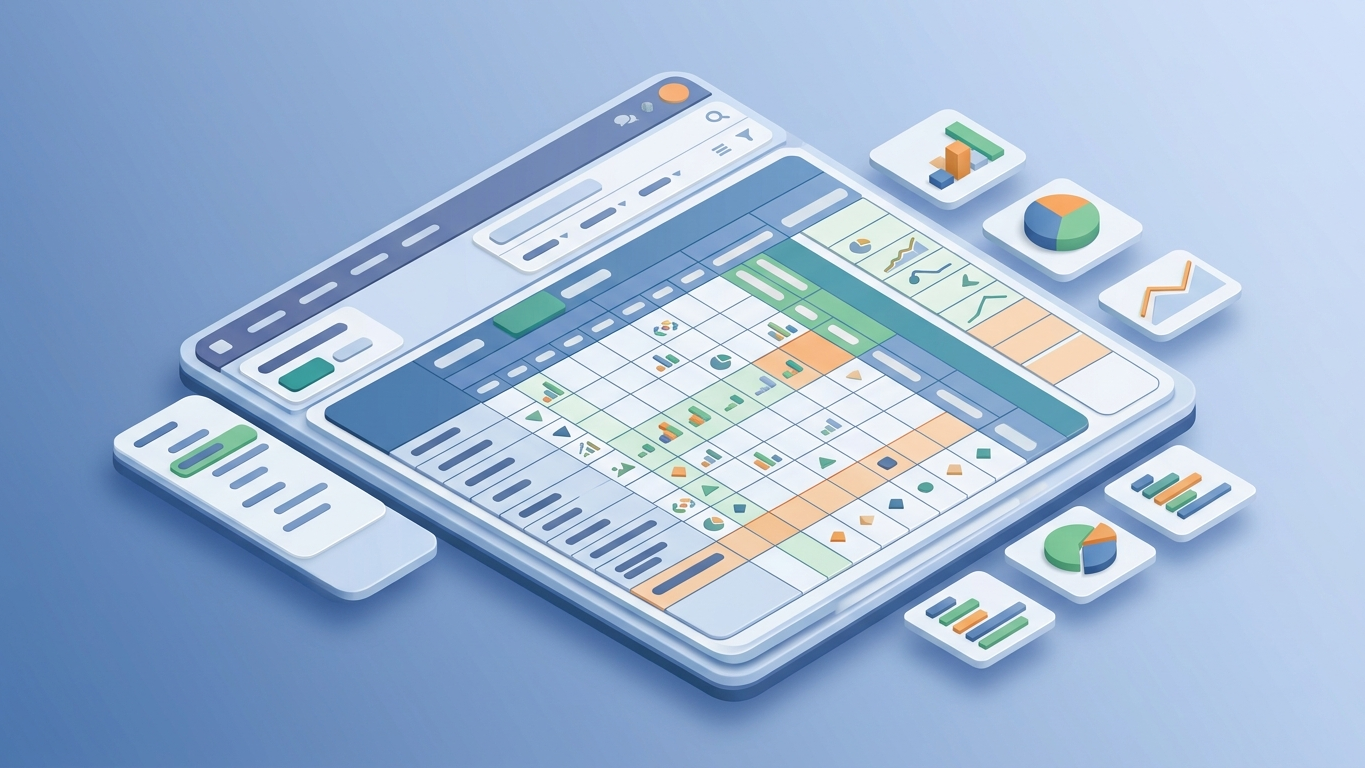
Pivot views allow users to analyze data dynamically by dragging and dropping dimensions. They're ideal for comparing sales by region, product performance, or inventory turnover.
Defining a Pivot View

Add a pivot view to your module's XML:
<record id="view_sales_pivot" model="ir.ui.view">
 <field name="name">sale.order.pivot</field>
 <field name="model">sale.order</field>
 <field name="arch" type="xml">
 <pivot string="Sales Analysis">
 <field name="partner_id" type="row"/>
 <field name="date_order" type="col" interval="month"/>
 <field name="amount_total" type="measure"/>
 </pivot>
 </field>
</record>
This creates a pivot table showing total sales amount by customer (rows) and order date by month (columns).
Pivot Field Types
- row - Groups data in rows
- col - Groups data in columns
- measure - Aggregated values (sum, avg, count)
Adding Pivot to Menu
<menuitem id="menu_sales_analysis"
 name="Sales Analysis"
 parent="sale.sale_menu_report"
 action="action_sales_pivot_view"
 sequence="10"/>

<record id="action_sales_pivot_view" model="ir.actions.act_window">
 <field name="name">Sales Analysis</field>
 <field name="res_model">sale.order</field>
 <field name="view_mode">pivot,tree</field>
</record>
Graph Views: Visual Data Representation
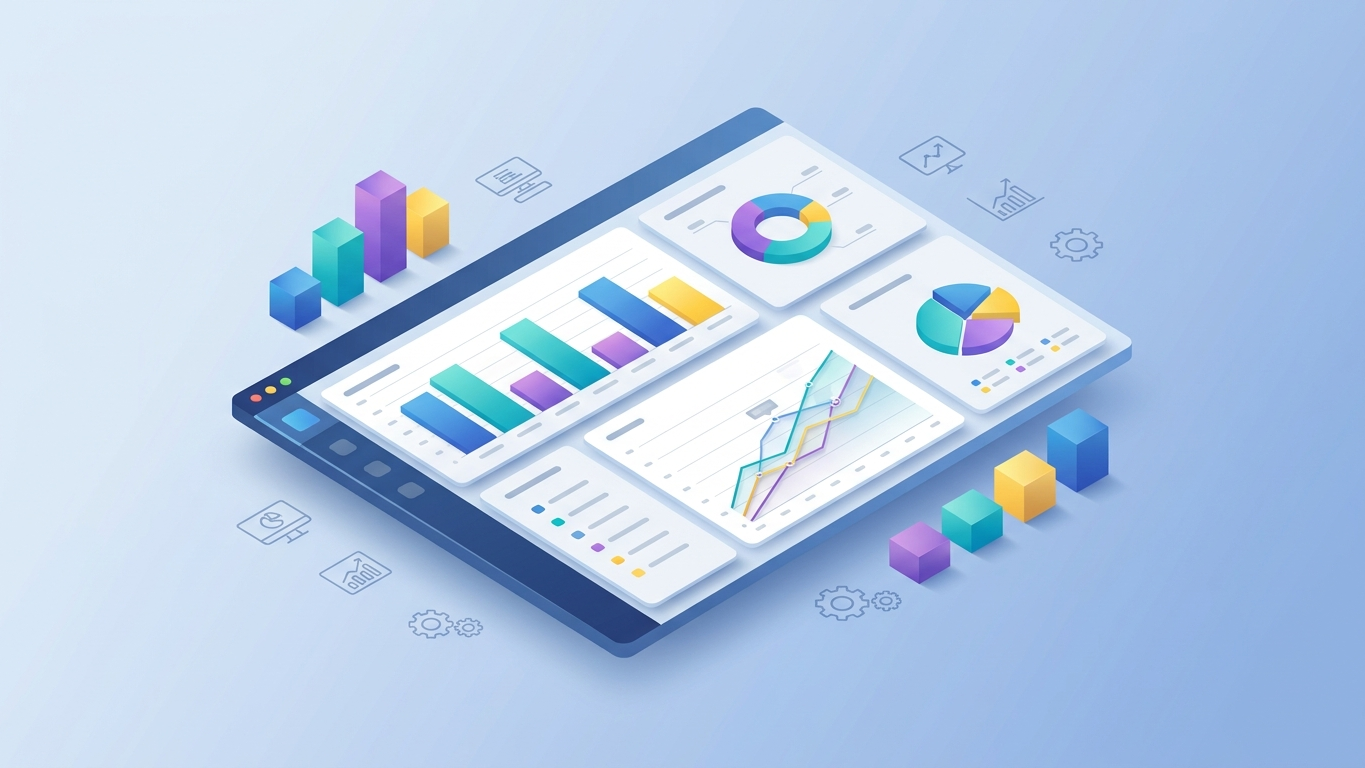
Graph views provide visual charts (bar, line, pie) for quick data comprehension. They're perfect for dashboards and executive summaries.
Graph View Types
- bar - Comparison across categories
- line - Trends over time
- pie - Proportions of a whole
Creating a Bar Chart
<record id="view_sales_graph_bar" model="ir.ui.view">
 <field name="name">sale.order.graph</field>
 <field name="model">sale.order</field>
 <field name="arch" type="xml">
 <graph string="Sales by Customer" type="bar">
 <field name="partner_id" type="row"/>
 <field name="amount_total" type="measure"/>
 </graph>
 </field>
</record>
Creating a Line Chart (Trend)

<graph string="Sales Trend" type="line">
 <field name="date_order" type="col" interval="month"/>
 <field name="amount_total" type="measure"/>
</graph>
Creating a Pie Chart
<graph string="Sales Distribution" type="pie">
 <field name="product_id" type="row"/>
 <field name="amount_total" type="measure"/>
</graph>
Dashboard Views: Combining Multiple Visualizations
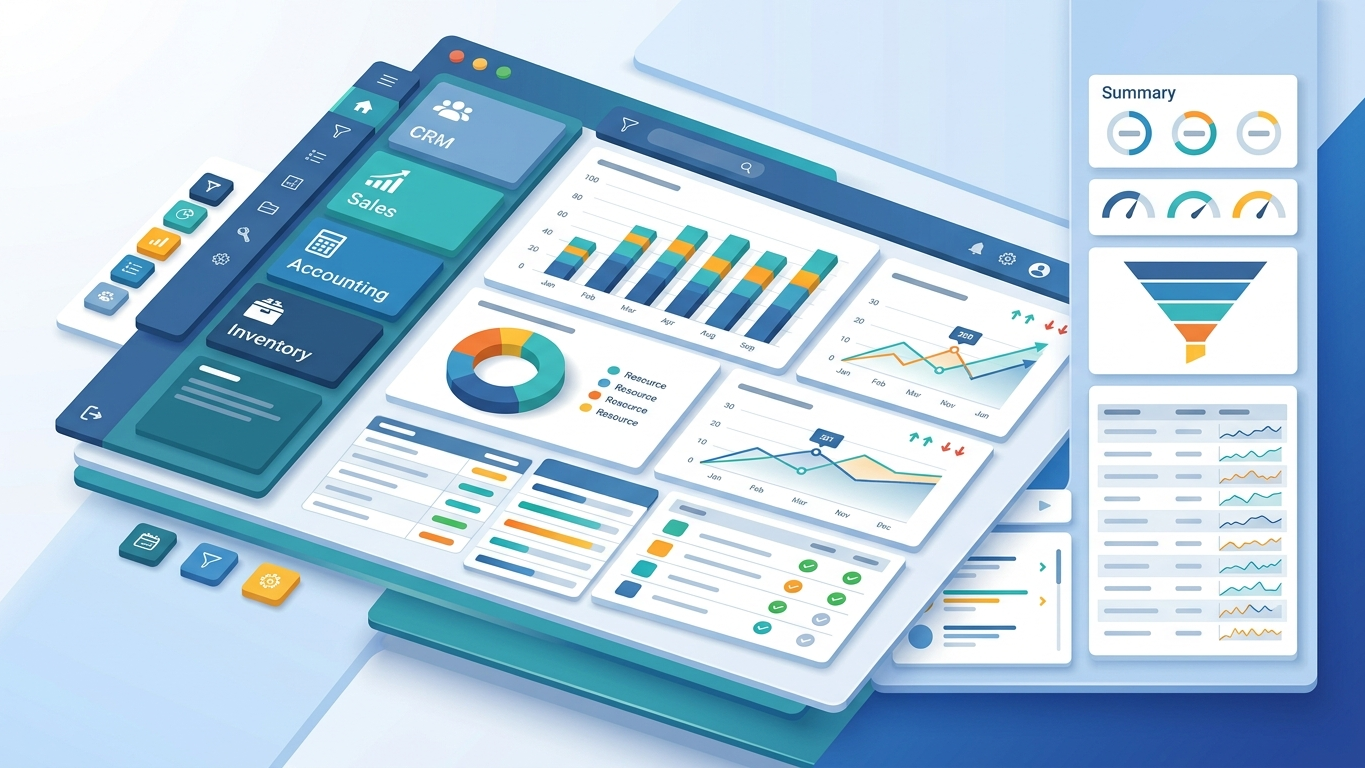
Odoo dashboards combine multiple views (pivot, graph, kanban) on a single screen for comprehensive business intelligence.
Creating a Dashboard
Use Odoo's spreadsheet feature or create a custom dashboard view:
- Go to Settings > Technical > Dashboard
- Create new dashboard
- Add tiles for key metrics
- Add graph and pivot views
- Arrange layout
Dashboard Tiles
Tiles show key metrics at a glance:
<record id="dashboard_tile_sales" model="dashboard.tile">
 <field name="name">Monthly Sales</field>
 <field name="model_id" ref="model_sale_order"/>
 <field name="query">SELECT SUM(amount_total) FROM sale_order WHERE date_order > date_trunc('month', NOW())</field>
</record>
Best Practices for Odoo Reports
Performance Optimization

- Use indexed fields in filters and groupings
- Limit record sets with domain filters
- Avoid complex computations in report templates
- Cache frequently accessed data
Design Guidelines
- Keep layouts clean and professional
- Use consistent branding (logo, colors, fonts)
- Include page numbers and headers/footers
- Test PDF output at different page sizes (A4, Letter)
User Experience
- Provide clear labels for all fields
- Add tooltips for complex metrics
- Enable drill-down capabilities in pivot views
- Offer export options (PDF, Excel, CSV)
Conclusion
Odoo provides powerful reporting tools: QWeb for professional PDFs, pivot views for interactive analysis, and graph views for visual insights. Master these tools to transform your data into actionable business intelligence.
Key takeaways:
- QWeb templates create professional PDF reports
- Pivot views enable dynamic data analysis
- Graph views provide visual charts (bar, line, pie)
- Dashboards combine multiple visualizations
- Optimize for performance and user experience
Summary
Odoo reporting combines QWeb templates for PDF documents, pivot views for interactive data analysis, and graph views for visual charts. Create custom reports by defining report actions and templates, configure pivot and graph views in XML, and combine visualizations in dashboards for comprehensive business intelligence.
Frequently Asked Questions
How do I add a custom logo to QWeb reports?
Upload your logo to Settings > Companies, then reference it in the template: <img t-att-src="'/web/image/res.company/%d/logo' % doc.company_id.id"/>. The logo will appear on all reports for that company.
Can I export pivot view data to Excel?

Yes, pivot views have a built-in Export button that downloads the data as an Excel (.xlsx) file. The export preserves the current grouping and measures shown in the pivot.
How do I add a custom field to an existing report?
Inherit the QWeb template using <t t-name="module.template_id" t-inherit="original.template" t-inherit-mode="extension">, then use XPath to insert your field: <xpath expr="//div[@class='address']" position="after"><p>Your content</p></xpath>.
Why is my graph view showing no data?
Check that: (1) your model has records, (2) the measure field contains numeric values, (3) the grouping field has data, and (4) any domain filters aren't excluding all records. Test with a simpler view first.
Can I schedule automatic report generation?
Yes, use Odoo's automated actions or create a scheduled action (Settings > Technical > Automation > Scheduled Actions) that generates and emails reports on a schedule (daily, weekly, monthly).
Take Your Odoo to the Next Level
Learn best practices and get expert guidance for implementing this feature in your Odoo instance.
References
- Odoo Documentation: "QWeb Reports" (2026). https://www.odoo.com/documentation/18.0/developer/reference/backend/qweb.html
- Odoo Documentation: "Pivot Views" (2026). https://www.odoo.com/documentation/18.0/developer/reference/frontend/xml_reference.html
- Odoo Documentation: "Graph Views" (2026). https://www.odoo.com/documentation/18.0/applications/productivity/spreadsheets.html
- Odoo Community Association: "Reporting Modules" (2025). https://github.com/OCA/reporting-engine
- Cybrosys Technologies: "Odoo QWeb Report Development" (2025). https://www.cybrosys.com/blog/odoo-qweb-report-development
Custom Reports for Import Operations
Building customs dashboards in Odoo? Our Customs Duties Add-on auto-generates landed cost reports with HS code breakdowns, country-specific tariff rates, and audit-ready documentation.
Explore Customs Duties Add-on$699 one-time. 30-day guarantee. 5-minute setup.