
TL;DR: What You Need to Know
- 15% average cost understatement when landed costs are tracked manually or not at all
- $12,000 per year recovered for every $100K in imports with proper allocation
- 8-step implementation from enablement to reconciliation with vendor bills
What Are Landed Costs in Odoo?
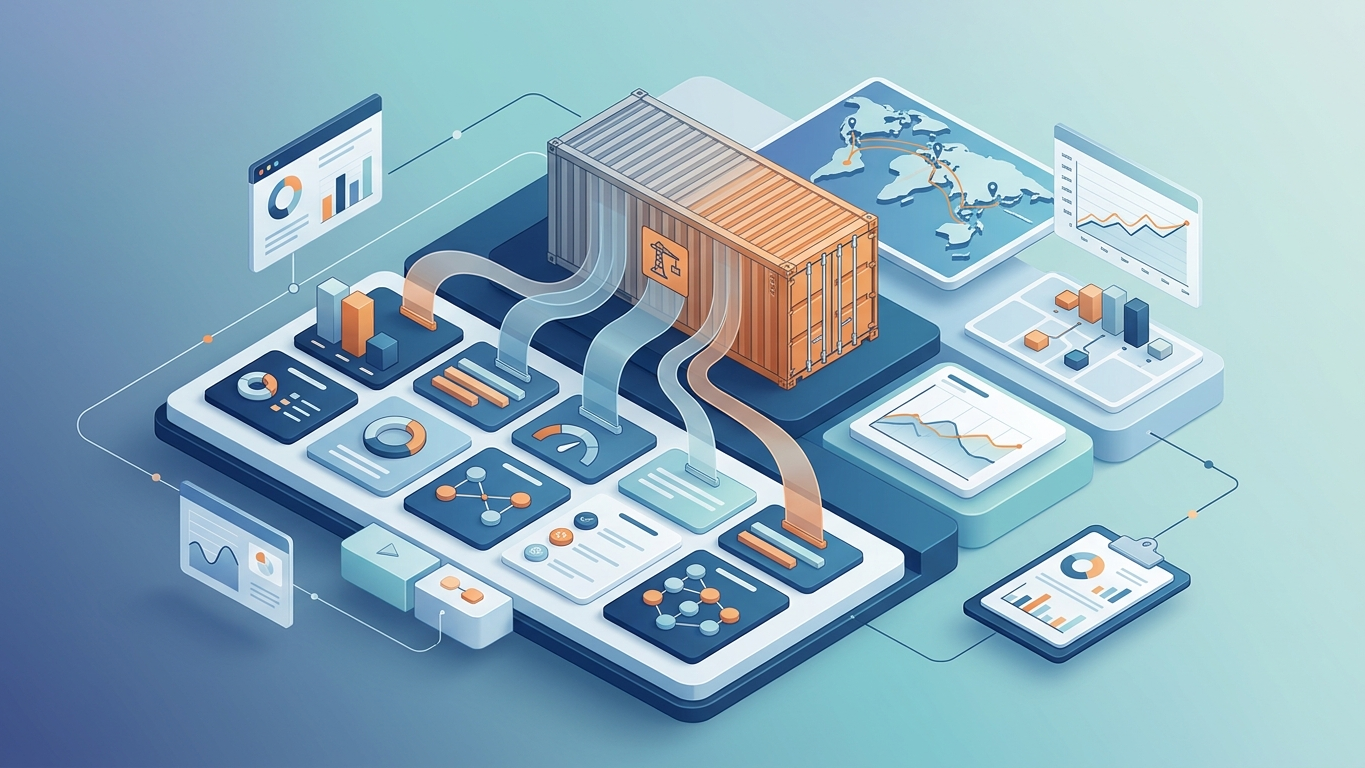
Landed costs represent the total expense of acquiring imported goods, including the purchase price plus all additional fees required to get products to your warehouse. These additional costs include freight charges, customs duties, insurance, handling fees, and port charges.
Without proper landed cost tracking, your inventory valuation reflects only the vendor bill amount: typically understating true costs by 10-20% for international shipments. This leads to inflated gross margins, incorrect pricing decisions, and distorted profitability analysis.
Odoo's Landed Costs feature automatically allocates these additional expenses across received products, updating inventory valuation in real-time and generating proper accounting entries.
Key Benefits
- Accurate inventory valuation: True cost of goods sold reflects all acquisition expenses
- Compliance-ready accounting: Proper journal entries for audits and financial reporting
- Pricing accuracy: Margins calculated on actual costs, not just purchase prices
- Multi-currency support: Handle freight bills in different currencies from purchase orders

Why Landed Costs Matter for Importers
Consider a typical import scenario: You purchase $50,000 worth of electronics from China. The vendor invoice shows $50,000, but that's only part of the story. Your freight forwarder charges $4,200 for ocean freight, customs duties add $6,500, insurance costs $380, and port handling fees total $420. Your true landed cost is $61,500: not $50,000.
Without landed cost allocation in Odoo:
- Inventory valued at $50,000 (23% understated)
- Gross margin inflated by 23% on initial sales
- Pricing decisions based on false profitability
- Month-end manual journal entries required to reconcile
With landed costs properly configured in Odoo:
- Inventory automatically valued at $61,500
- Each unit carries its true acquisition cost
- COGS reflects actual expenses when products sell
- Financial reports accurate without manual adjustments
The Hidden Cost of Manual Tracking
Companies tracking landed costs in spreadsheets report spending 8-12 hours per shipment on manual calculations and journal entries. For businesses importing 2-3 containers monthly, that's 25-35 hours monthly of accounting staff time: approximately $1,200-$1,800 in labor costs alone, not counting errors from manual data entry.
Prerequisites and Configuration
Before implementing landed costs, ensure your Odoo instance meets these requirements:
Required Odoo Apps
- Inventory: Core module for stock management
- Purchase: For vendor bill integration
- Accounting: For journal entry automation (Odoo Online or Odoo.sh required for full accounting)
Step 1: Enable Landed Costs Feature
Navigate to Inventory > Configuration > Settings. In the Inventory Valuation section, check the Landed Costs checkbox and click Save. This activates the Landed Costs menu and adds configuration options to product and accounting settings.
Step 2: Configure Inventory Valuation

Landed costs require automated inventory valuation. Go to Inventory > Configuration > Warehouses and edit your warehouse. Ensure Inventory Valuation is set to Automated and Costing Method is set to either Average Cost (AVCO) or First In First Out (FIFO). Standard costing does not support landed cost adjustments.
Step 3: Create Landed Cost Products
Each type of additional cost needs a dedicated product record. Go to Inventory > Products > Products and create products for:
- Ocean Freight
- Air Freight
- Customs Duties
- Import Insurance
- Port Handling Fees
- Customs Broker Fees
For each landed cost product:
- Set Product Type to Service
- Check the Is a Landed Cost checkbox (appears after enabling the feature)
- Configure Expense Account to your freight/duty expense account
- Set appropriate tax rules for import services

8-Step Landed Cost Implementation
Step 1: Create the Purchase Order
Create your purchase order as usual in Purchase > Purchase Orders > Create. Add all products with their vendor prices. Confirm the PO when ready.
Step 2: Receive the Products
When products arrive at your warehouse, go to Inventory > Operations > Receipts and validate the receipt. This creates the stock moves and updates inventory quantities. Note: At this point, inventory is valued at the purchase price only: landed costs will be added in subsequent steps.
Step 3: Create the Landed Cost Record
Navigate to Inventory > Operations > Landed Costs and click Create. Fill in the following fields:
- Reference: Descriptive name like "PO-2026-001 - China Shipment"
- Picking: Select the receipt you just validated
- Journal: Select your Inventory journal (typically "Inventory Valuation")
- Cost Lines: Add each cost component (freight, duty, insurance, etc.)
Step 4: Add Cost Lines
In the Cost Lines tab, add a line for each expense:
- Account: Select the landed cost product you created (e.g., "Ocean Freight")
- Total Price: Enter the actual amount from your freight forwarder invoice
- Split Method: Choose allocation method (see below)
- Future Price: Leave blank unless adjusting product cost for future POs
Step 5: Choose Allocation Method
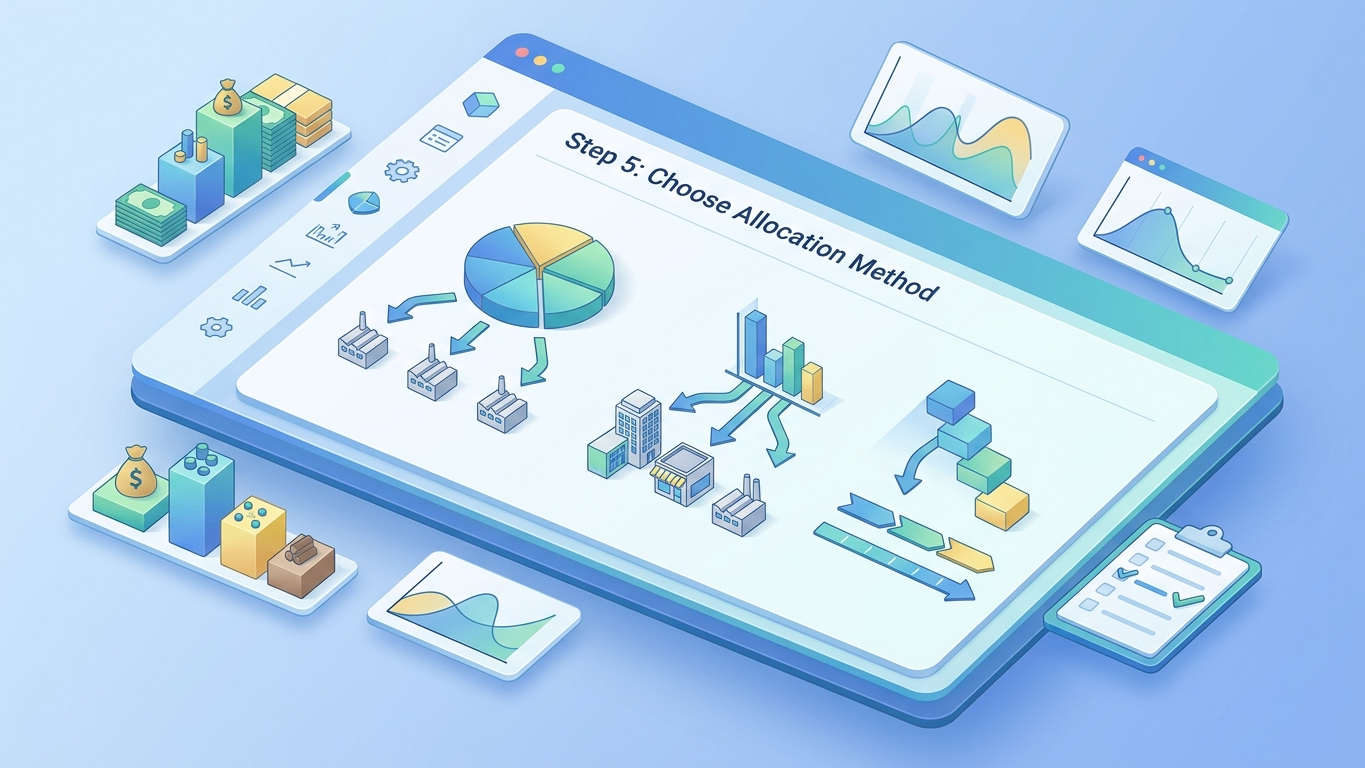
Odoo offers four split methods for distributing costs across products:
- By Quantity: Divides costs equally per unit: best for homogeneous products
- By Current Cost: Allocates proportionally based on product purchase price: most common for mixed shipments
- By Weight: Uses product weight: ideal for freight charges where weight matters
- By Volume: Uses product volume: best for LCL shipments or air freight
For mixed container shipments with varied product values, By Current Cost typically provides the most accurate allocation.
Step 6: Validate the Landed Cost
Click the Validate button. Odoo will:
- Calculate the allocation based on your split method
- Update the cost of each product in stock
- Generate journal entries debiting inventory and crediting the expense accounts
- Mark the landed cost record as "Done"
Step 7: Review Journal Entries
Go to Accounting > Accounting > Journal Entries and filter by the Inventory journal. You'll see entries like:
- Debit: Stock Interim (Received) Account: $61,500
- Credit: Stock Interim (Delivered) Account: $50,000
- Credit: Freight Expense Accrual: $4,200
- Credit: Duty Expense Accrual: $6,500
- Credit: Insurance Expense Accrual: $380
- Credit: Handling Expense Accrual: $420
Step 8: Reconcile with Vendor Bills
When you receive invoices from your freight forwarder and customs broker:
- Create vendor bills in Purchase > Vendors > Bills
- Use the same expense accounts configured in your landed cost products
- Reconcile payments as usual
- The expense accounts now reflect actual invoices against the accruals from landed cost validation

Advanced Configuration and Best Practices
Multi-Currency Handling
Import scenarios often involve multiple currencies: your PO in USD, freight invoice in EUR, and duty payment in local currency. Odoo handles this automatically using exchange rates on the bill date. Ensure your accounting settings have Allow Multi-Currency enabled and exchange rates are updated regularly.
Partial Shipments and Landed Costs
When a PO is received in multiple shipments, create separate landed cost records for each receipt. Allocate only the costs relevant to that specific shipment. For freight bills covering multiple shipments, prorate the total across landed cost records based on shipment value or weight.
Return to Vendor Scenarios
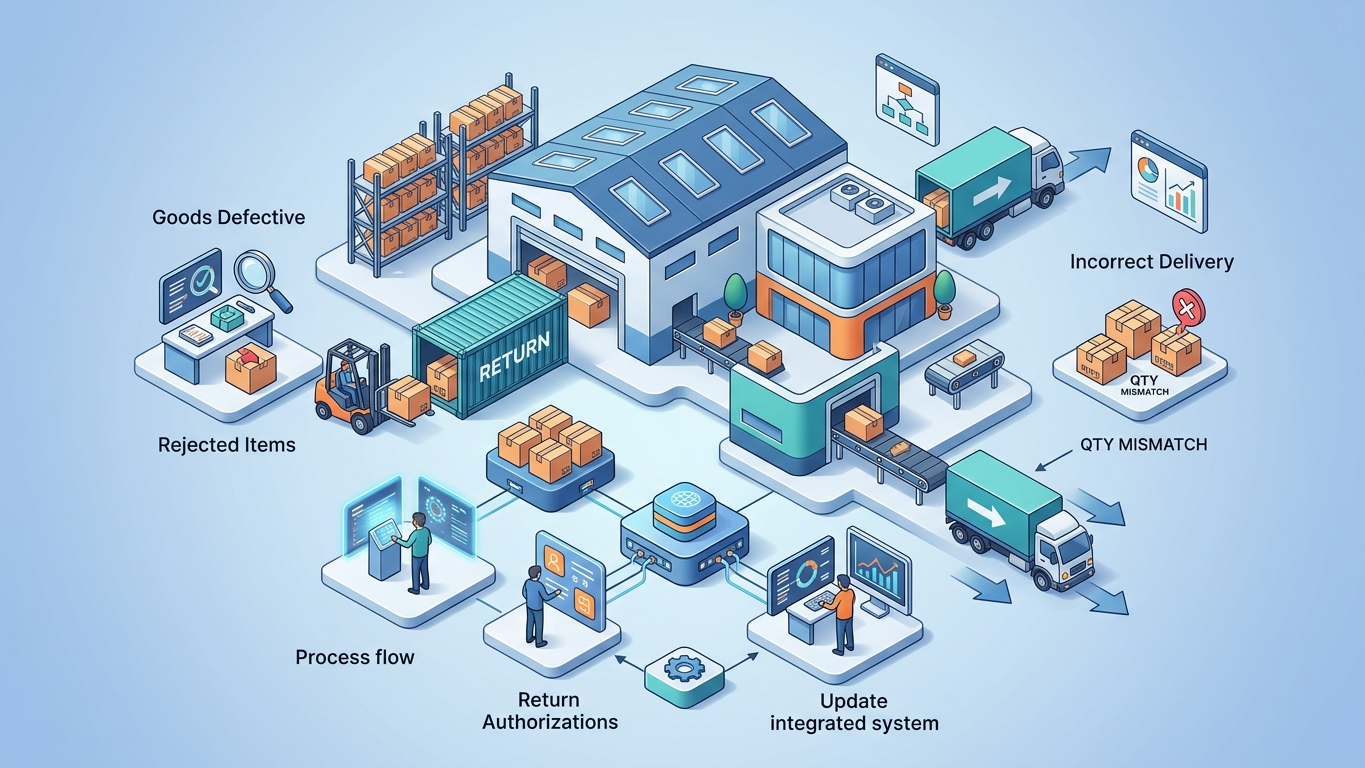
If products are returned to vendor after landed costs were applied, Odoo automatically reverses the allocated costs. The returned products leave inventory at their landed cost (not just purchase price), and the journal entries are reversed proportionally.
Month-End Accrual Reconciliation
At month-end, review your landed cost expense accrual accounts. Any difference between accrued amounts (from landed cost validation) and actual invoices should be adjusted via journal entry to ensure accurate financial statements.

Common Issues and Troubleshooting
Issue: "Landed Costs" Checkbox Missing
Cause: Feature not enabled or user lacks permissions.
Solution: Go to Inventory > Configuration > Settings and enable Landed Costs. Ensure user has Inventory Manager role.
Issue: Cannot Validate Landed Cost
Cause: Products not yet received or inventory valuation not automated.
Solution: Validate the product receipt first. Check warehouse settings for automated inventory valuation.
Issue: Journal Entries Not Balancing
Cause: Expense accounts misconfigured on landed cost products.
Solution: Review each landed cost product's Expense Account field. Ensure all accounts are properly configured in your chart of accounts.
Issue: Costs Not Allocating to Products
Cause: Split method inappropriate for product mix or zero quantities.
Solution: Try "By Current Cost" for mixed shipments. Verify all products have non-zero cost values.
Measuring Success

Track these metrics to validate your landed cost implementation:
- Inventory Valuation Accuracy: Compare reported inventory value to expected landed cost (purchase price + 10-20% for typical imports)
- Gross Margin Variance: Monitor margin changes after implementation: expect 5-15% reduction as true costs are captured
- Accounting Reconciliation Time: Track hours spent on month-end adjustments: should decrease by 80%+ after automation
- Pricing Accuracy: Review product pricing quarterly to ensure margins reflect true landed costs
Summary
Summary
Landed costs in Odoo transform import accounting from manual spreadsheet tracking to automated, accurate inventory valuation. By configuring eight key steps: from enabling the feature to reconciling vendor bills: businesses recover 10-20% in previously untracked costs and eliminate 8-12 hours of monthly manual work per shipment. The key is proper setup: automated inventory valuation, dedicated landed cost products, appropriate allocation methods, and disciplined reconciliation processes.
FAQ
Can landed costs be applied to already sold products?
No. Landed costs can only be applied to products currently in stock. If products have already been sold and delivered, Odoo cannot retroactively adjust their cost. The solution is to implement landed costs prospectively and ensure all future shipments include proper cost allocation before products are sold.
What happens if I validate a landed cost with wrong amounts?
You cannot edit a validated landed cost record. To correct errors, create a new landed cost record with negative amounts to reverse the incorrect allocation, then create a third record with the correct amounts. Always double-check cost lines before clicking Validate.
Do landed costs work with subcontracting (resupply)?
Yes, but with limitations. Landed costs can be applied to components sent to subcontractors and to finished goods received back. However, the allocation logic becomes complex with multi-step routes. Test thoroughly in a staging environment before production use.
How do I handle freight bills that arrive months after the shipment?
Create the landed cost record when you receive the freight bill, even if products were received months earlier. Odoo will adjust the current inventory value. If products have already been sold, the cost adjustment flows through COGS. For material variances, consider creating a manual journal entry to adjust prior period financials.
Can I automate landed cost creation from freight forwarder invoices?
Not natively in Odoo. However, you can use Odoo Studio or custom development to create automated workflows that parse freight invoices and create landed cost records. Third-party EDI integrations may also support this workflow depending on your freight forwarder's capabilities.
Struggling with Import Cost Tracking?
Our Customs Duties Add-on extends Odoo's landed costs with automated HS code classification, duty rate lookup, and customs document generation. Stop manually calculating duties and start importing with confidence.
References
- Odoo SA: "Landed Costs Documentation" (2026). https://www.odoo.com/documentation/17.0/applications/inventory_and_mrp/inventory/management/landed_costs.html
- Odoo Community Association: "Inventory Valuation Best Practices" (2025). https://github.com/OCA/stock-logistics-warehouse
- International Trade Administration: "Import Cost Calculator" (2026). https://www.trade.gov/import-cost-calculator
- Avalara: "Landed Cost Guide for Importers" (2025). https://www.avalara.com/blog/en/north-america/2024/03/landed-costs.html
- Freightos: "Freight Rate Index and Shipping Cost Trends" (2026). https://www.freightos.com/freight-resources/freightos-baltic-international-container-index-fbx/
🧮 Stop Calculating Customs Duties Manually
The Customs Duties Add-on automates HS code lookup, duty calculation, and landed cost tracking for 30+ countries — directly inside Odoo. No spreadsheets. No guesswork.
Explore Customs Duties Add-on →