
TL;DR: What You Need to Know
- $0 per location for official IoT Box hardware: adds up quickly for multi-store deployments
- 60% cost savings with Raspberry Pi DIY alternatives at ~$75 per location
- 5 deployment options compared: official IoT Box, Raspberry Pi, cloud gateways, direct browser printing, and hybrid solutions
The IoT Box Problem for Multi-Location Businesses
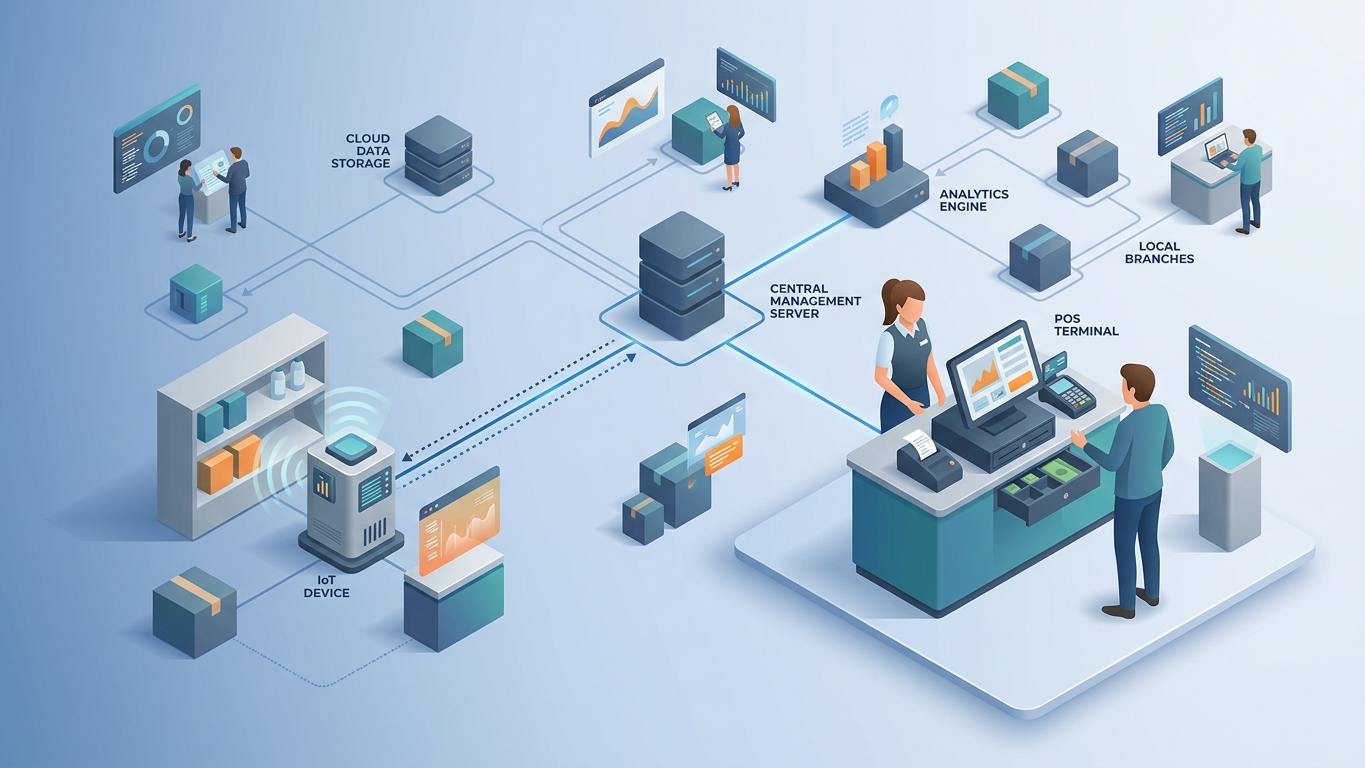
Odoo's IoT Box solves a critical challenge: connecting web-based POS and manufacturing interfaces to local hardware like receipt printers, barcode scanners, cash drawers, and scales. The official IoT Box is a pre-configured Raspberry Pi that acts as a bridge between Odoo's cloud-based application and your local USB and network devices.
But for businesses deploying Odoo across multiple locations, the IoT Box presents three significant challenges:
- Cost at scale: At $0 per location (when available), a 10-store rollout requires $1,990 in hardware: before shipping, import duties, or replacements
- Availability issues: The official IoT Box frequently goes out of stock, with lead times extending to 8-12 weeks during supply chain disruptions
- Limited flexibility: Pre-configured image with limited customization options for advanced use cases like multi-printer routing or custom device integrations
This guide evaluates five IoT Box alternatives, from DIY Raspberry Pi builds to cloud-based gateway solutions, helping you choose the right approach for your deployment.

Understanding IoT Box Architecture
Before evaluating alternatives, understand what the IoT Box actually does:
Core Functions
- Device Discovery: Detects connected USB and network printers, scales, cash drawers, and customer displays
- Protocol Translation: Converts Odoo's JavaScript commands to printer languages (ESC/POS, StarPRNT, ZPL)
- Local Network Bridge: Creates a local web server that browser-based POS can communicate with
- Offline Buffering: Queues print jobs when network connectivity is interrupted
- Security: Authenticates POS sessions and encrypts device communications
How POS Connects to IoT Box
- POS loads in browser (Chrome on Android tablet, iPad, or PC)
- POS detects IoT Box on local network via mDNS/Bonjour
- User pairs POS session with IoT Box using connection code
- Print commands sent via WebSocket to IoT Box local IP
- IoT Box forwards commands to USB/network printer
Any alternative must replicate this architecture while addressing cost, availability, or flexibility constraints.
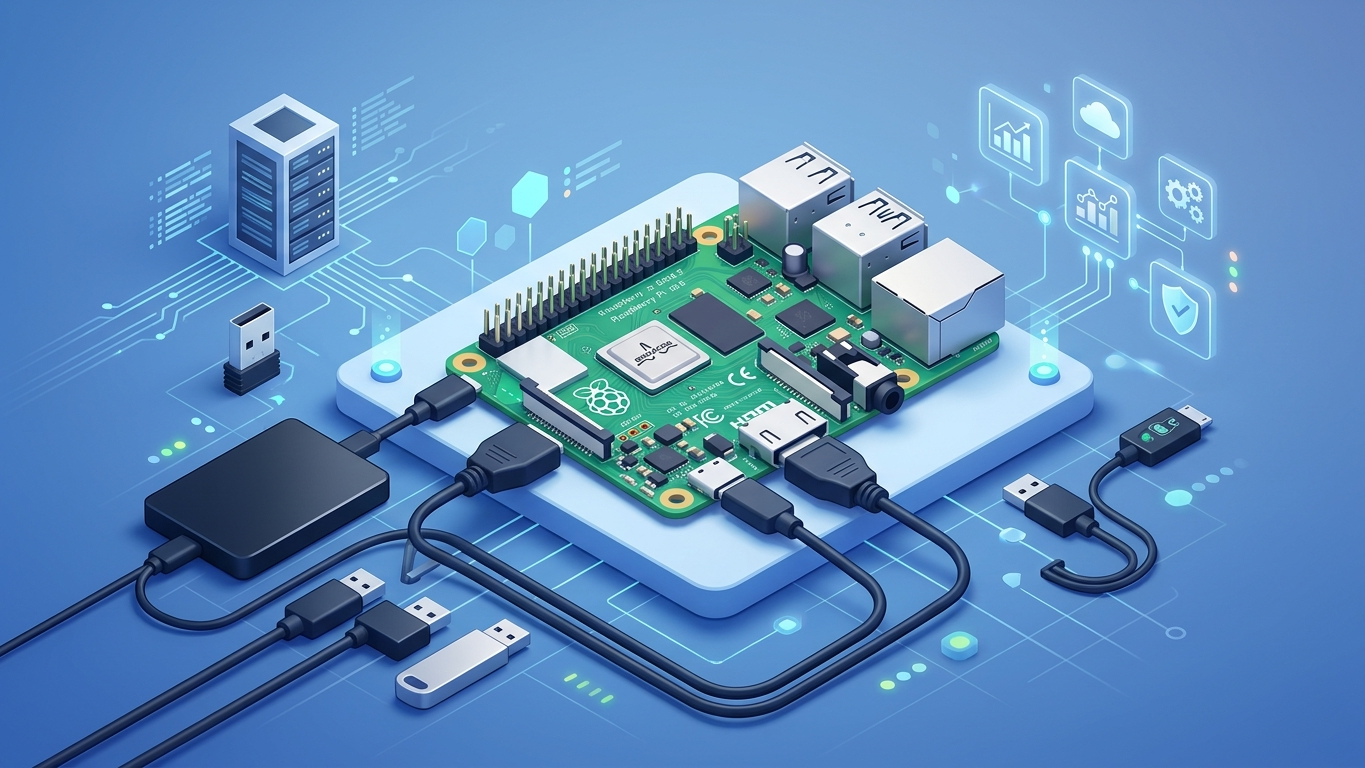
5 IoT Box Alternatives Compared
Option 1: Raspberry Pi DIY Build (Recommended for Most)
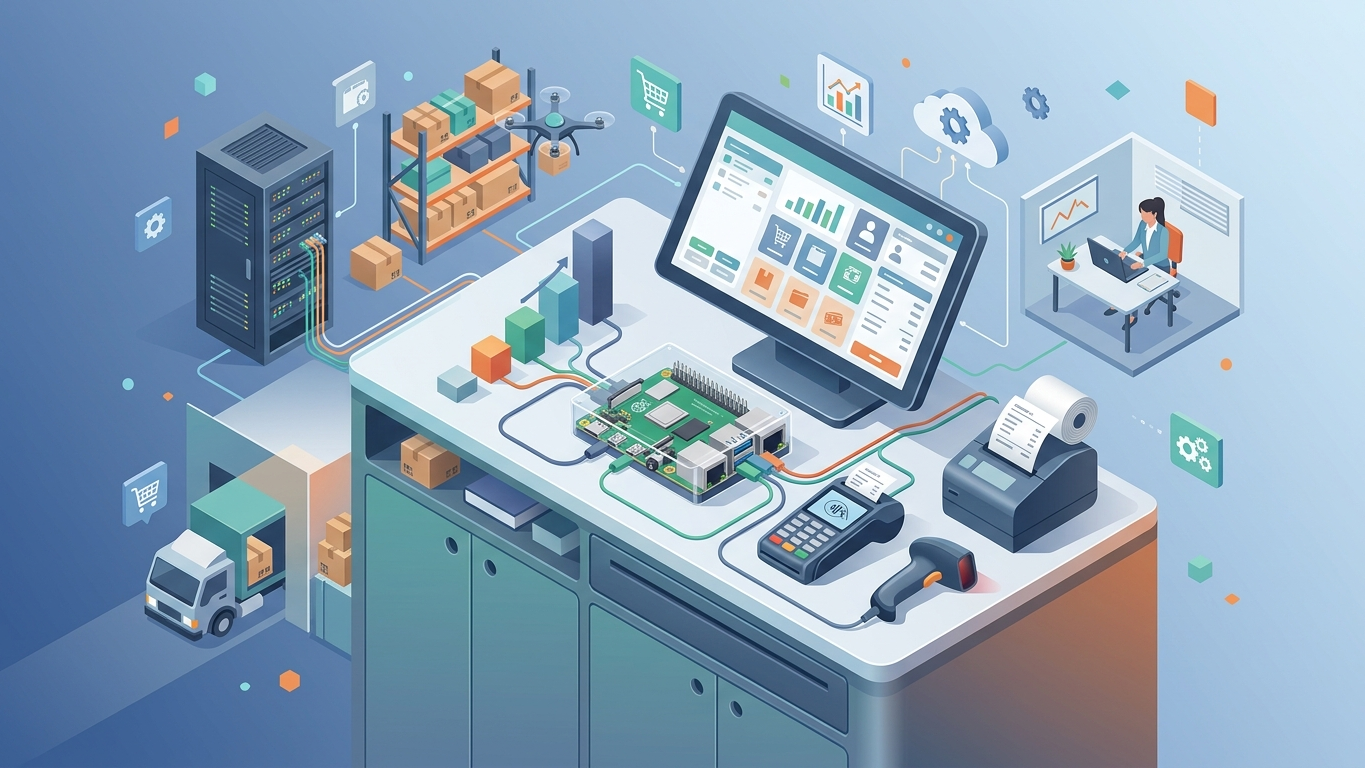
Hardware Cost: $70-90 per location
Setup Time: 2-4 hours
Technical Skill: Intermediate (Linux command line)
Best For: Multi-location retail, restaurants, warehouses
Required Components
- Raspberry Pi 4 Model B (2GB RAM minimum): $45-55
- MicroSD card (16GB+): $10-15
- USB-C power supply: $10
- Micro HDMI to HDMI cable: $8
- Case with cooling: $15-20
- Ethernet cable (recommended over WiFi): $5
Setup Steps
- Install Raspberry Pi OS: Download Raspberry Pi Imager, flash Raspberry Pi OS Lite (64-bit) to microSD card
- Enable SSH and WiFi: Create empty
sshfile andwpa_supplicant.confon boot partition - Boot and Configure: SSH into Pi, run
sudo raspi-configto set hostname, enable SSH, configure network - Install Odoo IoT Dependencies:
sudo apt update sudo apt install -y python3-pip python3-dev cups cups-client \ git build-essential libusb-1.0-0-dev netcat-openbsd sudo pip3 install pyusb pyserial - Clone Odoo IoT Repository:
git clone https://github.com/odoo/odoo-iot.git ~/odoo-iot cd ~/odoo-iot pip3 install -r requirements.txt - Configure CUPS for Printers:
Access CUPS web interface atsudo systemctl enable cups sudo systemctl start cups sudo usermod -aG lpadmin pihttp://localhost:631to add printers - Run IoT Server:
cd ~/odoo-iot python3 server.py --port 8069 - Create Systemd Service: Create
/etc/systemd/system/odoo-iot.servicefor auto-start on boot
Pros
- 60% cost savings vs official IoT Box
- Full control over configuration and updates
- Widely available components (no supply chain delays)
- Can run additional services (local database, caching, monitoring)
Cons
- Requires Linux administration skills
- No official Odoo support for DIY builds
- Manual updates when Odoo releases IoT improvements
- Debugging requires SSH access and log analysis
Real-World Deployment: 15-Store Retail Chain
A midwest retail chain deployed Raspberry Pi 4-based IoT gateways across 15 stores, connecting Sunmi receipt printers and cash drawers. Total hardware cost: $1,125 ($75/store) vs $2,985 for official IoT Boxes. Setup completed in 3 days by two IT staff. Six months post-deployment: zero hardware failures, one software update required.

Option 2: Cloud-Based Print Gateway (Best for Distributed Teams)
Cost: $10-30/month per location (SaaS)
Setup Time: 30-60 minutes
Technical Skill: Beginner
Best For: Remote offices, home-based sales, temporary pop-up locations
How It Works
Cloud print gateways like PrintNode, ezeep, or Cloudprint install a small agent on any local computer (Windows, Mac, Linux). The agent registers connected printers with a cloud service. Odoo POS sends print jobs to the cloud service, which routes them to the local agent for printing.
Setup Process
- Create account on print gateway service (e.g., PrintNode.com)
- Download and install client app on local computer/tablet
- Connect USB printer to computer or add network printer
- Printer appears in cloud dashboard
- Configure Odoo POS to use cloud print API (requires custom module)
Pros
- No dedicated hardware required: uses existing computers
- Centralized printer management across all locations
- Automatic updates and maintenance handled by provider
- Works with any internet-connected location
Cons
- Ongoing monthly subscription costs
- Requires custom Odoo module for integration
- Print jobs routed through third-party servers (privacy consideration)
- Dependent on internet connectivity (no offline buffering)
Integration Example
# Python example for PrintNode API
import requests

def send_to_printer(receipt_data, printer_id):
 url = "https://api.printnode.com/printjobs"
 payload = {
 "title": f"Receipt-{receipt_data['order_id']}",
 "printerId": printer_id,
 "contentType": "raw_base64",
 "content": base64.b64encode(receipt_data['esc_pos_commands']).decode()
 }

 response = requests.post(
 url,
 json=payload,
 auth=('api_key', 'YOUR_PRINTNODE_API_KEY')
 )
 return response.json()
Option 3: Direct Browser Printing (Simplest for Modern POS)
Cost: $0 (built into browsers)
Setup Time: 15 minutes
Technical Skill: Beginner
Best For: Single-location stores, iPad-based POS, simple receipt printing
How It Works
Modern browsers support direct printing via the Web Print API or browser print dialogs. For receipt printers with network connectivity (Ethernet or WiFi), the printer gets an IP address on the local network and accepts print jobs directly from the browser.
Compatible Printers
- Star Micronics mC-Print3 (Ethernet/WiFi models)
- EPSON TM-m30II-NT (Network model)
- Bixolon SRP-350III (Network model)
- Any printer with AirPrint or Mopria support
Configuration
- Connect printer to network via Ethernet or WiFi
- Note printer's IP address from printer's network status page
- In Odoo POS, configure printer URL as
http://[PRINTER_IP]:9100 - Test print from POS settings
Pros
- No additional hardware or software required
- Simplest deployment: works out of the box
- No maintenance or updates needed
- Lower latency (direct connection vs gateway)
Cons
- Limited to network printers (no USB support)
- No offline buffering (prints fail if network drops)
- Browser compatibility issues (iOS Safari limitations)
- No support for cash drawers, scales, or customer displays

Option 4: Android Tablet with USB OTG (Mobile POS)
Cost: $0-50 (OTG adapter if not included)
Setup Time: 30 minutes
Technical Skill: Beginner
Best For: Mobile POS, tableside ordering, pop-up shops, markets
How It Works
Many Android tablets and phones support USB On-The-Go (OTG), allowing direct connection of USB receipt printers without any gateway. Odoo POS running in Chrome for Android can communicate directly with the printer via the WebUSB API.
Requirements
- Android device with USB OTG support (most modern tablets)
- USB OTG adapter (if device uses USB-C)
- USB receipt printer (EPSON, Star, Bixolon)
- Chrome for Android (WebUSB support)
Setup
- Enable Developer Options on Android device
- Enable USB Debugging (for WebUSB access)
- Connect printer via USB OTG adapter
- Open Odoo POS in Chrome
- Grant USB permission when prompted
- Test print from POS settings
Pros
- Zero additional hardware for mobile POS
- Truly portable: no gateway or network required
- Lower power consumption than Raspberry Pi
- Perfect for tableside ordering and mobile checkout
Cons
- iOS does not support USB printers (iPad limitation)
- Limited to one printer per Android device
- Android version fragmentation (WebUSB support varies)
- Not suitable for fixed multi-device POS setups
Option 5: Hybrid Approach (Recommended for Enterprise)
Cost: $100-150 per location
Setup Time: 4-6 hours
Technical Skill: Advanced
Best For: Enterprise deployments, mixed hardware environments, high-availability requirements
Architecture
Combine multiple approaches for redundancy and flexibility:
- Primary: Raspberry Pi gateway for core POS hardware
- Secondary: Cloud print gateway as backup for critical locations
- Mobile fallback: Android tablets with USB OTG for pop-up registers
- Central management: Ansible or similar for configuration management across all gateways
Implementation
- Deploy Raspberry Pi gateways at all fixed locations
- Install cloud print agent on store manager's PC as backup
- Configure Odoo POS with primary (local) and secondary (cloud) printer routes
- Use Ansible playbooks to manage IoT configurations across all Pis
- Implement monitoring (Prometheus + Grafana) for gateway health
- Create runbooks for failover procedures
Pros
- Maximum uptime with automatic failover
- Flexibility to use different hardware per location
- Centralized monitoring and management
- Scalable to hundreds of locations
Cons
- Highest complexity: requires DevOps expertise
- Multiple systems to maintain and update
- Higher initial setup time and documentation burden
- Requires dedicated IT staff for ongoing management

Comparison Matrix

| Criteria | Raspberry Pi | Cloud Gateway | Direct Browser | Android OTG | Hybrid |
|---|---|---|---|---|---|
| Hardware Cost | $75 | $0 | $0 | $0-50 | $100-150 |
| Monthly Cost | $0 | $10-30 | $0 | $0 | $10-30 |
| Setup Complexity | Medium | Low | Low | Low | High |
| USB Printer Support | ✅ Full | ✅ Full | ❌ None | ✅ Full | ✅ Full |
| Offline Buffering | ✅ Yes | ❌ No | ❌ No | ✅ Yes | ✅ Yes |
| Cash Drawer Support | ✅ Yes | ⚠️ Limited | ❌ No | ⚠️ Limited | ✅ Yes |
| Multi-Printer | ✅ Yes | ✅ Yes | ⚠️ Limited | ❌ Single | ✅ Yes |
| Best For | Multi-location retail | Remote offices | Simple deployments | Mobile POS | Enterprise |
Decision Framework
Use this framework to select the right approach:
Single Location, Simple Needs
→ Direct Browser Printing
If you have one store with network printers and don't need cash drawers or scales, skip the gateway entirely. Direct browser printing is simplest and most reliable.
2-10 Locations, Budget-Conscious
→ Raspberry Pi DIY
For small chains, Raspberry Pi offers the best balance of cost savings and functionality. Invest in staff training for Linux basics and create documentation for each location.
Remote or Distributed Teams
→ Cloud Print Gateway
For home-based sales reps or temporary pop-up locations, cloud gateways eliminate hardware logistics. Accept the monthly fee in exchange for zero maintenance.
Mobile or Pop-Up Retail
→ Android OTG
For markets, trade shows, or tableside ordering, Android tablets with USB OTG provide true portability without gateways or networks.
Enterprise (10+ Locations)
→ Hybrid Approach
For large deployments, invest in hybrid architecture with centralized management. The higher initial complexity pays off in uptime, flexibility, and operational visibility.
Summary
Summary
Odoo IoT Box alternatives range from $75 Raspberry Pi DIY builds to cloud-based gateways and direct browser printing. For most multi-location businesses, Raspberry Pi offers the optimal balance: 60% cost savings, full hardware support, and complete control. Single locations should use direct browser printing for simplicity. Remote teams benefit from cloud gateways despite monthly fees. Enterprise deployments justify hybrid approaches with centralized management. The key is matching architecture to your specific constraints: budget, technical skills, hardware requirements, and uptime needs.
FAQ
Will DIY Raspberry Pi setups work with future Odoo versions?
Yes, with caveats. The Odoo IoT repository is open-source and updated alongside Odoo releases. DIY setups require manual updates by pulling the latest code and restarting the service. For critical deployments, test updates on a staging Pi before rolling out to production locations.
Can I mix different IoT approaches within the same company?
Absolutely. Many businesses use Raspberry Pi at fixed retail locations, Android OTG for mobile sales teams, and cloud gateways for home offices. Odoo POS doesn't care what's running the gateway: it only needs to communicate with a compatible print server. Standardize on printer models for easier management.
What happens if the IoT gateway goes offline?
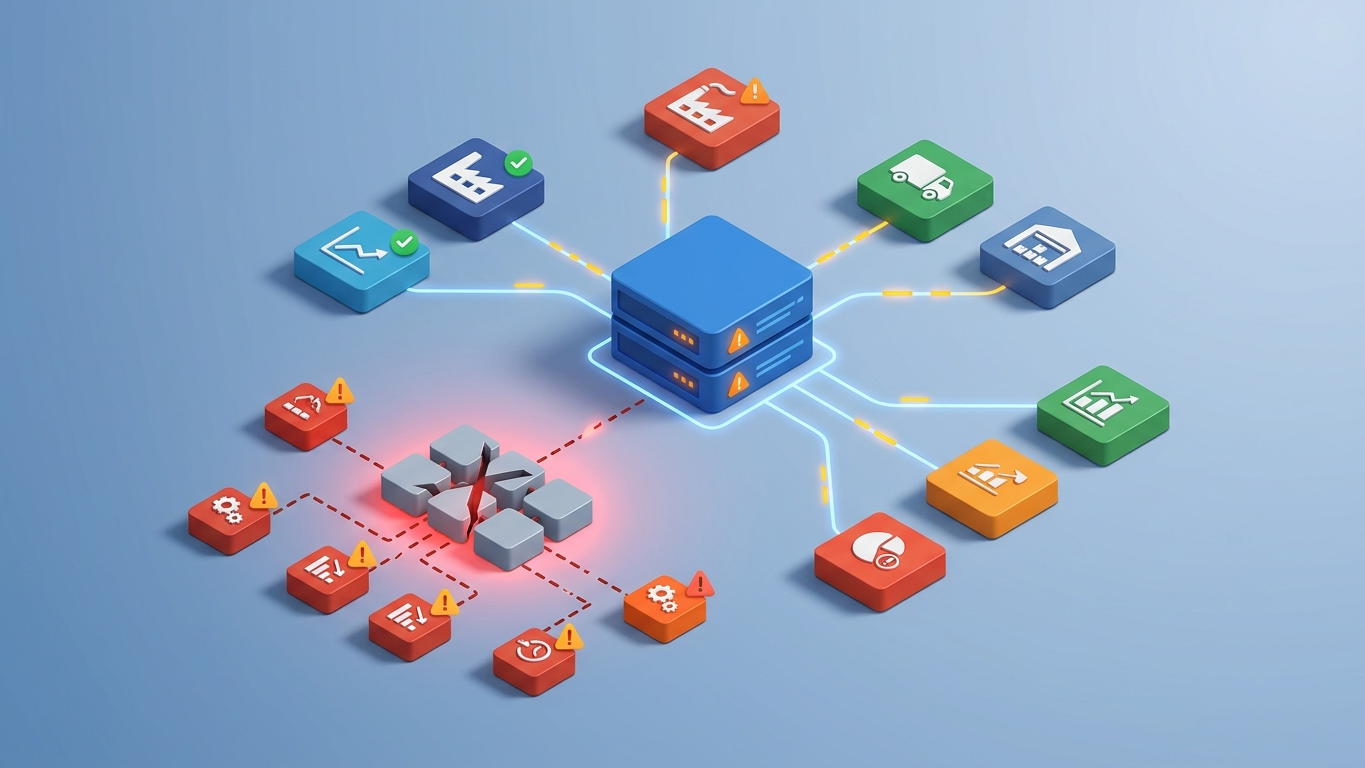
Raspberry Pi and Android OTG setups buffer print jobs locally until the gateway reconnects. Cloud gateways and direct browser printing require active internet connections: prints will fail if connectivity drops. For mission-critical operations, implement failover to a secondary gateway or local caching.
Do I need a static IP for the IoT gateway?
Highly recommended. Configure your router to assign a DHCP reservation (static IP) to the gateway's MAC address. This ensures the IP never changes, preventing POS connection failures. Alternatively, configure a static IP directly on the Raspberry Pi network settings.
Can I use a Raspberry Pi Zero instead of Pi 4?
Technically yes, but not recommended. Pi Zero has limited RAM (512MB) and slower CPU, which can cause print queue delays during busy periods. Pi 4 with 2GB RAM provides headroom for multiple concurrent print jobs and future software updates. The $20 price difference isn't worth the performance compromise for production use.
Need Help with Odoo Hardware Integration?
Our team has deployed Odoo POS across 50+ locations using Raspberry Pi gateways, cloud print solutions, and hybrid architectures. Get expert guidance on hardware selection, deployment planning, and ongoing management.
References
- Odoo SA: "IoT Box Documentation" (2026). https://www.odoo.com/documentation/17.0/applications/point_of_sale/iot.html
- Raspberry Pi Foundation: "Raspberry Pi OS Documentation" (2026). https://www.raspberrypi.com/documentation/computers/os.html
- Odoo GitHub: "odoo-iot Repository" (2026). https://github.com/odoo/odoo-iot
- PrintNode: "API Documentation" (2026). https://www.printnode.com/en/docs/api/curl
- Star Micronics: "Network Printer Configuration Guide" (2025). https://www.starmicronics.com/support/MobileFAQs/