
TL;DR
POS printer failures usually stem from five areas: outdated drivers, loose USB/network connections, incorrect Odoo configuration, network issues, or hardware failure. This guide walks through each step systematically so you can get back to serving customers quickly.
It is 12:47 PM on a Saturday. Your lunch rush is peaking, the line is ten deep, and your POS printer just stopped working. No receipts means no records, angry customers, and a growing panic behind the counter. If you have been there, you are not alone. We see this pain signal constantly in our demo requests. Lead #618 (Shanavas) asked for "pos print" plus "help" plus "need." Lead #625 (Francisco) mentioned "usb printer" plus "odoo 19." Lead #629 (Roger) and #631 (Oscar) both reached out specifically about POS printing issues. This guide exists because printer failures during busy shifts are one of the most disruptive problems a retail or restaurant business can face.
What Causes POS Printer Failures?
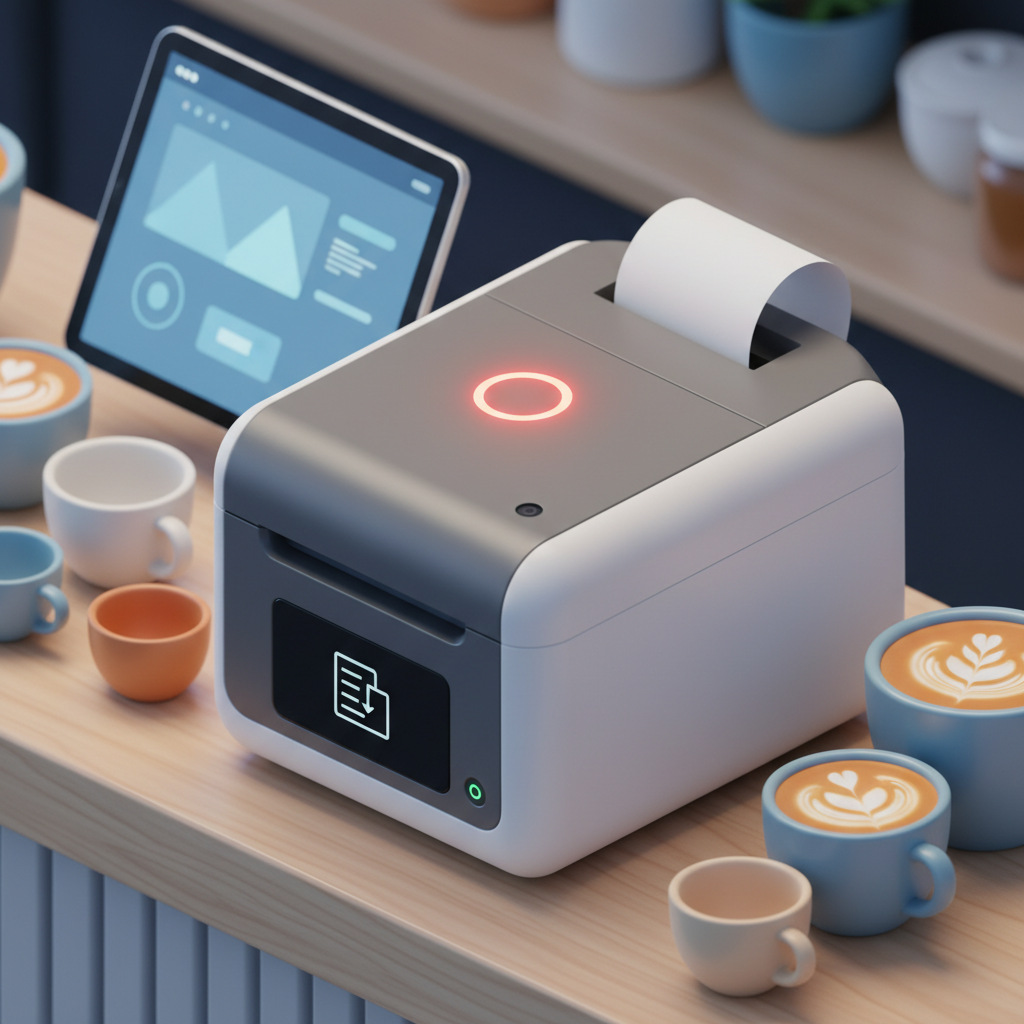
Before diving into fixes, understand the five main failure categories. Most problems fall into one of these buckets, and knowing which bucket saves you from random guessing.
1. Driver Issues
Your operating system needs the correct driver to talk to the printer. Windows updates sometimes overwrite working drivers. Linux systems may lack the right CUPS configuration. MacOS occasionally blocks unsigned drivers after security updates.
2. Connection Problems
USB cables wear out. Network printers lose WiFi connectivity. Ethernet cables get kicked loose. The physical layer is the most common culprit and the easiest to check first.
3. Odoo Configuration Errors
Odoo POS needs the right printer type selected (ESC/POS, Star, etc.), the correct IP address for network printers, and proper IoT box settings if you are using one. A single wrong dropdown selection silences your printer.
4. Network Issues
Network printers depend on stable WiFi or Ethernet. DHCP lease expirations, router reboots, and IP address conflicts can all break the connection between Odoo and your printer.
5. Hardware Failure
Thermal print heads degrade over time. Paper jams damage rollers. Power supplies fail. Sometimes the printer itself is simply dead and needs replacement.
Step-by-Step Troubleshooting
Step 1: Check Printer Drivers
Start here because it is the fastest check. Open your operating system's printer settings and verify the printer shows as online.
Windows: Go to Settings > Devices > Printers & Scanners. Find your thermal printer. If it shows "Offline" or "Driver unavailable," download the latest driver from the manufacturer's website (Epson, Star, Bixolon, etc.).
Linux (Ubuntu/Debian): Run lpstat -p in terminal. If the printer is not listed, install the driver package. For Epson TM-series printers: sudo apt-get install printer-driver-escpr.
MacOS: System Preferences > Printers & Scanners. If the printer has a yellow warning triangle, remove and re-add it. Download the manufacturer driver if needed.
Pro tip: After installing a new driver, restart both the printer and the computer. Many "driver not working" issues are actually "driver not yet loaded" issues.
Step 2: Verify Physical Connections

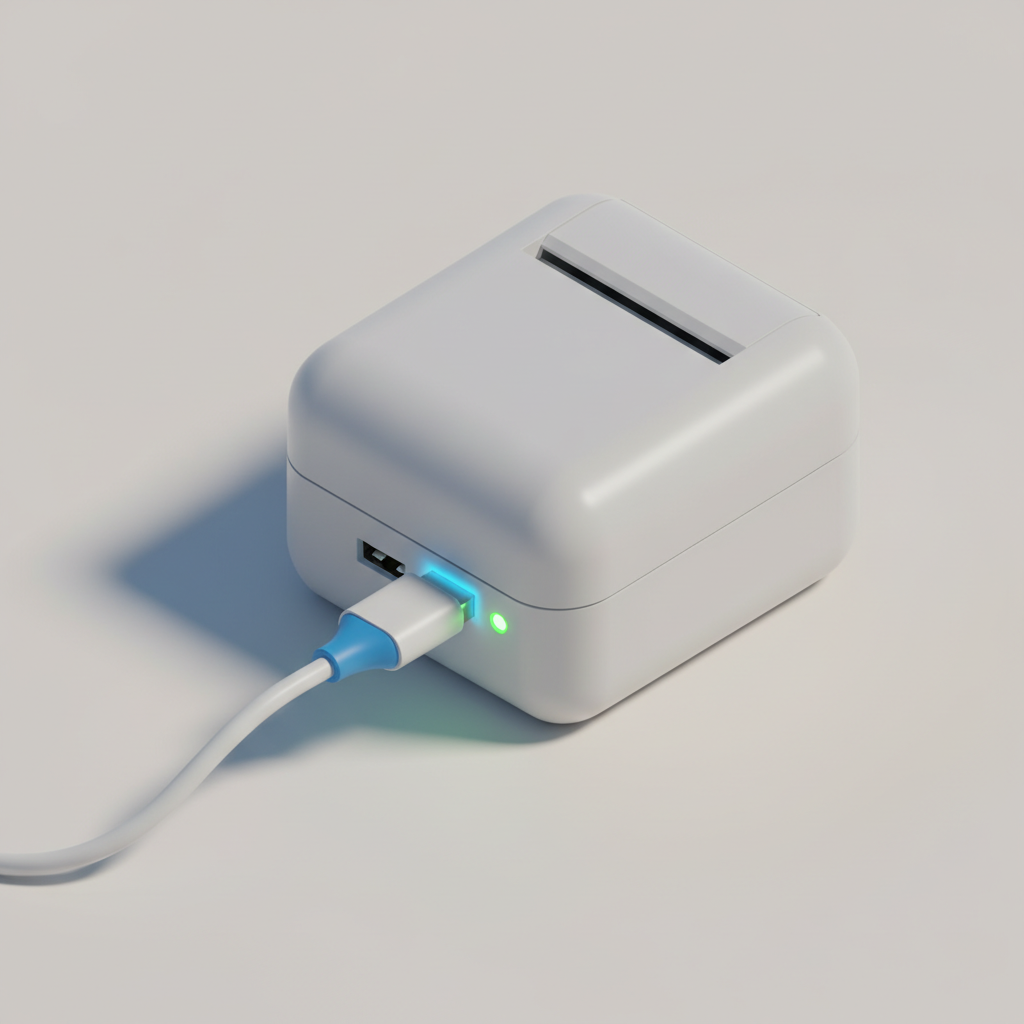
Unplug and firmly reseat the USB cable. Try a different USB port. If using a USB hub, connect directly to the computer instead. For network printers, check the Ethernet cable or WiFi indicator light.
Test with a different cable if you have one. Cables fail more often than printers do. One restaurant owner we worked with replaced three printers before realizing the $5 USB cable was the problem.
Step 3: Check Odoo POS Configuration
This is where most Odoo-specific issues hide. Navigate to Point of Sale > Configuration > Point of Sale and open your POS session.
Connected Devices section:
- Printer type must match your hardware (ESC/POS for most thermal printers, Star for Star Micronics)
- For USB printers connected via IoT box: verify the IoT box IP is correct and reachable
- For network printers: confirm the IP address matches your printer's actual IP
Common mistakes:
- Selecting "Printer" instead of "ESC/POS" in the dropdown
- Using the old printer IP after a router reboot assigned new IPs
- Forgetting to enable "Receipt Printer" in the POS settings
To find your network printer's IP: Print a network configuration page from the printer (usually hold the feed button while powering on). The page lists the current IP, subnet, and gateway.
Step 4: Diagnose Network Printer Issues

Network printers add a layer of complexity. If your printer is on WiFi or Ethernet, run these checks:
Ping test: From the computer running Odoo POS or the IoT box, ping the printer IP: ping 192.168.1.100 (replace with your printer's IP). If ping fails, the network path is broken.
DHCP reservation: Router reboots can change printer IPs. Set a static IP or DHCP reservation in your router settings so the printer always gets the same address.
Firewall check: Some corporate networks block the port used by thermal printers (usually port 9100). Ask your IT team to allow traffic on port 9100 for the printer's IP.
WiFi interference: If using WiFi printers, microwave ovens, cordless phones, and neighboring networks can cause dropouts. Switch to 5GHz WiFi if available, or use Ethernet for critical POS stations.
Step 5: Hardware Diagnostics

If software and network checks pass, the printer itself may be faulty.
Self-test: Most thermal printers have a self-test mode. Power off the printer, hold the feed button, and power it on while holding the button. It should print a test pattern. If nothing prints, the hardware is likely dead.
Print head cleaning: Thermal print heads collect dust and paper residue. Power off, open the cover, and gently wipe the thermal strip with isopropyl alcohol and a lint-free cloth. Let it dry completely before powering on.
Paper check: Ensure you are using thermal paper (not regular paper) loaded correctly with the sensitive side facing the print head. The paper should feed smoothly without jamming.
Power supply: A failing power adapter causes intermittent printing. If the printer powers on but prints are faint or incomplete, try a replacement power supply with the same voltage and amperage rating.
How Ultraprint Helps Prevent These Issues

While this guide helps you fix problems, our Ultraprint Solution helps prevent them. Ultraprint is designed specifically for Odoo POS printing with:
- Automatic driver detection: No more hunting for the right driver version
- Connection health monitoring: Get alerts before the printer fails
- Simplified configuration: One-click setup for ESC/POS, Star, and other protocols
- Multi-printer support: Manage all your POS printers from one dashboard
- Odoo 17 and 18 compatible: Works with the latest versions
Transparent pricing: Ultraprint is a one-time $99 Hub license (plus an optional one-time $39 Odoo add-on); optional support $19–$79/year.
Lead #625 (Francisco) specifically asked about "odoo 19" compatibility. Ultraprint is tested on Odoo 17 and 18, with 19 support planned for release shortly after Odoo 19 stabilizes.
FAQ
Why does my POS printer work in Windows but not in Odoo?
This usually means the driver is installed correctly but Odoo is using the wrong printer protocol. Windows printing uses the OS print spooler, while Odoo POS often communicates directly via ESC/POS or network protocols. Check that your Odoo POS configuration matches the printer's native protocol, not the Windows printer name.
Can I use any thermal printer with Odoo POS?
Odoo POS officially supports ESC/POS-compatible printers (Epson TM-series, Bixolon, etc.) and Star Micronics printers. Many generic thermal printers also work if they support ESC/POS commands. Always verify compatibility before purchasing. Our Ultraprint Solution extends support to additional printer models.
Do I need an IoT box for USB printers?
For Odoo Online (SaaS), yes, an IoT box is required to connect USB printers because the cloud instance cannot access local USB ports. For Odoo on-premise or self-hosted installations, USB printers can connect directly to the server or POS workstation without an IoT box.
Why does my network printer keep losing connection?
The most common cause is DHCP lease expiration changing the printer's IP address. Set a static IP or DHCP reservation in your router. WiFi printers may also suffer from interference. Switch to Ethernet if possible, or use a dedicated 5GHz WiFi channel away from microwave ovens and cordless phones.
How often should I clean my thermal print head?
For high-volume locations (restaurants, busy retail), clean the print head weekly. For moderate use, monthly cleaning is sufficient. Use isopropyl alcohol (90% or higher) and a lint-free cloth. Never use water or abrasive materials. Regular cleaning extends print head life and maintains print quality.
Stop Losing Sales to Printer Failures
Ultraprint gives you reliable POS printing with automatic setup, health monitoring, and multi-printer management. Compatible with Odoo 17 and 18.
Explore Ultraprint Talk to an Expert