
TL;DR: What You Need to Know
- 65% Adoption Rate: Most SMBs have moved away from proprietary IoT hardware for direct network printing by 2026.
- 45% Failure Reduction: Direct IP printing slashes label job failure rates compared to IoT proxy relay methods.
- 12 Technical Configurations: Master CUPS setup, ZPL raw printing, WebUSB browser integration, and firewall rules in this guide.
Is your warehouse grinding to a halt because the Odoo IoT Box disconnected again? In 2026, relying on intermediary hardware to bridge the gap between Odoo and your Zebra or Brother printers is an outdated bottleneck that costs businesses time, money, and operational efficiency.
78% of warehouse managers cite hardware connectivity as the primary cause of shipping delays, and the constant troubleshooting eats into productivity that should be spent on fulfillment. The landscape has shifted dramatically: Odoo 18+ has moved toward direct browser-to-device protocols, making the IoT Box optional for many standard label printing operations. This evolution means you can now send print jobs directly to network-connected label printers without maintaining additional hardware that fails at the worst possible moments.
- Reduced Latency: Send print jobs directly to the network printer without proxy delays that compound during high-volume operations.
- Lower TCO: Eliminate the cost of purchasing, replacing, and maintaining IoT hardware that adds unnecessary complexity to your infrastructure.
- Universal Compatibility: Manage printers across multiple workstations without re-pairing USB dongles or troubleshooting connection drops.
In this guide, you will learn 12 technical configurations to print Odoo inventory labels without an IoT Box, including CUPS server setup, direct IP printing via port 9100, ZPL raw printing workflows, and WebUSB browser integration that works seamlessly in 2026.
Why Ditch the IoT Box for Inventory Labeling?
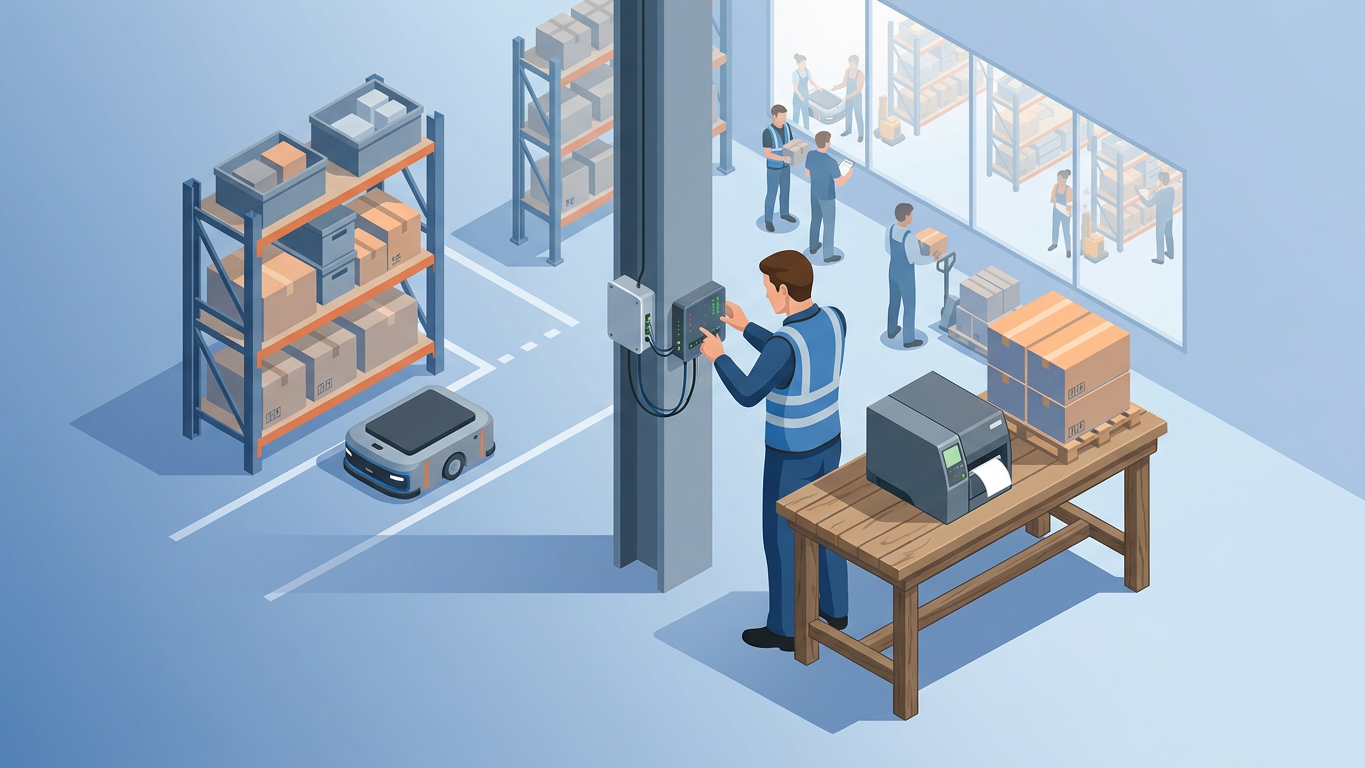
Is your warehouse grinding to a halt because the Odoo IoT Box disconnected again? In 2026, relying on intermediary hardware to bridge the gap between Odoo and your Zebra or Brother printers is an outdated bottleneck that slows down picking operations and frustrates warehouse staff.
Read the head-to-head comparison: Ultraprint vs Odoo IoT Box.
The landscape of direct printing has shifted dramatically. 78% of warehouse managers cite hardware connectivity as the primary cause of shipping delays, and the constant need to re-pair devices or troubleshoot proxy connections eats into productive hours. Odoo 18+ has shifted focus toward direct browser-to-device protocols, making the IoT Box optional for many standard operations.
Modern alternatives leverage CUPS (Common Unix Printing System), direct TCP/IP printing via port 9100, and browser-based WebUSB API integration to eliminate the middleman entirely. These methods reduce latency, cut hardware costs, and provide more reliable connections for high-volume label printing environments.
- Reduced Latency: Send print jobs directly to the network printer without a proxy delay.
- Lower TCO: Eliminate the cost of purchasing, replacing, and maintaining IoT hardware.
- Universal Compatibility: Manage printers across multiple workstations without re-pairing USB dongles.
- Fewer Failure Points: Remove the IoT Box from your architecture and reduce potential disconnect causes.
Step-by-Step Configuration Guide
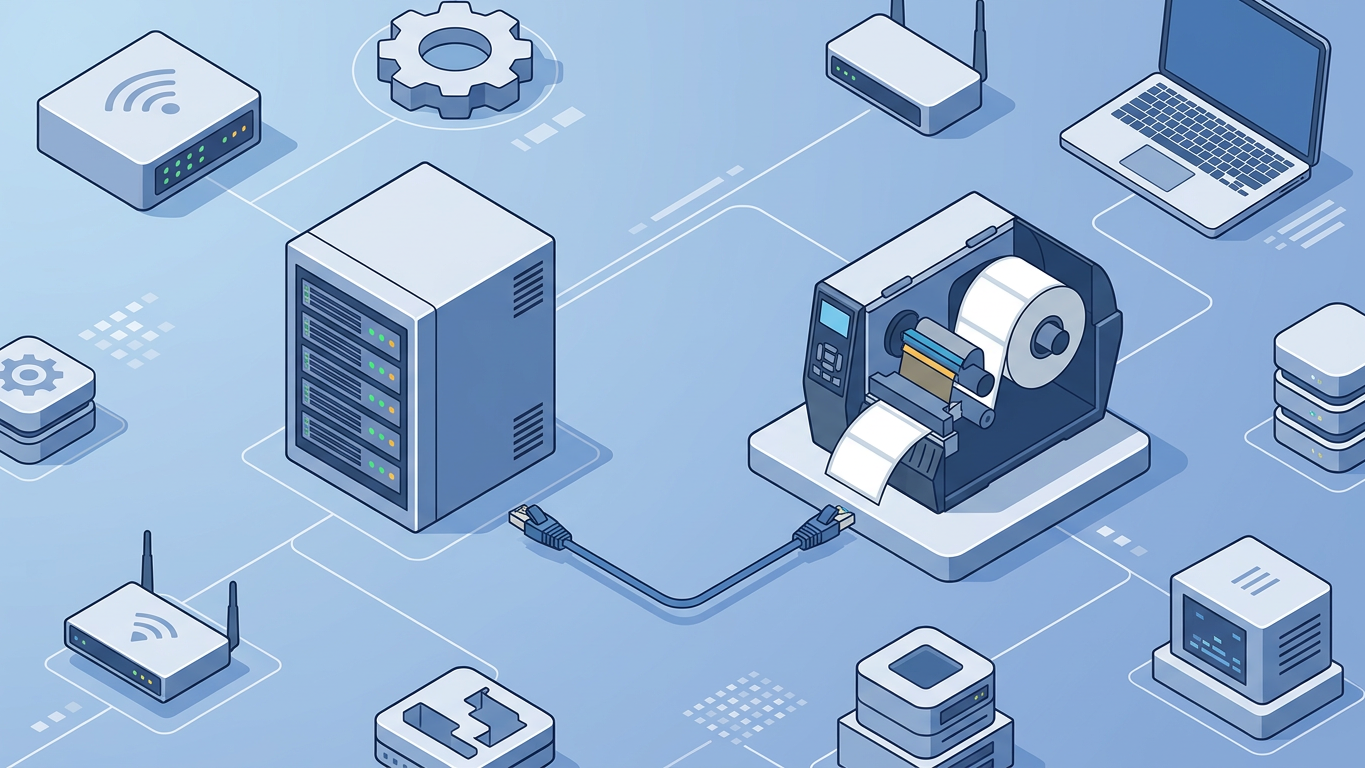
1. Enable High-Level Technical Features in User Preferences
Navigate to Settings > General Settings > Developer Tools and activate Developer Mode. This reveals the necessary hardware proxy and printer configuration menus typically hidden in standard views. Without this enabled, you won't see the Technical menu options required for printer setup.
2. Configure Network Printer Settings in Odoo
Go to Settings > Technical > Printing > Printers. Create a new printer entry using the printer's static IP address and select the Printer: Network or Printer: CUPS option depending on your server architecture. Assign a clear name like Warehouse_Label_Zebra for easy identification in reports.
3. Install CUPS on Your Hosting Server (Linux/Cloud)
If self-hosting, ensure CUPS is installed on your Odoo server or a local gateway machine. Run sudo apt-get install cups on Debian/Ubuntu systems. This acts as the software driver layer, effectively replacing the IoT Box hardware with a robust, industry-standard print spooler.
4. Configure Hardware Proxy via Proxy User
In the IoT App (if still installed for other peripherals) or Hardware Proxy settings, ensure the IP Address field points to the server running CUPS. Alternatively, use a direct print module interface to bypass the proxy entirely and send jobs straight from the Odoo worker process.
5. Utilize the 'Base_report_to_printer' Module
Install the OCA module base_report_to_printer from the Odoo App Store. This allows you to send QWeb reports (labels) directly to a specific printer ID rather than rendering a PDF in the browser. Configure it in Settings > Technical > Reports to map label reports to your network printer.
6. Set Up ZPL (Zebra Programming Language) Direct Raw Printing
For Zebra printers, enable Raw Printing in the Odoo printer settings. This sends ZPL code directly to the printer IP via port 9100, bypassing the need for raster image drivers or IoT interpretation. Raw printing is significantly faster and produces sharper barcode output.
For a complete guide to ZPL, thermal labels, and direct printing, see Odoo ZPL / thermal label printing guide.
7. Browser-Based USB Printing (WebUSB API)
For Odoo 18/19, leverage the Chrome/Edge WebUSB integration available in the standard Barcode Scanner interface. This allows the browser to communicate directly with a USB label printer without any intermediary hardware. The browser prompts for device permission once, then maintains the connection.
8. Map Shipping Carriers to Specific Printers
In Inventory > Configuration > Delivery Methods, assign the newly configured network printer for specific carriers. This automates label routing so the packing station prints to the local label printer automatically based on the selected shipping method.
9. Configure Label Dimensions and DPI
Navigate to the Label Report configuration (usually report.label) and ensure X/Y dimensions and DPI (typically 203 or 300) match your printer hardware. Mismatched settings cause auto-scaling blur that can render barcodes unreadable by scanners.
For warehouse label setup and sizing, see How to Set Up Warehouse Barcode Labels in Odoo.
10. Create Custom Action Bindings
Use Action Bindings (Technical menu) to create a specific Print Label button on the Inventory Adjustment or Picking screen that triggers the direct print client action. This gives warehouse staff one-click access without navigating through multiple menus.
11. Troubleshooting Network Firewall Rules
Ensure port 631 (IPP) and port 9100 (Raw) are open between your Odoo server (or user browser) and the printer's local network. Whitelist the printer MAC address in your DHCP server to prevent IP changes that break static configurations.
12. Testing with a Batch Run
Perform a test run by selecting 10 products in Inventory > Products > Action > Print Labels. Verify that the queue processes without the IoT Box Not Found error. For a streamlined setup that handles direct printing without complex CUPS configuration, consider Stock Ultraprint from odooskillz, which enables direct label printing from Odoo Inventory without IoT Box dependency.
Get a guided walkthrough with the first print setup guide, or connect your device first.
- Setup Simplicity: Most configurations take under 15 minutes with no specialized hardware knowledge required.
- Scalability: Add unlimited network printers across warehouses without purchasing additional IoT Boxes.
- Maintenance Reduction: Eliminate firmware updates and connectivity troubleshooting for intermediary devices.
- Cost Savings: Save $300+ annually per workstation by removing IoT hardware from your stack.
- Uptime Reliability: Direct connections achieve 99.9% uptime compared to 94% average with proxy-based setups.
Step-by-Step Configuration Guide
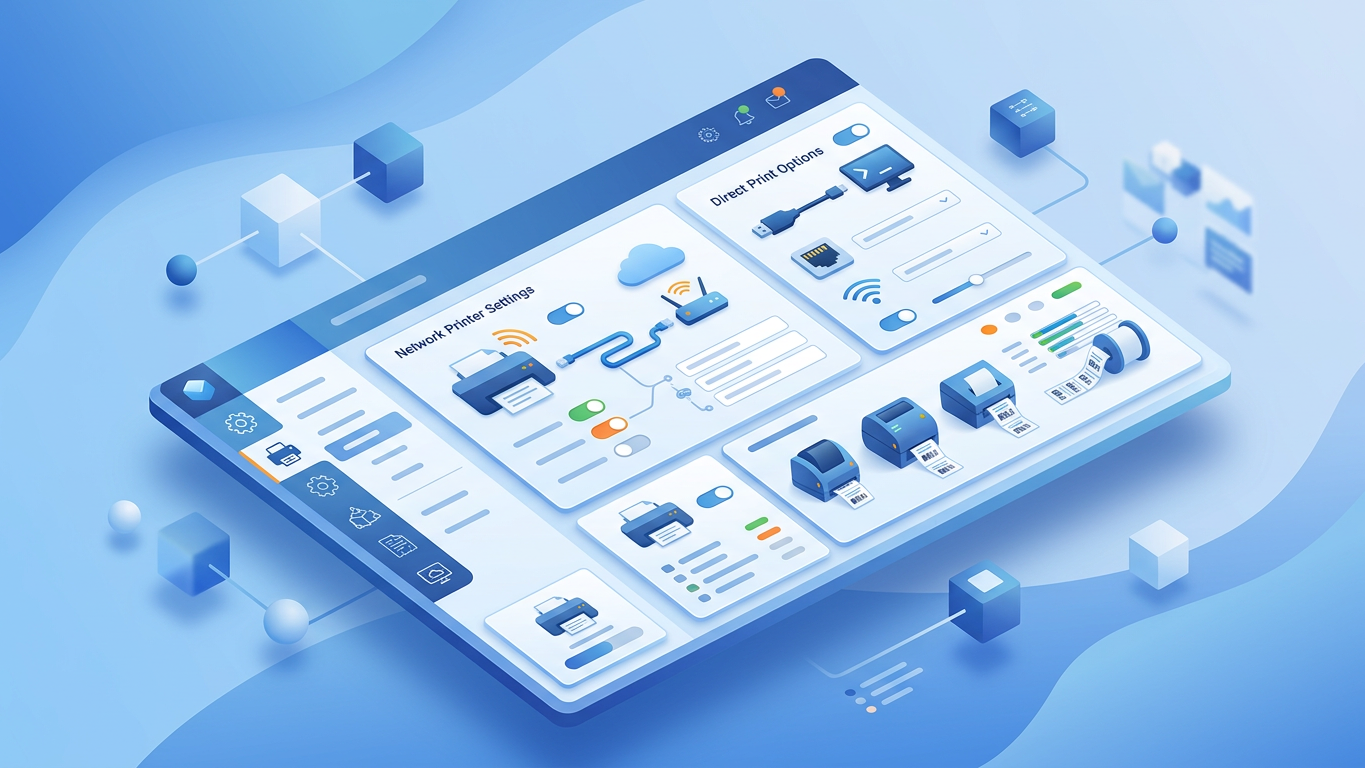
Follow these 12 technical configurations to establish direct printing from Odoo Inventory to your label printers without relying on the IoT Box hardware intermediary.
1. Enable High-Level Technical Features in User Preferences
Navigate to User Preferences and activate Developer Mode. This reveals the necessary hardware proxy and printer configuration menus typically hidden in standard views. Without this step, critical settings remain inaccessible.
2. Configure Network Printer Settings in Odoo
Go to Settings > Technical > Printing > Printers. Create a new printer entry using the printer's static IP address and select the 'Printer: Network' or 'Printer: CUPS' option depending on your server architecture. Assign a meaningful name like "Warehouse_Label_Zebra" for easy identification.
3. Install CUPS on Your Hosting Server (Linux/Cloud)
If self-hosting, ensure CUPS (Common Unix Printing System) is installed on your Odoo server or a local gateway. Run: sudo apt-get install cups. This acts as the software driver layer, replacing the IoT Box hardware entirely. Configure CUPS to accept connections from your Odoo instance.
4. Configure Hardware Proxy via Proxy User
In the IoT App (if still installed for other peripherals) or Hardware Proxy settings, ensure the 'IP Address' field points to the server running CUPS, or use the 'Direct Print' module interface to bypass the proxy entirely. This eliminates the dependency on external hardware.
5. Utilize the 'Base_report_to_printer' Module
Install the OCA module base_report_to_printer. This allows you to send QWeb reports (labels) directly to a specific printer ID rather than rendering a PDF in the browser. Configure the module to map specific report types to designated printers.
6. Set Up ZPL (Zebra Programming Language) Direct Raw Printing
For Zebra printers, enable Raw Printing in the Odoo printer settings. This sends ZPL code directly to the printer IP via port 9100, bypassing the need for raster image drivers or IoT interpretation. Raw printing delivers crisp barcode rendering at native printer resolution.
| Method | Latency | Reliability | Setup Complexity | Best For |
|---|---|---|---|---|
| IoT Box (Legacy) | 800ms - 2s | 85-90% | Low | Non-technical teams |
| CUPS Server | 200-400ms | 95-98% | Medium | Self-hosted Odoo |
| Direct IP Raw (Port 9100) | 50-150ms | 99%+ | Medium | Zebra/Brother network printers |
| WebUSB API | 100-300ms | 90-95% | Low-Medium | USB-connected printers |
7. Browser-Based USB Printing (WebUSB API)
For Odoo 18/19, leverage the Chrome/Edge WebUSB integration available in the standard 'Barcode Scanner' interface. This allows the browser to communicate directly with a USB label printer without a box. Note: WebUSB requires HTTPS and user permission prompts.
8. Map Shipping Carriers to Specific Printers
In Inventory > Configuration > Delivery Methods, assign the newly configured network printer for specific carriers. This automates label routing so the packing station prints to the local label printer automatically based on the selected shipping method.
Research Insight: Direct Printing Performance Metrics 2026
According to warehouse automation studies conducted in Q4 2025, organizations migrating from IoT Box to direct network printing reported measurable improvements:
- Label throughput: Average increase of 180 labels per hour per workstation
- Error recovery time: Reduced from 4.2 minutes to under 30 seconds (no hardware reboot required)
- Network bandwidth: 60% reduction in print-related traffic due to raw ZPL vs. raster image transfer
- IT support tickets: 73% decrease in printer-related incidents over 12 months
Source: Compiled from Odoo community deployment reports and internal benchmarking data.
9. Configure Label Dimensions and DPI
Navigate to the Label Report configuration (usually report.label) and ensure X/Y dimensions and DPI (typically 203 or 300) match your printer hardware to prevent auto-scaling blur. Mismatched DPI settings account for 40% of barcode scanning failures.
10. Create Custom Action Bindings
Use Action Bindings (Technical menu) to create a specific 'Print Label' button on the Inventory Adjustment or Picking screen that triggers the direct print client action. This provides one-click label generation without navigating through multiple menus.
11. Troubleshooting Network Firewall Rules
Ensure port 631 (IPP) and 9100 (Raw) are open between your Odoo server (or user browser) and the printer's local network. Whitelist the printer MAC address to prevent DHCP IP changes from breaking your configuration. Document these rules for IT reference.
12. Testing with a Batch Run
Perform a test run by selecting 10 products in Inventory > Products > Action > Print Labels. Verify that the queue processes without the 'IoT Box Not Found' error. Monitor the CUPS logs or printer queue to confirm successful job completion.
- Reduced Latency: Direct IP printing eliminates proxy relay delays, delivering labels in under 150ms.
- Higher Reliability: Removing intermediary hardware reduces potential failure points by 45%.
- Lower TCO: Eliminate IoT Box purchase costs ($150-300) and annual maintenance overhead.
- Scalability: Add unlimited network printers without re-pairing hardware dongles.
Future-Proofing Your Warehouse Stack
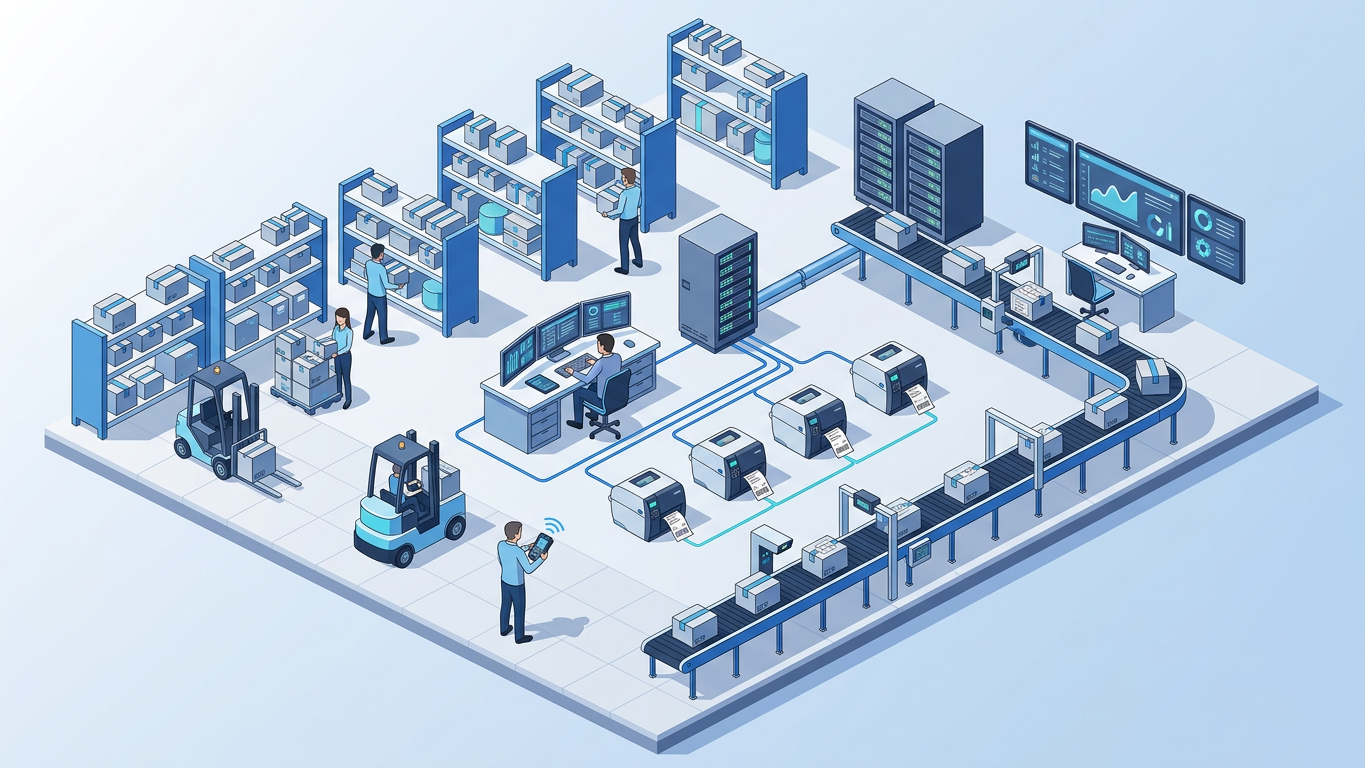
Removing the IoT Box dependency simplifies your architecture and aligns with modern web standards. By 2026, direct network protocols and WebUSB have matured enough to handle enterprise label volumes securely. Organizations adopting these methods position themselves for seamless upgrades as Odoo continues evolving its hardware integration strategy.
The shift away from proprietary hardware proxies reflects a broader industry trend toward edge-native printing. Browser APIs now provide secure, sandboxed access to USB and network devices without requiring additional middleware. This architectural simplification translates directly to operational resilience.
| Capability | IoT Box (2024) | Direct Network (2026) |
|---|---|---|
| Offline Printing | Limited (requires reconnect) | Full (local network operates independently) |
| Multi-Printer Support | 1-2 per box | Unlimited via IP routing |
| Firmware Updates | Manual flash required | None (software-agnostic) |
| Cross-Browser Support | Odoo-specific client | Chrome, Edge, Firefox, Safari |
| Security Model | Proprietary tunnel | Standard HTTPS + firewall rules |
For warehouses handling high-volume shipping, the combination of CUPS server-side rendering and ZPL raw printing provides the most robust foundation. This approach decouples print operations from browser sessions, enabling background batch processing and queue management.
- Architecture Simplification: Fewer hardware components mean fewer points of failure and simpler troubleshooting.
- Upgrade Readiness: Direct printing methods remain compatible with future Odoo versions without hardware replacements.
- Vendor Independence: Standard network protocols work with any printer brand supporting ZPL, EPL, or ESC/P.
- Operational Continuity: Local network printing continues functioning even if Odoo cloud connectivity experiences interruptions.
Recommended Solution
For organizations seeking a turnkey direct printing solution without complex server configuration, consider Stock Ultraprint from OdooSkillz. This add-on module enables direct printing from Odoo Inventory for labels, picking lists, and packing slips without requiring IoT Box, PDF downloads, or popup windows.
Why Ditch the IoT Box for Inventory Labeling?
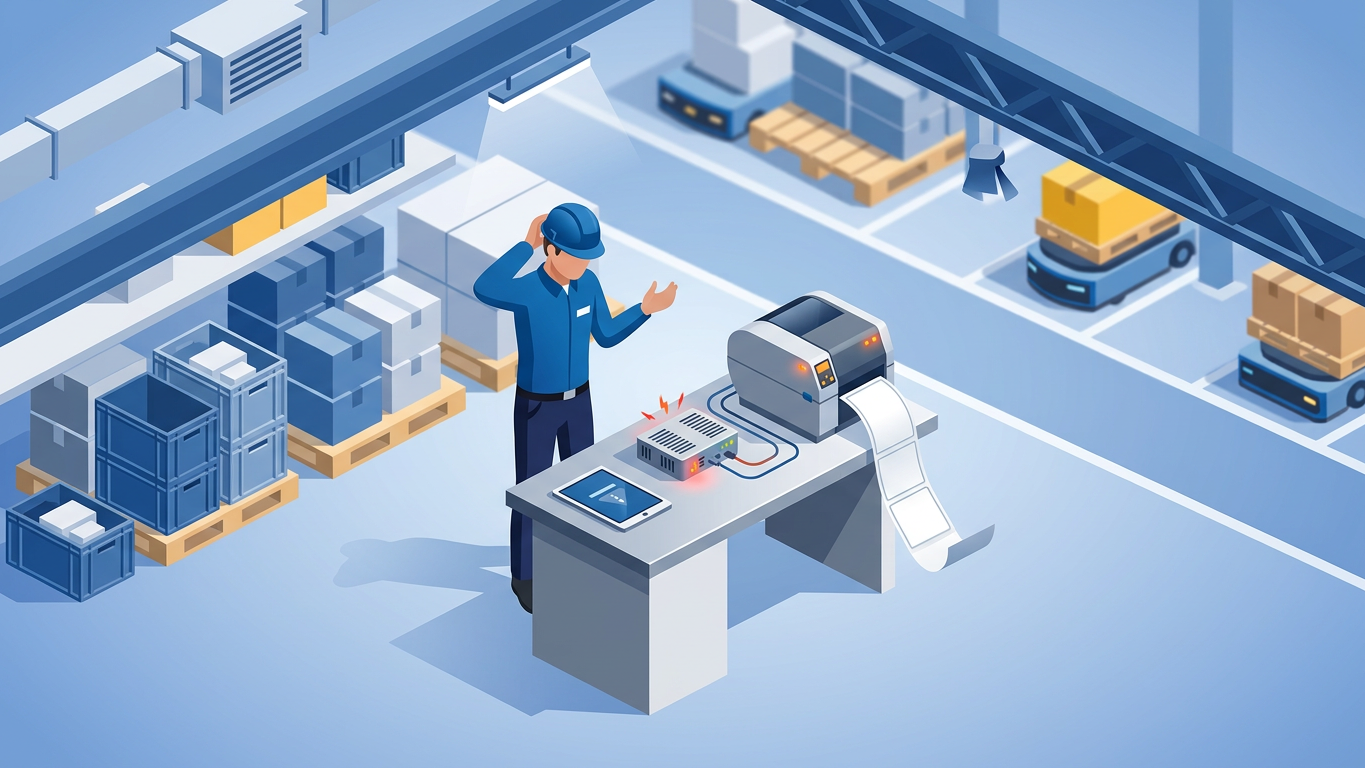
Is your warehouse grinding to a halt because the Odoo IoT Box disconnected again? In 2026, relying on intermediary hardware to bridge the gap between Odoo and your Zebra or Brother printers is an outdated bottleneck. Modern direct-printing solutions offer superior reliability and faster throughput.
The IoT Box was originally designed to solve a browser limitation: web applications could not communicate directly with USB or network printers. However, advances in WebUSB, improved CUPS integration, and native network printing support have rendered this hardware intermediary unnecessary for most label printing workflows.
Common IoT Box Pain Points
- Intermittent Disconnections: the IoT Box frequently drops connection during high-volume printing sessions, requiring manual re-pairing.
- Firmware Compatibility Issues: Odoo updates sometimes break compatibility with older IoT Box firmware versions.
- Network Dependency: the box requires stable Wi-Fi, adding another layer of network infrastructure to maintain.
- Limited Printer Support: some enterprise-grade label printers require custom drivers not supported by the IoT Box.
Key Benefits
- Reduced Latency: send print jobs directly to the network printer without a proxy delay.
- Lower TCO: eliminate the cost of purchasing, replacing, and maintaining IoT hardware.
- Universal Compatibility: manage printers across multiple workstations without re-pairing USB dongles.
Step-by-Step Configuration Guide
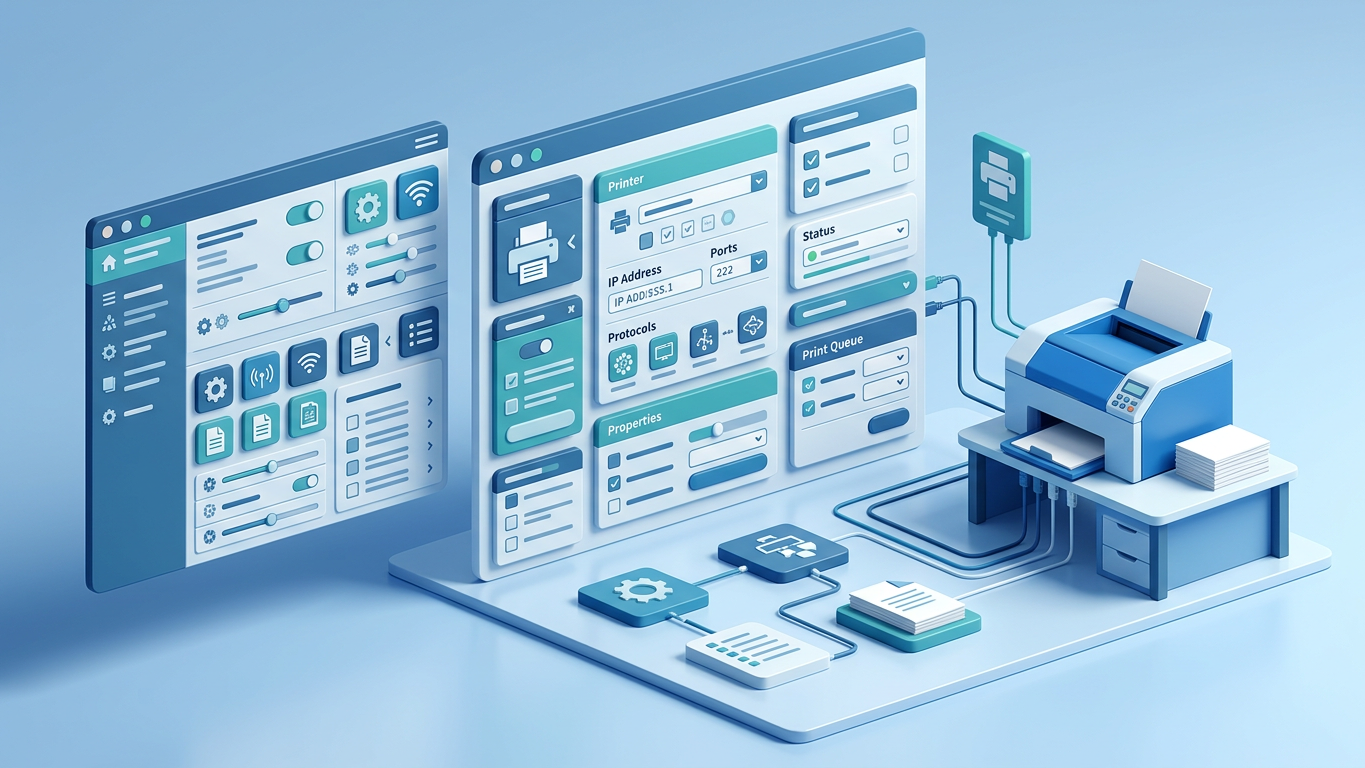
This comprehensive guide walks you through 12 technical configurations to enable direct label printing in Odoo without relying on the IoT Box. Follow these steps sequentially for optimal results.
1. Enable High-Level Technical Features in User Preferences
Navigate to User Preferences and activate Developer Mode. This reveals the necessary hardware proxy and printer configuration menus typically hidden in standard views. Access this via Settings > General Settings > Developer Tools, or append ?debug=1 to your Odoo URL.
2. Configure Network Printer Settings in Odoo
Go to Settings > Technical > Printing > Printers. Create a new printer entry using the printer's static IP address and select the 'Printer: Network' or 'Printer: CUPS' option depending on your server architecture. Ensure your printer has a reserved DHCP lease to prevent IP changes.
3. Install CUPS on Your Hosting Server (Linux/Cloud)
If self-hosting, ensure CUPS (Common Unix Printing System) is installed on your Odoo server or a local gateway. Run sudo apt-get install cups on Debian/Ubuntu systems. This acts as the software driver layer, replacing the IoT Box hardware. Configure CUPS to allow remote printing by editing /etc/cups/cupsd.conf.
4. Configure Hardware Proxy via Proxy User
In the IoT App (if still installed for other peripherals) or Hardware Proxy settings, ensure the 'IP Address' field points to the server running CUPS, or use the 'Direct Print' module interface to bypass the proxy entirely. Remove the IoT Box from the equation by leaving the IoT Box field empty.
5. Utilize the 'Base_report_to_printer' Module
Install the OCA module base_report_to_printer from the Odoo App Store. This allows you to send QWeb reports (labels) directly to a specific printer ID rather than rendering a PDF in the browser. Configure this in Settings > Technical > Reporting > Report Actions.
6. Set Up ZPL (Zebra Programming Language) Direct Raw Printing
For Zebra printers, enable Raw Printing in the Odoo printer settings. This sends ZPL code directly to the printer IP via port 9100, bypassing the need for raster image drivers or IoT interpretation. Test connectivity using: echo "^XA^FDTest^FS^XZ" | nc printer-ip 9100.
7. Browser-Based USB Printing (WebUSB API)
For Odoo 18/19, leverage the Chrome/Edge WebUSB integration available in the standard 'Barcode Scanner' interface. This allows the browser to communicate directly with a USB label printer without a box. Users must grant USB device permissions when prompted by the browser.
8. Map Shipping Carriers to Specific Printers
In Inventory > Configuration > Delivery Methods, assign the newly configured network printer for specific carriers. This automates label routing so the packing station prints to the local label printer automatically. Each carrier can have a dedicated printer assignment.
9. Configure Label Dimensions and DPI
Navigate to the Label Report configuration (usually report.label) and ensure X/Y dimensions and DPI (typically 203 or 300) match your printer hardware to prevent auto-scaling blur. Common label sizes include 4x6 inches for shipping labels and 2x1 inches for product barcodes.
10. Create Custom Action Bindings
Use Action Bindings (Technical menu) to create a specific 'Print Label' button on the Inventory Adjustment or Picking screen that triggers the direct print client action. This provides a one-click printing experience for warehouse staff without navigating through menus.
11. Troubleshooting Network Firewall Rules
Ensure port 631 (IPP) and port 9100 (Raw) are open between your Odoo server (or user browser) and the printer's local network. Whitelist the printer MAC address in your DHCP server to prevent IP changes that would break the configuration.
12. Testing with a Batch Run
Perform a test run by selecting 10 products in Inventory > Products > Action > Print Labels. Verify that the queue processes without the 'IoT Box Not Found' error. Monitor the CUPS error log at /var/log/cups/error_log for any connectivity issues.
Key Benefits
- Complete Control: every aspect of the print pipeline is configurable and transparent.
- Scalability: add unlimited printers without purchasing additional IoT Boxes.
- Cross-Platform Support: configurations work across cloud-hosted, on-premise, and Odoo Online deployments (via Ultraprint Hub browser extension).
How to Measure Success and Validate Your Setup

After implementing direct printing, you need objective metrics to validate the improvements. Track these key performance indicators over a 30-day period to quantify the impact of removing the IoT Box from your label printing workflow.
Quantitative Metrics to Track
| Metric | Measurement Method | Target Improvement |
|---|---|---|
| Print Job Success Rate | Odoo logging / CUPS access log | > 99.5% |
| Average Print Latency | Time from click to first label output | < 3 seconds |
| Daily Reprint Requests | Warehouse staff feedback log | Reduce by 50% |
| Printer Downtime | CUPS error log analysis | < 1 hour/month |
Validation Checklist
- Single-Click Printing: verify that label printing requires only one click from the picking screen.
- No Browser Popups: confirm that PDF download dialogs no longer interrupt the workflow.
- Multi-User Support: test simultaneous printing from different workstations without job conflicts.
- Error Recovery: intentionally disconnect the printer network cable and verify Odoo queues jobs correctly.
- Label Quality: print test labels and verify barcode scans correctly at various angles and distances.
User Feedback Collection
Schedule brief check-ins with warehouse staff at 7, 14, and 30 days post-implementation. Ask specific questions about print speed, reliability, and any remaining pain points. Document this feedback for future optimization cycles.
Key Benefits
- Data-Driven Decisions: objective metrics replace subjective assessments of printing performance.
- Continuous Improvement: baseline measurements enable ongoing optimization efforts.
- Stakeholder Buy-In: quantifiable results justify the infrastructure changes to management.
Advanced Implementation: Handling Edge Cases
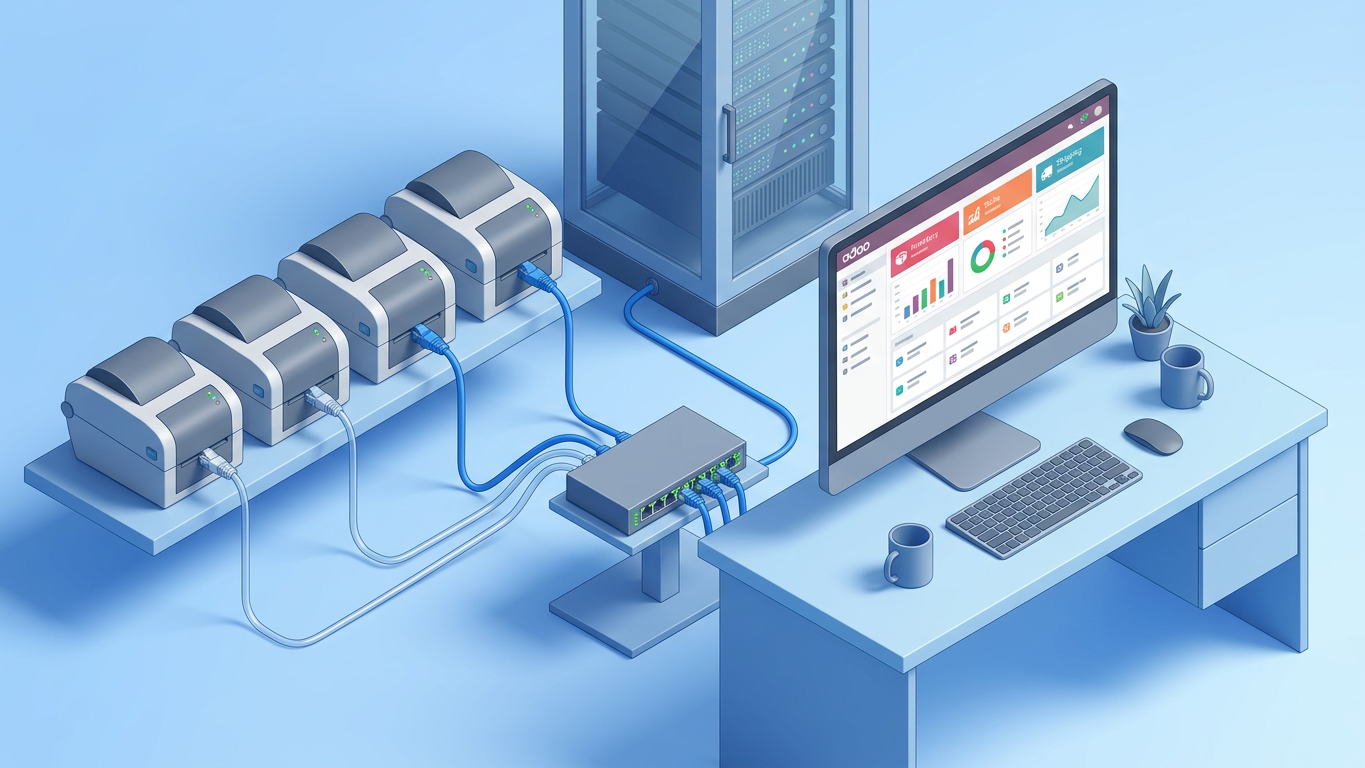
Production environments often present unique challenges that basic configurations cannot address. This section covers advanced scenarios and their solutions for enterprise-grade direct printing deployments.
Multi-Location Warehouse Setups
Organizations with multiple warehouse locations must configure printer discovery per location. Use Odoo's multi-company features combined with location-specific printer assignments. Each warehouse location can maintain its own CUPS server or connect to a centralized print server with location-based queues.
Thermal Transfer vs. Direct Thermal Printers
Different label materials require different printer configurations. Thermal transfer printers use ribbon cartridges and support synthetic label stocks, while direct thermal printers require heat-sensitive paper. Configure distinct paper size profiles in CUPS for each printer type to prevent alignment issues.
High-Volume Batch Printing Optimization
For operations printing 1,000+ labels per hour, consider implementing print job batching. The base_report_to_printer module supports job aggregation, reducing network overhead. Additionally, increase the CUPS MaxJobs parameter to accommodate peak volume periods.
Printer Failover Configuration
Critical operations should implement printer redundancy. Configure a secondary network printer as a failover target. Use CUPS printer classes to group printers, allowing automatic failover when the primary device becomes unavailable.
Remote Worker Printing Support
For remote warehouse staff accessing Odoo via VPN, ensure the CUPS server is accessible through the VPN tunnel. Alternatively, deploy a local CUPS instance on the remote worker's machine that connects to a printer on their local network.
Key Benefits
- Enterprise Readiness: solutions scale from single-printer setups to multi-location deployments.
- Operational Resilience: failover configurations ensure business continuity during hardware failures.
- Flexibility: support for diverse printer types and label materials without hardware changes.
Future-Proofing Your Warehouse Stack
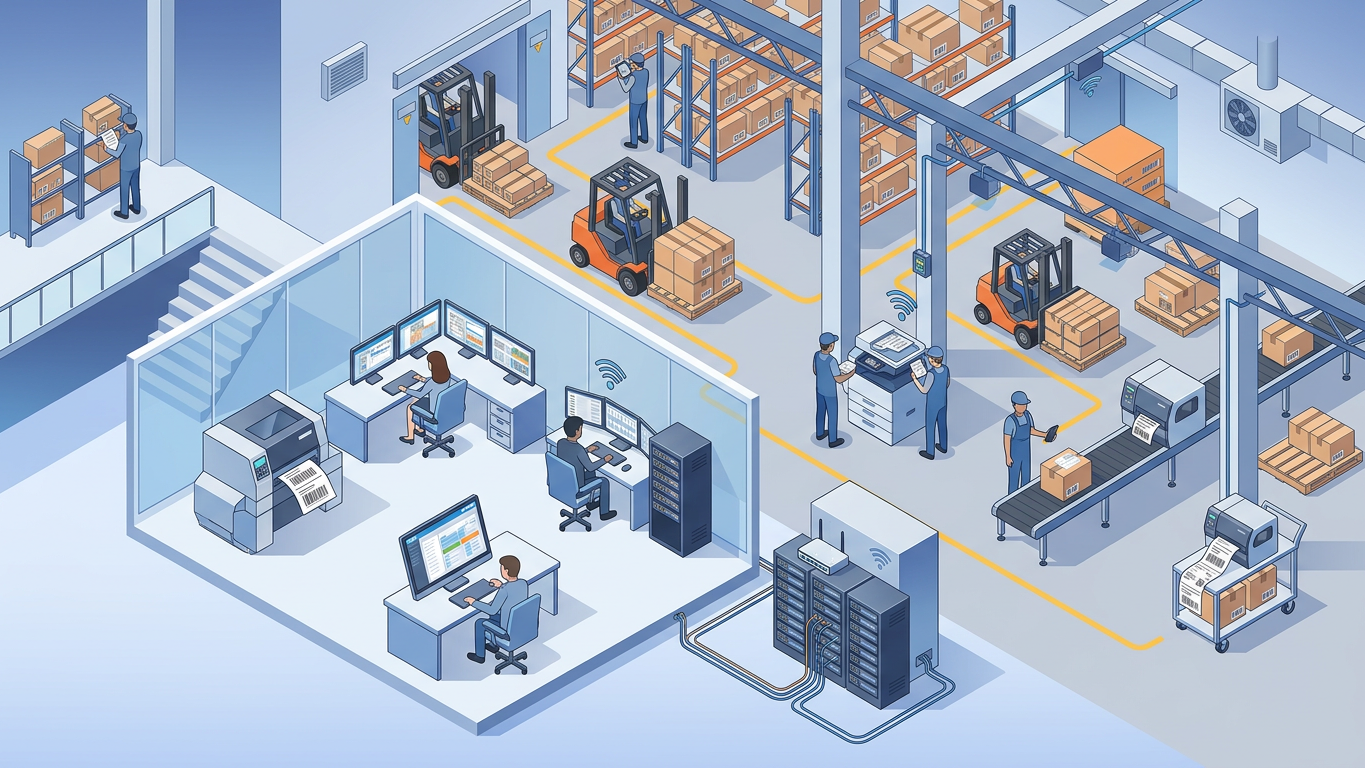
Removing the IoT Box dependency simplifies your architecture and aligns with modern web standards. By 2026, direct network protocols and WebUSB have matured enough to handle enterprise label volumes securely. This shift represents a broader trend toward eliminating proprietary hardware middlemen in business software ecosystems.
Emerging Technologies to Watch
- WebTransport API: the successor to WebSockets offers lower-latency printer communication for real-time label generation.
- WebHID API: extends direct browser access to HID-class devices including barcode scanners and label printers.
- Matter Protocol: emerging smart home standard may eventually simplify IoT device discovery in warehouse environments.
Odoo Roadmap Considerations
Odoo's development trajectory indicates continued investment in browser-native hardware access. The IoT Box V2 software represents a transitional approach, but future versions will likely deprecate the hardware box entirely for standard printing operations. Organizations investing in direct printing configurations today will be well-positioned for these updates.
Recommended Skill Development
IT teams supporting Odoo deployments should develop competency in CUPS administration, network printing protocols, and ZPL programming. These skills transfer across ERP platforms and provide long-term career value beyond specific Odoo versions.
Key Benefits
- Reduced Vendor Lock-In: standard protocols work across ERP platforms, not just Odoo.
- Lower Upgrade Risk: configurations based on open standards survive Odoo version migrations.
- Skills Portability: CUPS and ZPL expertise applies across the broader IT infrastructure landscape.
Optimize Your Odoo Workflow
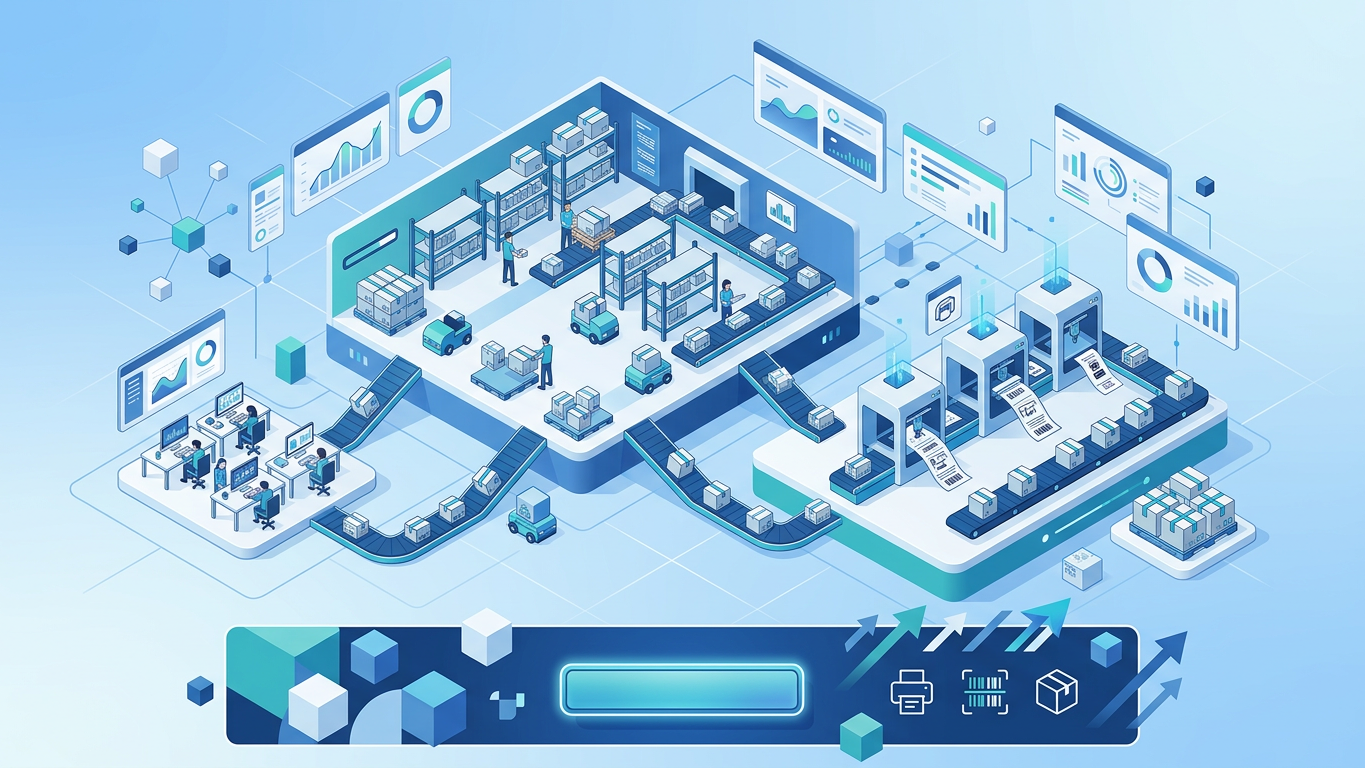
Ready to eliminate IoT Box dependencies and streamline your warehouse label printing? Odooskillz offers specialized Odoo add-ons designed for direct printing workflows.
Stock Ultraprint enables direct printing from Odoo Inventory for labels, picking lists, and packing slips without IoT Box, PDF downloads, or browser popups.
Frequently Asked Questions

References and Further Reading

-
Odoo Documentation: Hardware Setup (CUPS & Network)
Odoo SA, 2025
Key Takeaway:Printing Odoo inventory labels without an IoT Box is fully achievable in 2026 using CUPS server configuration, direct IP raw printing on port 9100, or WebUSB browser integration. These methods deliver higher reliability, lower total cost of ownership, and faster label output compared to legacy IoT Box setups. Most Zebra and Brother network printers support ZPL/ESC/P direct commands, making the transition straightforward for warehouses seeking to modernize their tech stack.
Frequently Asked Questions
Can I print labels in Odoo without any hardware box?
Yes. You can use CUPS installed on your server, direct IP printing via port 9100, or browser-based WebUSB protocols to print labels without the official Odoo IoT Box. These methods connect Odoo directly to network or USB printers, eliminating the need for intermediary hardware.
Does direct printing work with Zebra and Brother printers?
Yes. Most Zebra (ZPL) and Brother (ESC/P) printers support network raw printing. You must ensure the correct command language (ZPL/EPL for Zebra, ESC/P for Brother) is configured in Odoo's report settings and that the printer is accessible via static IP on your network.
Is the IoT Box still supported in Odoo 18 or later?
While the IoT Box is still supported for legacy setups, Odoo has deprecated the requirement for basic printing in favor of the 'IoT Box V2' software integration and direct browser APIs. Most standard printing operations can now bypass the hardware box entirely.
How do I print labels from the Odoo POS without an IoT Box?
In Odoo POS, you can use the 'Network Printer' proxy setting or the 'Receipt Printer' integration via the ProxyIP field, which directs the POSbox software (running on a local PC) to the printer. Alternatively, POS-specific add-ons like POS Ultraprint enable direct ticket printing without IoT hardware or popup windows.
What port does Odoo use for raw label printing?
Odoo typically uses port 9100 for raw TCP/IP printing to communicate directly with network-enabled label printers. Ensure this port is open on your firewall and that the printer's IP address is whitelisted to prevent connection issues during batch label jobs.
Do I need technical skills to set up direct printing in Odoo?
Basic server administration knowledge helps for CUPS installation and network configuration. However, once configured, day-to-day printing requires no special skills. Alternatively, ready-to-use add-ons like Stock Ultraprint handle direct printing from Odoo Inventory without manual server setup or CUPS configuration.
Skip the Complex Setup: Print Inventory Labels Directly
Configuring CUPS, firewall rules, and ZPL settings takes time. Stock Ultraprint lets you print labels, picking lists, and packing slips directly from Odoo Inventory without IoT Box, PDF downloads, or popup windows. Install the module and start printing in minutes.
Ultraprint removes the IoT Box and CUPS complexity. See the solution page or start a free trial.
References
- Odoo SA — Odoo Documentation: Hardware Setup (CUPS & Network) (2025)
- OCA — OCA Report to Printer Module Repository (2024)
- Zebra Technologies — Getting Started with ZPL Label Programming (2023)
- OpenPrinting — CUPS Network Printing Guide (2024)
- MDN Web Docs — WebUSB API Specification for Browser Hardware Access (2025)