
Stop Losing Money on Purchase Orders
Every dollar that flows out of your business through a purchase order should be tracked, verified, and matched. Yet most small businesses process vendor payments without checking whether the goods arrived, the quantities match, or the price is correct.
Companies that implement three-way matching (order, receipt, bill) reduce overpayment errors by up to 40%. Odoo makes this possible out of the box, but only if you configure the workflow correctly.
This guide covers the complete purchase cycle in Odoo, from creating your first RFQ to reconciling vendor bills with automated controls.
1. Create RFQ, send to vendor, confirm as Purchase Order
2. Receive products (triggers inventory receipt)
3. Create vendor bill from receipt (3-way match)
4. Register payment and reconcile
Key setting: Bill Control policy determines when you can create vendor bills: on ordered quantities or received quantities.
The Complete Purchase Flow
Before clicking any buttons, understand the five stages of a purchase in Odoo:

| Stage | Document | What Happens |
|---|---|---|
| 1. Request | RFQ (Draft) | Internal document, not sent to vendor |
| 2. Quote | RFQ (Sent) | Sent to vendor, awaiting confirmation |
| 3. Order | Purchase Order | Confirmed, triggers receptions and bills |
| 4. Receipt | Receipt (Inventory) | Products received, stock updated |
| 5. Bill | Vendor Bill | Invoice from vendor, ready for payment |
Each stage creates linked documents. The RFQ becomes the Purchase Order. The PO triggers a reception in Inventory. The reception enables the vendor bill in Accounting. Everything connects automatically.
Step 1: Configure Purchase Settings
Before creating orders, configure the settings that control your procurement workflow.

Navigate to Settings
Go to Purchase > Configuration > Settings. Key options to enable:
Product Types
Enable Storable Products if you buy physical goods that go into inventory. Enable Consumables for items you buy and use immediately without tracking stock.
Purchase Agreements
Enable Blanket Orders for recurring purchases with pre-negotiated prices. Enable Calls for Tender if you send RFQs to multiple vendors and compare quotes before selecting one.
Bill Control Policy (Critical Setting)
This setting controls when vendor bills can be created. Go to the product form and find the Purchase tab:
- Ordered quantities: You can bill as soon as the PO is confirmed, regardless of whether goods arrived. Faster but riskier.
- Received quantities: You can only bill what you actually received. Slower but prevents overpayment.
Recommendation: Use Received quantities for all storable products. This enforces three-way matching automatically.
Step 2: Create and Send RFQs
An RFQ (Request for Quotation) is a draft purchase order. It is your internal working document until you send it to the vendor.
Create an RFQ
Go to Purchase > Orders > Requests for Quotation. Click New:
- Vendor: Select from your vendor list
- Order lines: Add products, quantities, and agreed prices
- Delivery date: Set the expected receipt date
- Payment terms: Select from your configured terms (Net 30, Net 60, etc.)
Send by Email
Click Send by Email to generate a professional PDF and send it directly to your vendor. Odoo tracks when the vendor opens the email.
Compare Multiple Quotes
If you enabled Calls for Tender, create a tender with multiple vendors. Odoo displays all responses side by side so you can compare price, delivery time, and terms before selecting the winner.
For purchase quotes that include true landed cost, see the Customs Duties add-on.

Step 3: Confirm the Purchase Order
Once you accept a vendor quote, click Confirm Order. This converts the RFQ into a confirmed Purchase Order and triggers downstream actions:
Inventory Reception
Odoo automatically creates a pending reception in the Inventory app. Go to Inventory > Operations > Receipts to see it. The reception status shows Waiting until the vendor delivers.
Bill Generation
Depending on your Bill Control policy, a draft vendor bill may appear automatically, or it will become available once you validate the reception.
Purchase Agreements
If you set up a blanket order, each confirmed PO deducts from the total agreed quantity. When the blanket order quantity is exhausted, Odoo alerts you to renew or create a new agreement.
Step 4: Receive Products and Validate
When the delivery arrives, go to Inventory > Operations > Receipts. Open the pending reception for this PO.

Validate Quantities
Check the Done column against what actually arrived. If the PO says 100 units but only 95 arrived, enter 95. Odoo handles the discrepancy based on your receipt tolerance settings.
Partial Receipts
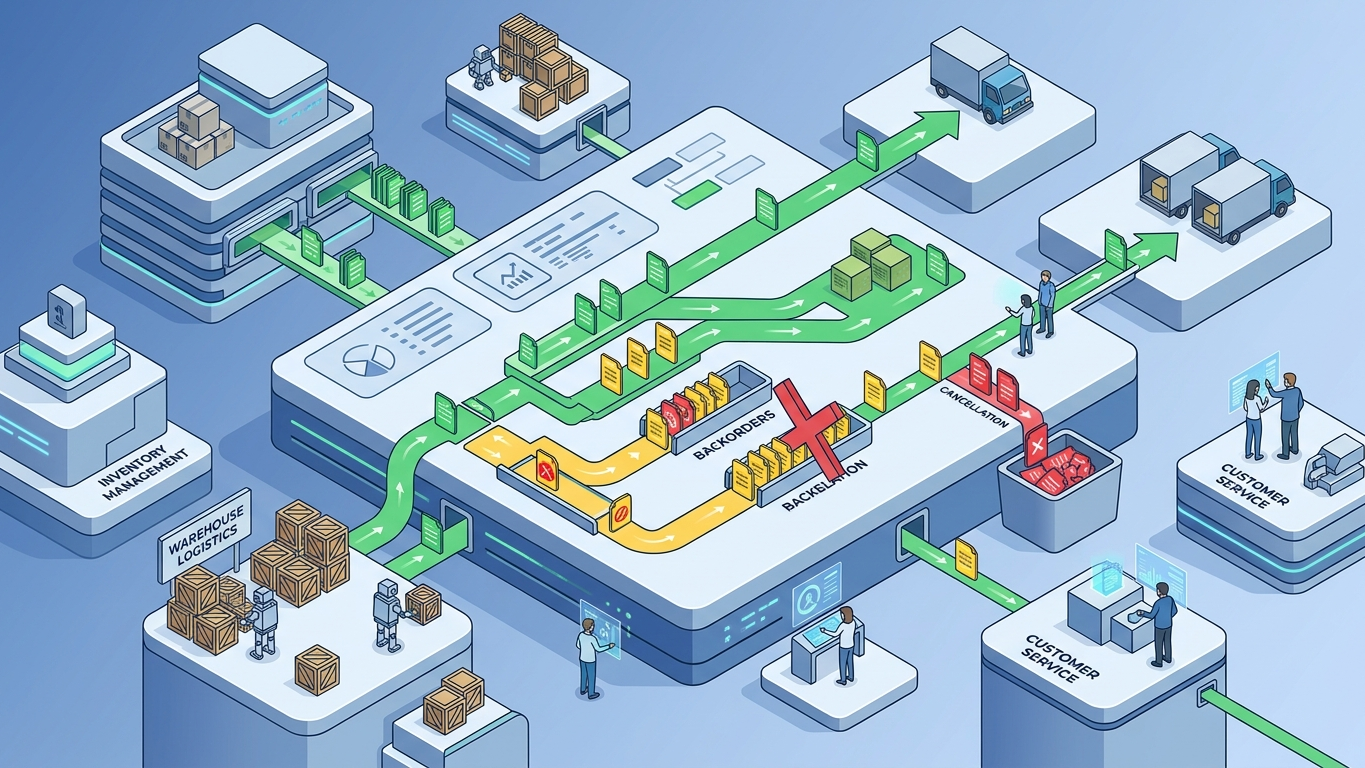
If you receive 50 of 100 units, validate the reception for 50. Odoo keeps the remaining 50 as a backorder. You can process the backorder when the rest arrives or cancel it if the vendor cannot fulfill.
Quality Checks
If you use the Quality app, quality check points trigger automatically upon receipt. Failed checks can block the reception and alert the purchasing manager.
Step 5: Create and Reconcile Vendor Bills
This is where three-way matching happens. Odoo compares what you ordered, what you received, and what the vendor is billing you for.
When importing, reconcile freight, duties, and broker fees with Odoo Landed Costs.
Create the Bill
From the Purchase Order, click Create Bill. Odoo pre-fills the bill with received quantities and agreed prices. Review the lines carefully.
Three-Way Matching
Odoo automatically highlights discrepancies:
- Price mismatch: Vendor bill price differs from PO price
- Quantity mismatch: Vendor bills for more than you received
- Missing receipt: Bill created before goods arrived (if using Received quantities policy)
Vendor Bill Tolerances
Set acceptable tolerance levels in Purchase > Configuration > Settings. For example, allow a 2% price variance or 5-unit quantity difference without blocking the bill. Variances beyond tolerance require manager approval.
Register Payment
Once the bill is verified, click Register Payment. Select the payment method (bank transfer, check, cash) and post the payment. Odoo reconciles the payment against the bill automatically.
Advanced: Purchase Analytics and Reporting
Once your purchase workflow runs smoothly, use these reports to optimize spending:
Track landed cost and duty impact on purchasing with the Customs Duties add-on.
Purchase Analysis
Go to Purchase > Reporting > Purchase Analysis. This pivot table shows spending by vendor, product category, and time period. Identify your top vendors and negotiate better terms.
Vendor Price List
Odoo tracks every price you have paid from every vendor. Use the vendor price list to see price history and spot increases before they become costly.
Receipt Exception Report
Track deliveries that arrived late, short, or damaged. Use this data to hold vendors accountable and switch suppliers when performance drops.
Common Mistakes to Avoid
Billing Before Receiving
Using Ordered quantities as your bill control means you pay for goods that may never arrive. Switch to Received quantities to enforce three-way matching.
Skipping the RFQ Stage
Creating Purchase Orders directly without RFQs eliminates your audit trail. Always start with an RFQ, even for repeat orders.
Not Using Vendor Price Lists
Odoo remembers every price you have paid. If you are not checking the vendor price list before ordering, you are missing price increase alerts.
Ignoring Backorders
Partial deliveries create backorders. If you ignore them, your inventory shows commitments that will never be fulfilled. Cancel or process backorders promptly.
Key Takeaways: This guide provides a comprehensive walkthrough of odoo purchase management: rfq to vendor bill workflow guide 2026. Follow the step-by-step instructions to implement these strategies in your Odoo instance.
Streamline Your Procurement Process
Odoo Purchase handles everything from RFQs to vendor bills. Discover how to automate your purchasing workflow and reduce costs.
Frequently Asked Questions
What is the difference between an RFQ and a Purchase Order in Odoo?
An RFQ (Request for Quotation) is a draft document that has not been confirmed. A Purchase Order is a confirmed RFQ that triggers inventory receptions and vendor bills. Clicking "Confirm Order" converts an RFQ into a Purchase Order.
What is three-way matching in Odoo Purchase?
Three-way matching compares the Purchase Order (what you ordered), the Receipt (what you received), and the Vendor Bill (what you are charged). Set Bill Control to "Received quantities" to enforce this matching automatically and prevent overpayment.
How do I handle partial deliveries in Odoo?
When you receive fewer items than ordered, validate the reception with the actual quantity received. Odoo creates a backorder for the remaining quantity. You can process the backorder when more goods arrive or cancel it if the vendor cannot fulfill the order.
Can I send RFQs to multiple vendors in Odoo?
Yes. Enable "Calls for Tender" in Purchase Settings. Create a tender, add the products you need, and Odoo generates RFQs for all selected vendors. You can compare responses side by side and select the best offer.
How does Odoo track vendor price history?
Every time you confirm a Purchase Order, Odoo records the price on the vendor's price list for that product. When you create a new RFQ for the same vendor and product, Odoo suggests the last price paid. You can view the full price history on the vendor price list tab.
References
A broken purchase process costs money on every order. Get a procurement workflow audit from our team, or explore our Odoo implementation services for end-to-end purchase management setup.