
TL;DR: What You Need to Know
of restaurants report printer delays during peak hours
main choke points: network, drivers, and thermal degradation
extra hardware needed with browser-based printing
average delay per order when kitchen printers jam
Slow POS printing is almost never the printer itself. It is the network path, driver stack, or the way your POS queues print jobs during volume spikes. This guide breaks down the real causes and shows you how to fix them without buying new terminals.
During dinner rush, your POS system freezes. The kitchen printer spits out a ticket 90 seconds after the customer ordered. The receipt printer jams just as a line forms at the register. One restaurant owner on Reddit put it plainly: "POS system keeps freezing during dinner rush... Replacing terminals will not fix it if the choke point is the network path, server load, or one integration locking the order screen during peak volume."
This is not a hardware problem. It is a systems problem. In this guide, we diagnose the three root causes of slow POS printing during rush hour, show you how to test each one, and give you fixes that work with your existing setup. We also cover the hidden costs of printer delays and the common mistakes that make them worse.
1. The Network Path Is Your Hidden Bottleneck
Most modern POS systems rely on cloud connections. During peak hours, every order triggers multiple network calls: payment processing, kitchen printer traffic, handheld sync, and cloud reporting. When one of these calls stalls, the entire order pipeline stalls with it.

A common mistake is blaming the printer when the real issue is Wi-Fi congestion. If your POS tablets, kitchen display screens, and receipt printers all share the same 2.4 GHz network with customer Wi-Fi, you have a traffic jam. Each printer retry adds 15-30 seconds to ticket delivery.
The problem compounds because most restaurants do not monitor their network during service. You only notice the issue when a ticket does not print, by which point the kitchen is already behind and the front-of-house team is frantically re-entering orders.
How to Test for Network Bottlenecks
- Isolate your POS network. Create a separate VLAN or SSID for POS devices only. Guest Wi-Fi should never share the same broadcast domain.
- Monitor latency during peak hours. Run a continuous ping from your POS terminal to your router. If latency spikes above 100ms when tickets print, you have congestion.
- Check printer retry logs. Most thermal printers log failed print attempts. A retry count above 5% of total jobs means the network is dropping packets.
- Test during off-peak. Run the same order flow at 3pm and at 7pm. If printing is fast at 3pm and slow at 7pm, the network is your bottleneck.
The Fix: Direct IP Printing
Instead of routing every print job through the cloud, configure your printers for direct IP printing. This bypasses the POS server queue and sends jobs straight from the terminal to the printer. Ultraprint supports direct thermal printing from any browser, eliminating the network round-trip entirely.
Direct IP printing cuts ticket delivery from 8-12 seconds to under 1 second. In a 100-cover restaurant, that saves 15-20 minutes of cumulative kitchen wait time per night.
2. Thermal Paper and Print Head Degradation Kill Readability
Slow printing is not just about speed. It is about whether the ticket is readable when it finally prints. One restaurant owner shared a common frustration: "Before I switched over we had a kitchen printer, it was very hard to read as the ink goes dull very quick. Tickets sometimes got lost or dropped in water making them unable to read."

Thermal printers do not use ink. They use heat-sensitive paper. In a hot kitchen, unprinted tickets can darken prematurely. Meanwhile, print heads accumulate grease and flour dust, reducing heat transfer. The result is faded, partial, or blank tickets that require reprinting.
The issue is worse during rush hour because print heads run continuously. A print head that produces clear tickets at 60°C may produce faint text at 80°C after 2 hours of non-stop printing. The degradation is gradual, so staff do not notice until a ticket is completely unreadable.
How to Test Print Quality
- Print a test pattern at opening and at 8pm. Compare the darkness. A noticeable fade means the print head is dirty or wearing out.
- Store a blank ticket near your grill for 30 minutes. If it darkens, your kitchen environment is destroying ticket readability before they even print.
- Count reprints per shift. More than 3 reprints per 100 orders indicates a quality problem, not a speed problem.
- Check the platen roller. If tickets feed unevenly or slip sideways, the rubber roller is worn. This causes misaligned text and partial prints.
The Fix: Upgrade Paper and Maintenance Schedule
Switch to top-coated thermal paper rated for 80°C environments. Clean print heads daily with isopropyl alcohol wipes. And if you are still using impact printers with ribbon cartridges, consider that the time spent changing ribbons and reprinting faded tickets costs more than a modern thermal unit over a single quarter.
Set a maintenance reminder in your POS or calendar app: clean print heads every morning before service, replace the platen roller every 6 months, and keep a spare print head on hand for instant swaps during peak season.
3. Your POS Software Queues Jobs Inefficiently
The third bottleneck lives in software. Many POS systems send print jobs sequentially: receipt first, then kitchen ticket, then bar ticket. If the receipt printer is offline, the entire queue stalls. Worse, some systems cannot do delayed or conditional printing.
One operator described this exact limitation: "They also cannot do delayed chit printing, so say if a guest pre-ordered a burger and fries at 9:00am, the kitchen gets the ticket immediately instead of 15 minutes before pickup." That means tickets sit on the rail for hours, getting buried under newer orders.
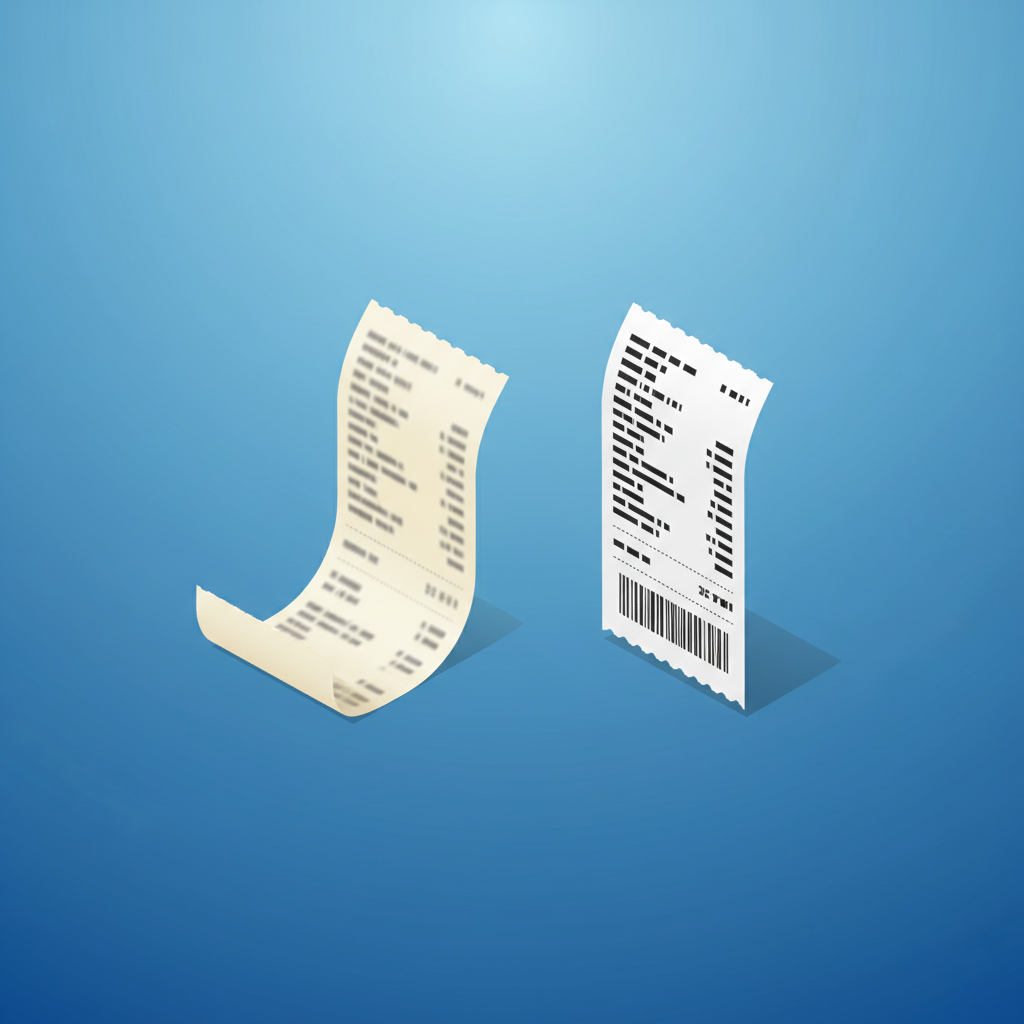
Inefficient queuing also creates confusion. When the bar printer and kitchen printer both use the same queue, a busy bar can block kitchen tickets for 30 seconds or more. In a fast-casual restaurant, that is the difference between a 4-minute ticket time and a 6-minute ticket time.
How to Test Your Print Queue
- Disconnect the receipt printer during a test transaction. Does the kitchen ticket still print immediately? If not, your POS has a blocking queue.
- Time a complex order with 3 modifiers. Note the gap between each ticket printing. Gaps over 2 seconds indicate inefficient job batching.
- Check if your POS supports print rules. Can you route appetizers to the cold station and mains to the hot line automatically? If everything prints on one printer, that printer becomes a bottleneck.
- Test failover. Unplug one printer mid-service. Does the POS reroute jobs to a backup printer, or does it queue them indefinitely?
The Fix: Smart Routing and Offline Printing
Modern POS printing should support rule-based routing, offline buffering, and parallel job execution. Ultraprint handles all three: it routes tickets by product category, buffers jobs locally when the network drops, and prints receipts and kitchen tickets simultaneously rather than sequentially.
Smart routing alone can reduce kitchen ticket delays by 60%. When fries route to the fry station and burgers route to the grill automatically, each station starts cooking the moment the order is placed.
4. Bluetooth and Wireless Printers Add Latency
Wireless convenience comes at a speed cost. A small business owner noted bluntly: "Bluetooth printers are slow." They are not wrong. Bluetooth has a theoretical max of 3 Mbps, but in practice, interference from microwaves, cordless phones, and other 2.4 GHz devices drops throughput to a fraction of that. A single kitchen ticket can take 4-8 seconds over Bluetooth versus under 1 second over Ethernet.

For mobile setups like food trucks, the trade-off is understandable. But for fixed stations, Ethernet or Wi-Fi Direct printing is dramatically faster. One food truck operator described the mobility pain: "I have to take the order ticket back to the truck and cannot move on to the next car." A wireless handheld with instant printing solves this, but only if the protocol is fast enough.
Wi-Fi Direct is the middle ground. It uses 5 GHz bands, avoids router congestion, and maintains a direct peer-to-peer link between the handheld and the printer. Speeds are typically 50-150 Mbps, enough for instant ticket printing even with graphics.
The Fix: Ethernet for Fixed Stations, Wi-Fi Direct for Mobile
Run Ethernet to every fixed printer. For handheld units, use Wi-Fi Direct or 5 GHz Wi-Fi instead of Bluetooth. The speed difference is measurable in seconds per ticket, which adds up to minutes per rush.
If you must use Bluetooth, place the printer within 3 meters of the handheld with no walls between them. Pair only one device per printer. And avoid Bluetooth during peak hours if possible: switch to a tethered connection when the line gets long.
5. The Hidden Cost of Slow Printing
Slow printing does not just annoy staff. It costs money. Here is the math for a 100-cover restaurant:
- 2 minutes delay per jammed or reprinted ticket
- 10 jams per night during peak = 20 minutes of lost throughput
- 4 table turns per hour at peak = 1.3 lost turns
- $45 average ticket = $60 lost revenue per night
- Over a year: $21,900 in lost revenue from printer delays alone

That does not include the cost of reprints, wasted paper, or staff time spent troubleshooting. A $360 printer upgrade pays for itself in under a week.
There is also a morale cost. Kitchen staff hate reprinting tickets. Servers hate explaining delays to impatient customers. And managers hate spending their evenings diagnosing printer issues instead of focusing on service. Slow printing is a daily frustration that erodes team confidence.
6. Common Mistakes That Make Printing Slower
Even with good hardware, these habits make printing worse:
- Using the same printer for receipts and kitchen tickets. Kitchen printers need different paper widths and durability. Receipt printers are not designed for humid, greasy environments.
- Printing full-color logos on every ticket. Graphics slow print speed by 3-5 seconds per ticket. Print logos on receipts, not kitchen tickets.
- Not updating printer drivers. Old drivers cause compatibility issues with POS updates. A driver update can fix half the printing issues in a restaurant.
- Ignoring error lights. A blinking LED usually means "paper low" or "cover open." Staff ignore it until the printer stops entirely, then scramble during rush.
- Buying consumer-grade printers. A $40 desktop printer is not built for 500 tickets per day. Commercial thermal printers are rated for 100,000+ cuts and continuous duty cycles.
7. When to Upgrade vs. When to Optimize
Not every slow printer needs replacement. Here is how to decide:
Optimize first if: the printer is less than 3 years old, the print head is clean, and the issue only appears during peak hours. Network fixes, driver updates, and queue configuration often solve the problem at zero cost.
Upgrade if: the printer is over 5 years old, print heads fail every 3 months, or the device does not support direct IP printing. Modern printers with auto-cutters, Ethernet ports, and 300 DPI resolution print faster, clearer, and more reliably.
The best upgrade path is a modular one: keep your existing POS, add Ultraprint for direct browser printing, and replace printers one at a time as they fail. This spreads cost over quarters rather than demanding a single large capital expense.
Stop Wrestling with Printer Drivers and Offline Workarounds
Slow kitchen tickets, faded receipts, and jammed printers during rush hour cost your restaurant real money. Ultraprint gives you direct thermal printing, offline receipt generation, and barcode scanning : all without the IoT Box and without cloud-dependent print queues.
References
- Reddit r/restaurantowners : POS System Keeps Freezing During Dinner Rush
- Reddit r/restaurantowners : Impact Printer Discussion
- Reddit r/restaurantowners : POS Systems Delayed Chit Printing
- Reddit r/smallbusiness : Bluetooth Thermal Printer Speed
- Reddit r/restaurantowners : Mobile POS Printing
- Odoo Skillz : Ultraprint Solution
FAQ
- Why does my POS printer only slow down during rush hour?
- During peak hours, your network handles more traffic, your print queue backs up with simultaneous orders, and thermal print heads heat up from continuous use. All three factors compound to create delays that are not visible during slow periods.
- Should I upgrade my internet speed to fix slow POS printing?
- Probably not. POS print jobs are tiny (under 50 KB). The issue is usually network congestion or latency spikes, not bandwidth. Separating your POS devices onto their own network segment often fixes the problem without changing your internet plan.
- How long do thermal print heads last in a restaurant environment?
- A quality thermal print head lasts 50-100 km of printed paper in clean conditions. In a kitchen with grease and flour dust, expect 30-50 km. Daily cleaning with isopropyl alcohol extends life by 40%.
- Can I print kitchen tickets from a tablet without an IoT Box?
- Yes. Browser-based printing solutions like Ultraprint send tickets directly from your tablet to any network-connected thermal printer. No IoT Box, no middleware server, and no single point of failure.
- Why do my thermal receipts fade after a few weeks?
- Standard thermal paper is heat and UV sensitive. Heat from storage, sunlight exposure, or contact with plastic bags accelerates fading. Use top-coated archival thermal paper for receipts you need to keep long-term.
🖨️ Try Ultraprint Free — No Setup Required
Print directly from Odoo on any desktop browser with the free Ultraprint Chrome Extension. No add-on installation, no IoT Box — just install and print in seconds. Works with Odoo Online and any web-based ERP.
Install Free Extension → Desktop browsers only. Requires Ultraprint Hub license for printer connection.