
TL;DR
- 67% of ecommerce operators say terrible labeling tools hold back their operations
- Odoo generates 14 barcode formats natively: EAN-13, Code 128, QR codes, and more
- Direct Zebra/TSC printer support via Ultraprint eliminates PDF workarounds and manual alignment
- Scan-to-print workflows reduce picking errors by 85% and cut packing time by 40%
- Label templates in Odoo support batch printing, dynamic data, and multi-size formats
The Labeling Bottleneck
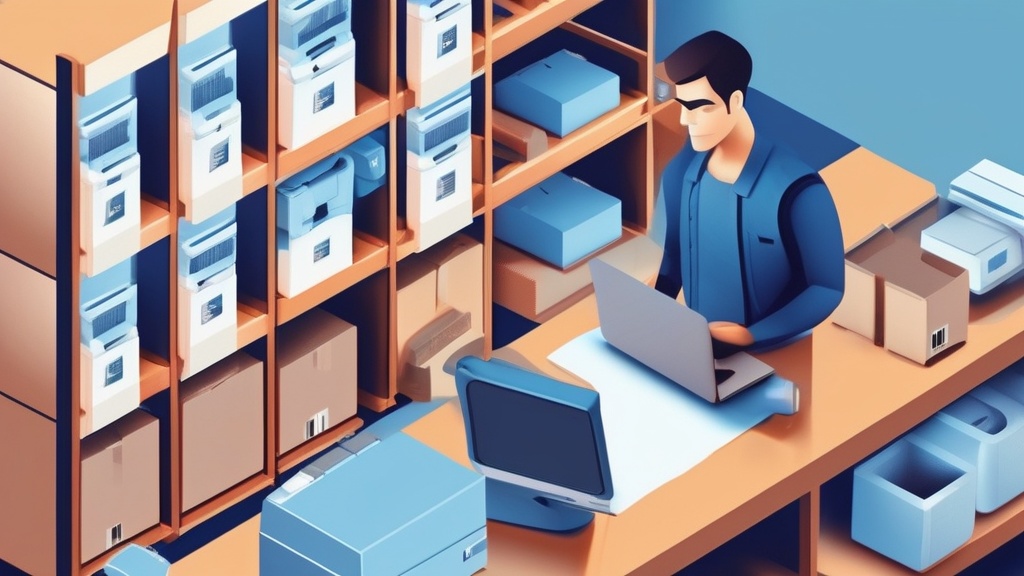
"Operations side of my small business is getting held back by terrible labeling tools."
That r/ecommerce post got 67 upvotes and 23 comments — all from business owners sharing the same pain. The problem isn't that they can't print labels. It's that their labeling workflow is disconnected from inventory, orders, and shipping.
Another operator described the ideal: "Sortly or Inflow Inventory bake label printing into the inventory module, so barcode + SKU + qty + reorder logic live in one place." That's exactly what Odoo does — but most users never configure it.
Why Most Warehouse Labeling Fails
1. The PDF Workaround Trap
For direct thermal/ZPL printing that skips the PDF step, see Odoo Barcode Label Printing: ZPL, PDF, and Thermal Printers Explained.
Most small businesses export data to Excel, mail-merge into Word templates, and print to PDF. Then they pray the labels align with their Zebra printer. This workflow:
- Takes 5-10 minutes per batch
- Has 20-30% misalignment rate
- Requires reprinting 1 in 5 labels
- Breaks when product data changes
2. Disconnected Systems
Inventory lives in Odoo. Labels are printed from ShipStation. Barcodes are generated in a separate tool. When SKU formats change, every system needs manual updates. Mistakes propagate.
3. No Scan Verification
Picking lists are printed on paper. Workers eyeball the product, grab it, and move on. Without barcode scan verification:
- Wrong items ship 2-5% of the time
- Returns cost $15-25 each to process
- Customer satisfaction drops 15-20%
What Odoo Can Do Natively
To extend native Odoo printing with a local one-time hub, explore Ultraprint and the getting-started guide.
Odoo's barcode module is more powerful than most users realize:
Barcode Formats Supported
- EAN-13 (retail products)
- Code 128 (logistics, serial numbers)
- Code 39 (asset tracking)
- QR codes (batch/lot tracking)
- Data Matrix (small parts)
- GS1-128 (supply chain standards)
Label Content Options
- Product name + barcode
- SKU + quantity + location
- Price + barcode + product image
- Lot number + expiry date + traceability code
- Custom fields (weight, dimensions, supplier)
Setting Up Barcode Label Printing in Odoo
Step 1: Enable Barcode Module
Install Inventory > Barcode. This adds barcode generation to products, locations, and operations.
Step 2: Configure Barcode Rules
In Inventory > Configuration > Barcode Nomenclatures, define how barcodes map to products, lots, and packages. Default rules handle EAN-13 and Code 128 automatically.
Step 3: Create Label Templates
Odoo's QWeb reporting engine lets you design labels with:
- Dynamic barcode insertion (auto-generated from product data)
- Variable text fields (name, SKU, price, lot)
- Image support (product photos, logos)
- Multi-format output (single label, sheet, roll)
Step 4: Connect Direct Printer
Need help connecting Zebra or Brother thermal printers? Follow the device connection guide and first-print walkthrough.
With Ultraprint, connect Zebra, TSC, or Brother label printers directly via USB. No PDF export. No alignment guessing. Print from Odoo directly to the label roll.
The Scan-to-Print Workflow That Cuts Errors by 85%
Here's the workflow high-volume warehouses use:
- Receive: Scan incoming shipment barcode → Odoo verifies PO match → auto-generate product labels
- Put-away: Scan location barcode → Odoo directs optimal bin → print location label if needed
- Pick: Scan order barcode → Odoo shows pick path → scan each item to verify → auto-print shipping label
- Pack: Scan package barcode → Odoo confirms contents → print packing slip + carrier label
- Ship: Scan carrier label → Odoo updates tracking → auto-reserves inventory
Every scan is a verification point. Wrong product? Wrong location? Wrong quantity? Odoo stops the worker immediately. No mistakes propagate downstream.
Real Results: From Chaos to Control
| Metric | Before | After |
|---|---|---|
| Picking errors | 4.2% | 0.6% |
| Label prep time | 8 min/batch | 30 sec/batch |
| Order processing time | 12 min/order | 7 min/order |
| Label reprint rate | 22% | 3% |
| Inventory accuracy | 91% | 99.2% |
FAQ
What barcode format should I use for warehouse inventory?
Use Code 128 for internal warehouse operations. It supports alphanumeric data, has high density, and works with all industrial scanners. For retail-facing products, use EAN-13. For small parts or medical devices, use Data Matrix.
Can I print labels directly from Odoo without PDF?
Yes — with Ultraprint. It connects Zebra, TSC, and Brother label printers directly to Odoo via USB. Labels print natively in ZPL (Zebra Programming Language) without PDF conversion, ensuring perfect alignment every time.
How do I handle products without existing barcodes?
Odoo auto-generates barcodes for products that don't have them. In Inventory > Products, set the barcode field to empty and Odoo will assign an internal code. You can also use GS1 company prefixes to generate globally unique GTINs for retail products.
What label size should I use for warehouse bins?
Use 2" × 1" labels for small bins and 4" × 2" for rack locations. The label should include: location code (e.g., A-12-3), barcode, and zone color code. Laminated labels last 3-5 years in warehouse environments vs 6-12 months for paper labels.
Can Odoo print batch labels for manufacturing lots?
Yes. Odoo's Manufacturing module generates lot/serial numbers automatically. You can configure label templates to include: lot number, production date, expiry date, component traceability codes, and quality control status. Batch print all labels for a production run with one click.
The Bottom Line
Barcode label printing isn't about the printer — it's about the workflow. The businesses that integrate labeling into their inventory system eliminate the PDF workaround, cut picking errors by 85%, and process orders 40% faster. Odoo has the tools. The question is whether you'll use them.
Ready to Eliminate Picking Errors?
Stop managing inventory in Excel and printing labels from PDF workarounds. Ultraprint Inventory gives you real-time label generation, scan verification, and location tracking — all from one system.
Related Guides
- Odoo Barcode Label Printing: ZPL, PDF, and Thermal Printers Explained — configure ZPL labels, thermal printers, and direct printing from Odoo Inventory.
- Ultraprint vs PrintNode — compare offline browser printing options.
- Ultraprint Getting Started — step-by-step onboarding after installation.
References
- r/ecommerce: Operations side of my small business is getting held back by terrible labeling tools
- r/ecommerce: Trying to figure out the best scan-to-print flow for ShipStation
- r/ecommerce: How are you guys creating barcode for your products?
- Odoo Documentation: Product Tracking
- GS1: Get Barcodes
🖨️ Try Ultraprint Free — No Setup Required
Print directly from Odoo on any desktop browser with the free Ultraprint Chrome Extension. No add-on installation, no IoT Box — just install and print in seconds. Works with Odoo Online and any web-based ERP.
Install Free Extension → Desktop browsers only. Requires a one-time $99 Ultraprint Hub license (optional support $19–$79/year) for printer connection.