
TL;DR: What You Need to Know
reduction in picking errors with barcode scanning
inventory accuracy with full barcode implementation
label types every warehouse needs
- Barcode confirmation is the universal backstop: Scanning at every stage prevents wrong-SKU errors before they ship
- Bin location labels are non-negotiable: Without them, pickers waste 30% of their time searching
- Thermal transfer beats direct thermal: For warehouse environments, ribbon-based printing lasts months under real wear and tear
"One of the biggest problems I keep running into is coordination: everybody assumes someone else did the thing, and then it never gets done. Classic warehouse logistics chaos." : This confession from a warehouse manager on r/logistics captures the daily reality of operations without a labeling system. Add delayed shipments, confused pickers, and forklifts that mysteriously disappear, and you have the perfect mix for daily irritation.
Picking errors are the silent profit killer in every warehouse. A wrong item shipped does not just cost the return shipping : it costs customer trust, reorder rates, and operational bandwidth. Research consistently shows that full implementation of barcodes in warehouse operations increases inventory accuracy to 99.9%. Yet most small and mid-sized warehouses still rely on paper pick lists, memory, and hope.
This guide shows you exactly how to set up smart warehouse labeling in Odoo Inventory : from barcode configuration to thermal printer deployment : so your pickers scan once and ship right every time.
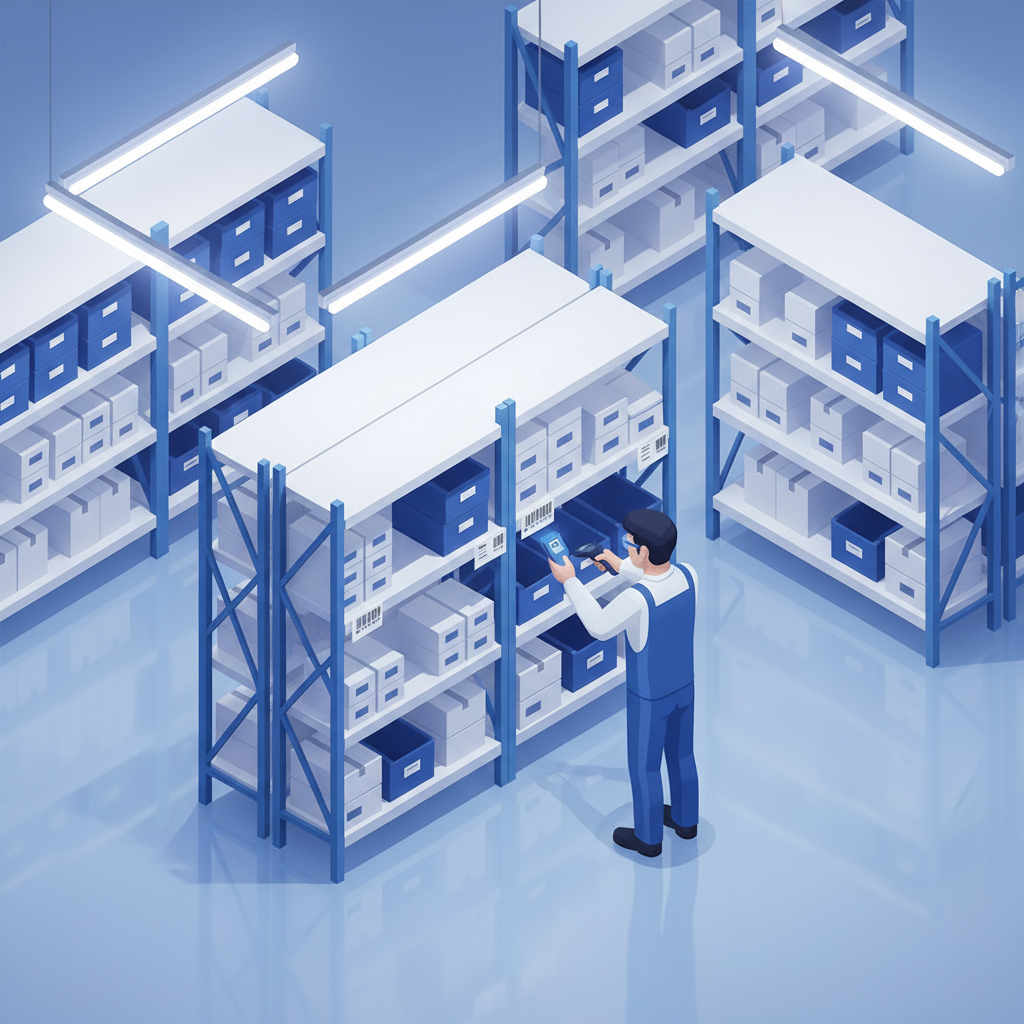
1. Why Warehouse Labeling Matters More Than You Think
Before diving into Odoo configuration, let us look at what poor labeling actually costs. A 2026 analysis of warehouse operations found that inconsistent labeling and unclear product labels are among the top five causes of order picking errors : alongside outdated inventory data, manual processes, and poor warehouse layouts.
The r/AmazonFC community regularly sees sellers struggling with "Barcode Cannot Be Scanned" errors. As one seller explained: "If the label is small, cramped, glossy, might have some difficulty reading." At robotics-supported fulfillment centers, stowers use overhead scanners : and unreadable labels become instant bottlenecks.
Here is what happens when labeling is left to chance:
- Wrong-item shipments: The picker grabs the SKU next to the right one because bin locations are not clearly marked
- Quantity errors: Multi-packs and cases get confused when unit-of-measure is not printed large on bin labels
- "Missing" inventory: Items exist in the system but cannot be found because the location label fell off or faded
- Receiving delays: New stock sits in staging because there is no labeled location to put it away
As one 3PL auditor on r/logistics noted: "Verify the inventory accuracy by asking a worker to scan the location code and confirm the number of units in the WMS vs what is actually on the pallet." When the label does not match the system, the whole operation unravels.
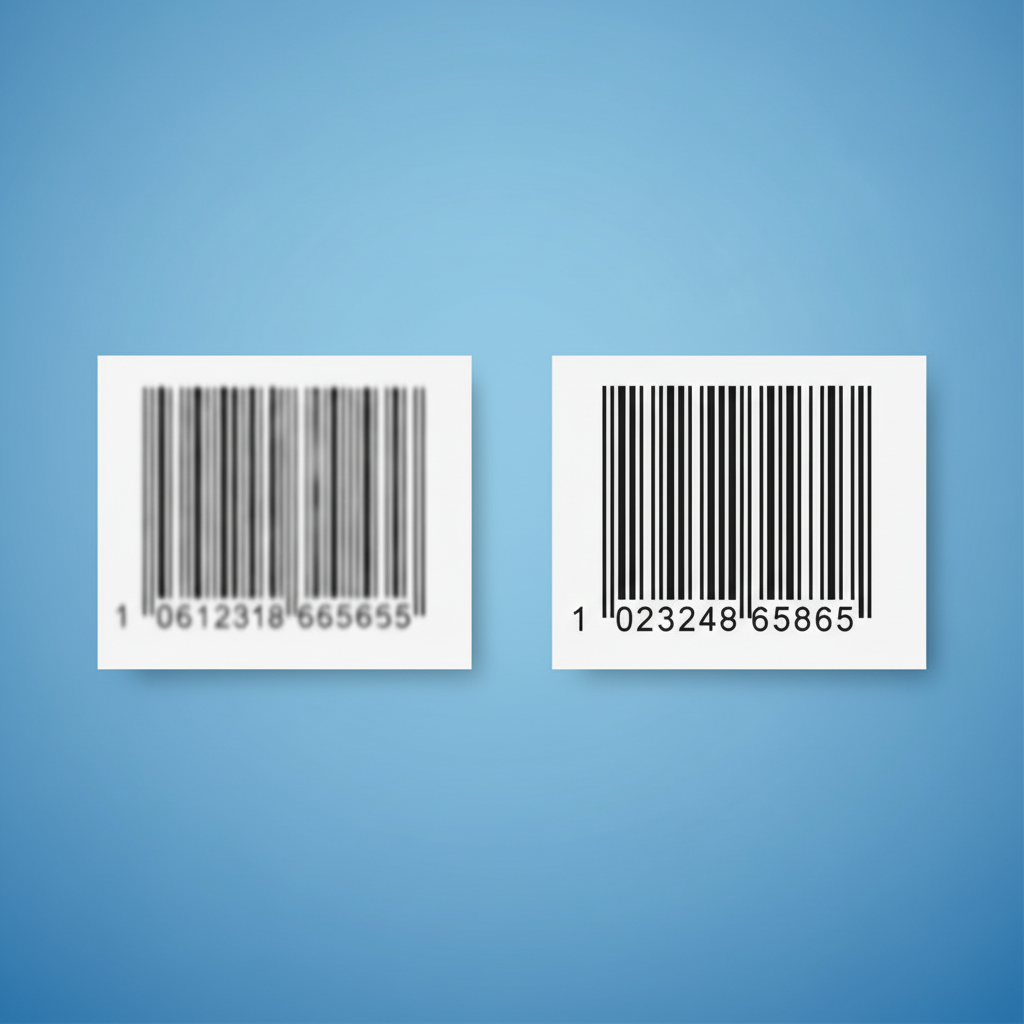
2. The Five Label Types Every Odoo Warehouse Needs
Not all labels are created equal. A complete warehouse labeling strategy in Odoo Inventory requires five distinct label types, each serving a specific operational purpose:
2.1 Product Barcode Labels
These are your primary identifiers. In Odoo, every product can have a barcode assigned in the product form under the General Information tab. For businesses with existing SKU systems, you can import barcodes in bulk via CSV. The key rules:
- Use Code 128 or EAN-13 symbology for maximum scanner compatibility
- Ensure quiet zones (white space) on both sides of the barcode
- Print at 300 DPI minimum : blurry barcodes are unscannable barcodes
- Include human-readable text below the barcode for manual verification
2.2 Bin Location Labels
Bin labels are the foundation of organized picking. In Odoo, enable Storage Locations in Inventory > Configuration > Settings. Then create a location hierarchy:
WH/Stock/A-01-02-03
├── WH = Warehouse code
├── Stock = Main stock zone
├── A = Aisle
├── 01 = Bay
├── 02 = Level
└── 03 = Position
Print bin labels with both the barcode and large human-readable text. Color-coding by zone (blue for fast-movers, green for bulk) adds visual speed for experienced pickers.
2.3 Lot and Serial Number Labels
For traceability-required industries (food, pharma, electronics), Odoo's Lot & Serial Number Tracking module generates unique identifiers per batch or unit. Labels should include:
- Lot/serial barcode
- Product name and SKU
- Expiration date (if applicable)
- Received date
2.4 Shipping Labels
Odoo can generate shipping labels directly from delivery orders. When integrated with carriers (FedEx, UPS, DHL), the system auto-generates carrier-compliant labels with tracking numbers, barcodes, and routing codes.
2.5 Return and RMA Labels
Returns are where labeling discipline pays off. Pre-printed RMA labels with barcoded return authorization numbers let receiving teams scan and route returns instantly : no manual lookup, no delays.
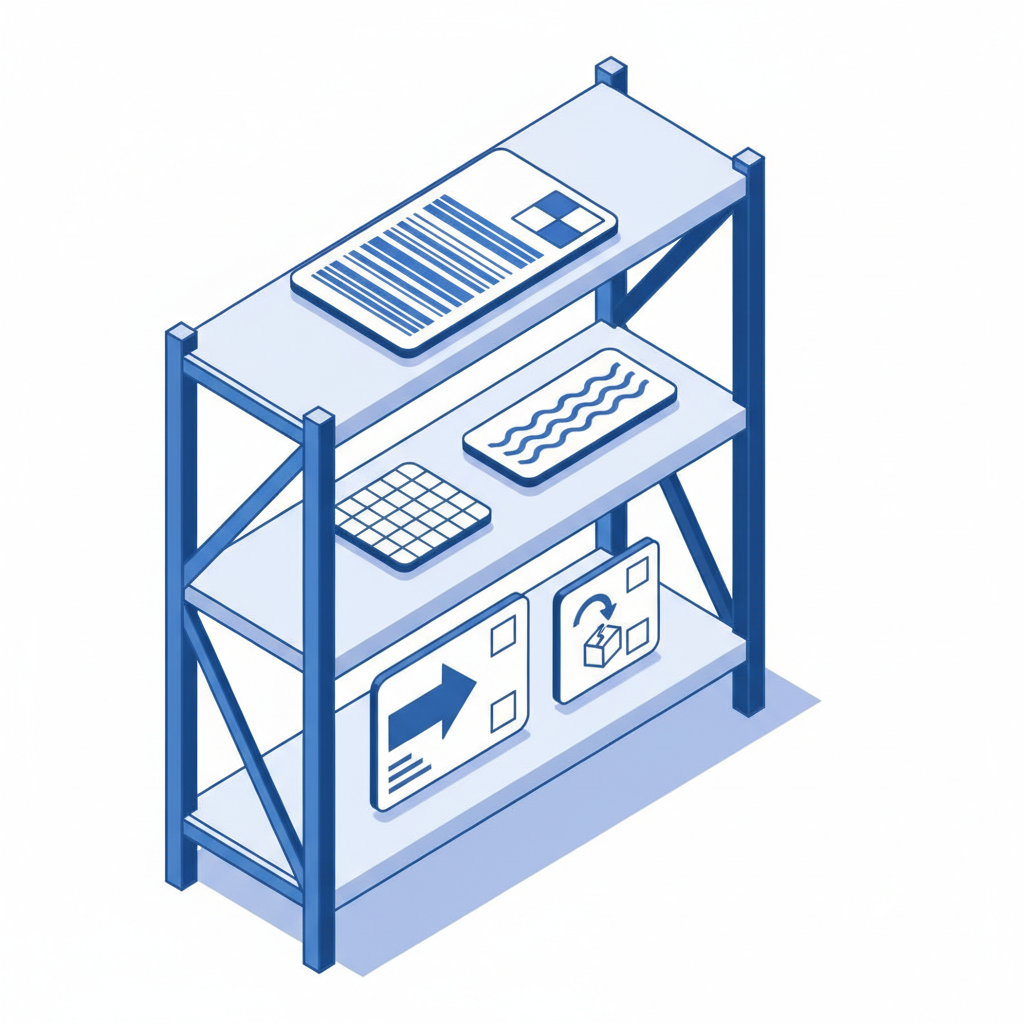
3. Configuring Barcodes in Odoo Inventory
Odoo's barcode system is surprisingly powerful once configured correctly. Here is the step-by-step setup:
Step 1: Enable Barcode Features
Go to Inventory > Configuration > Settings and enable:
- Barcode Scanner
- Storage Locations
- Multi-Step Routes (if using pick-pack-ship)
Step 2: Assign Barcodes to Products
For each product, navigate to the product form and enter the barcode in the Barcode field. If you are migrating from another system, use Odoo's import tool:
Name,Barcode,Internal Reference
Wireless Mouse,1234567890123,WH-MOUSE-01
Mechanical Keyboard,1234567890124,WH-KB-01
Step 3: Configure Location Barcodes
Each location in your warehouse needs a unique barcode. Go to Inventory > Configuration > Locations, open each location, and set the Barcode field. Use a consistent naming convention so pickers can read and verify locations even if the scanner fails.
Step 4: Set Up Barcode Nomenclature
Odoo uses barcode nomenclatures to interpret scanned data. The default nomenclature handles product barcodes, location barcodes, and weight barcodes. For advanced use cases (like GS1-128), you can create custom nomenclatures in Inventory > Configuration > Barcode Nomenclatures.
Step 5: Test with the Barcode App
Odoo's mobile Barcode app lets you scan directly from a smartphone camera. Download the app, log in with your Odoo credentials, and test receiving, internal transfers, and inventory adjustments before rolling out to the warehouse floor.

4. Thermal Printer Setup and Label Design
This is where theory meets hardware. Odoo generates barcode labels as PDF reports, but getting them to print correctly on thermal printers requires attention to detail.
Choosing the Right Printer
For warehouse environments, thermal transfer printers are the standard. Unlike direct thermal printers (which use heat-sensitive paper that fades in sunlight), thermal transfer uses a ribbon to transfer ink onto the label surface. As barcode-labels.com notes: "Thermal transfer printing is better suited for locations and identifiers that need to last for months or years under real wear and tear."
Popular models compatible with Odoo:
- Zebra ZT230/ZT410 (industrial, 4-inch)
- TSC TE200 (desktop, budget-friendly)
- Brother TD-4D series (desktop, reliable)
Configuring Label Size in Odoo
Odoo's default barcode label report is designed for standard label sizes. To customize:
- Go to Settings > Technical > Reports (debug mode required)
- Search for "Product Label" reports
- Duplicate the report and adjust paper format to match your label size (e.g., 50mm x 25mm for small product labels, 100mm x 50mm for bin labels)
- Set margins to zero and enable auto-resize for barcode elements
One common issue, reported on the Odoo forums: "The PDF generated on printing labels is A4 size so it won't convert perfectly to printer size." The fix is to create a custom QWeb report with the exact label dimensions and set the paper format accordingly.
Print Darkness and Quality
As label-printing troubleshooting guides emphasize: "Incorrect darkness setting for the label material is being used. Increase the heat setting (aka printhead energy) on your printer." Too little heat produces faint barcodes; too much wears the printhead prematurely. Start at medium darkness and adjust based on scan tests.

5. Operational Workflows: From Receiving to Shipping
Labels only work if they are used consistently across every workflow. Here is how to integrate scanning into your daily operations:
Receiving
- Scan the purchase order barcode (or open it in Odoo)
- Scan each product barcode as it arrives
- Scan the destination location barcode (e.g., WH/Stock/RECEIVING)
- Odoo auto-matches quantities and flags discrepancies
Put-Away
- Scan the product barcode
- Scan the destination bin location barcode
- Confirm quantity
- Odoo updates stock levels in real time
Picking
- Open the sales order or pick list in the Barcode app
- Navigate to the first location : scan the bin label to confirm you are at the right spot
- Scan the product barcode
- Enter quantity (or scan quantity barcodes if configured)
- Repeat for each line
This workflow is where the magic happens. Barcode confirmation remains the universal backstop against wrong-SKU errors. As RFgen Software notes: "What if we ship multi packs and cases, our quantities are always off? Lock UoM in the system, print it large on bin labels, add check digits for those SKUs, and require barcode confirmation at pack."
Pack and Ship
- Scan each picked item into the packing station
- Odoo validates that all items match the order
- Generate and print the shipping label
- Scan the shipping label barcode to confirm dispatch
6. Real-World Results: What Happens When You Label Right
Theory is useful, but numbers convince stakeholders. Here is what warehouses typically see after implementing a complete barcode labeling system in Odoo:
A mid-sized electronics distributor running Odoo Community with 4,000 SKUs and 12,000 square feet of warehouse space faced a chronic 4.2% picking error rate. Returns were eating 8% of monthly revenue. After implementing the full labeling stack : product barcodes, bin locations, lot tracking, and shipping labels : their results at the 90-day mark were:
- Picking error rate: Dropped from 4.2% to 0.6% : an 86% improvement
- Inventory accuracy: Improved from 91% to 99.4%
- Average pick time: Reduced by 24% as pickers no longer searched for unlabeled locations
- Return processing: Down 73% because fewer wrong items shipped
- New employee onboarding: Training time cut from 3 weeks to 4 days because the system guided pickers instead of requiring memorization
The investment was modest: one Zebra ZT410 printer ($850), 10,000 thermal transfer labels ($120), and 3 handheld scanners ($450 total). The payback period was under six weeks.
As Bista Solutions reported in a similar Odoo implementation: "With proper barcode labeling, inventory accuracy is above 90% when it was probably around 60 to 70 before." The gap between labeled and unlabeled warehouses is not incremental : it is transformational.
7. Common Labeling Mistakes (and How to Avoid Them)
Even well-intentioned labeling programs fail when these mistakes creep in:
Mistake 1: Using Direct Thermal Labels in Hot Environments
Direct thermal labels are heat-sensitive. In warehouses without climate control : or in staging areas near loading docks : labels can turn completely black or fade to illegibility within weeks. Always use thermal transfer for location labels and any label that must last more than 30 days.
Mistake 2: Inconsistent Location Naming
One aisle uses "A-01-02", the next uses "Bay 3, Shelf 4". Pickers cannot build mental models when conventions change. Pick one format, document it, and enforce it across every location. Odoo's location hierarchy enforces this at the software level : mirror that discipline in your physical layout.
Mistake 3: Printing Barcodes Too Small
The r/retail community flags this constantly: "Blurry or low-quality printing : Make sure your printer resolution is at least 300 dpi for crisp, scannable barcodes." Barcodes under 1 inch wide often fail with overhead scanners or when scanned at an angle. For warehouse use, never print product barcodes smaller than 1.5 inches wide.
Mistake 4: Skipping the Barcode App Test
Rolling out scanners to the warehouse floor without testing every workflow is a recipe for downtime. Create a test script: receive 10 items, put them away, pick a sales order, pack it, and ship it. If any step fails, fix it before going live.
Mistake 5: No Label Replacement Process
Labels get damaged. Without a process to reprint and replace them, locations slowly become unidentifiable. Assign one person per shift responsibility for label condition, and keep a "label repair kit" at the packing station: spare labels, a portable scanner, and a tablet with Odoo open.
8. Maintenance: Keeping Labels Readable
Labels degrade. Dust, moisture, UV light, and physical abrasion all take their toll. A maintenance routine prevents "can't pick it" scenarios:
- Weekly spot checks: Walk 10% of locations and verify labels are readable
- Immediate replacement: As Leanafy advises, "Print replacement labels immediately when an item label is torn, faded, or missing. A 'fix later' label becomes a 'can't pick it' problem."
- Quarterly audits: Full location-by-location label condition review
- Seasonal material swaps: Use synthetic labels (polypropylene) in humid environments; standard paper labels work in climate-controlled spaces
9. Measuring Success: KPIs for Labeling Programs
How do you know your labeling investment is paying off? Track these metrics monthly:
- Picking accuracy rate: Target 99.5%+ (measure: correct items / total items picked)
- Inventory accuracy: Target 99.9% (measure: system quantity vs. physical count)
- Average pick time: Should decrease 20-30% as locations become easier to find
- Return rate due to wrong item: Should trend toward zero
- Label replacement rate: Track how many labels are reprinted monthly : high rates indicate material or printer issues
Ready to Eliminate Picking Errors?
Stop managing inventory in Excel and printing labels from PDF workarounds. Ultraprint Inventory gives you real-time label generation, scan verification, and location tracking — all from one system.
Frequently Asked Questions
Can I print barcode labels directly from Odoo without third-party software?
Yes. Odoo includes built-in barcode label reports for products, locations, and lots. Go to any product or location, click the print icon, and select the label format. For custom sizes, you can duplicate and modify the default QWeb report in Technical > Reports.
What barcode symbology should I use for warehouse labels?
Code 128 is the best choice for warehouse labels because it supports alphanumeric data, has high density, and is universally supported by scanners. For retail-facing products, use EAN-13. Avoid Code 39 for high-density labels : it requires more space.
Why are my printed barcodes not scanning?
The most common causes are: (1) print resolution below 300 DPI, (2) insufficient quiet zone (white space) around the barcode, (3) incorrect darkness/heat settings on the thermal printer, (4) glossy label material causing reflection, or (5) barcode too small for the scanner's optics. Test with multiple scanner types before full deployment.
How do I set up bin locations in Odoo Inventory?
Enable Storage Locations in Inventory > Configuration > Settings. Then go to Configuration > Locations and create a hierarchy (e.g., WH/Stock/A-01-02). Assign a unique barcode to each location. Print bin labels with both the barcode and large human-readable text, then affix them to the physical shelves.
Should I use direct thermal or thermal transfer labels?
Use thermal transfer for warehouse labels that need to last months or years. Direct thermal labels are heat-sensitive and fade in hot or sunny environments. Thermal transfer uses a ribbon to transfer ink, producing durable labels that resist abrasion, moisture, and UV exposure.
References
- NetSuite : 12 Ways to Reduce Warehouse Picking Errors (2026)
- Leanafy : Barcode Scanning for Warehouse Inventory Accuracy (2026)
- RFgen Software : Clever Ways to Eliminate Mispicks in Warehouse Operations (2026)
- Rapid Inventory : Order Picking Errors: Causes and Fixes (2026)
- Barcode Labels : Warehouse Label Printing Best Practices: From Design to Deployment (2026)
- Odoo Documentation : Adjust Inventory with Barcodes (2026)
🖨️ Try Ultraprint Free — No Setup Required
Print directly from Odoo on any desktop browser with the free Ultraprint Chrome Extension. No add-on installation, no IoT Box — just install and print in seconds. Works with Odoo Online and any web-based ERP.
Install Free Extension → Desktop browsers only. Requires an Ultraprint Hub license for printer connection.