
To establish a seamless printer-to-browser connection, you must overcome several technical hurdles such as SSL certificates, CORS errors, and dynamic IP changes. Printer-Browser Connection issues often manifest through security warnings and failed communications. According to Zebra, SSL/TLS misconfigurations can severely hamper device integration.
This matters to businesses relying on efficient printing for rapid sales processing. Imagine running a store where each sale is interrupted by digital hurdles; this kills productivity. According to Kinsta, mixed content SSL errors arise during server updates, causing significant delays.
This guide will tackle these frustrations by exploring SSL fixes, CORS solutions, and IP stability strategies.

Understanding SSL Certificate Challenges
SSL Certificates often perplex users, especially when connecting a printer to a browser. A common issue stems from using outdated or self-signed certificates, causing browser warnings about insecure connections. These messages are akin to presenting an expired ID at a security checkpoint—it's legitimate, yet not universally accepted. Regular updates and proper SSL installations can mitigate these challenges.
Verifying server identity is another critical aspect. When a browser encounters an untrusted source due to an expired certificate, it may refuse to proceed. This serves as a protective measure, ensuring that sensitive data isn't transmitted to a potentially malicious server. A direct solution includes verifying the certificate's validity and conformity to trusted Certificate Authorities.
- Authenticate server: Ensure the server is using a valid certificate from a trusted authority.
- Manage expiry: Regularly check and renew certificates before they become outdated.
- Trust issues: Avoid self-signed certificates for public access; opt for recognized issuers.
The headache of SSL-related printer-browser connection failures can be alleviated by understanding and managing these certificates effectively. By doing so, you protect data integrity and maintain user trust.
Resolving CORS and Mixed Content Errors
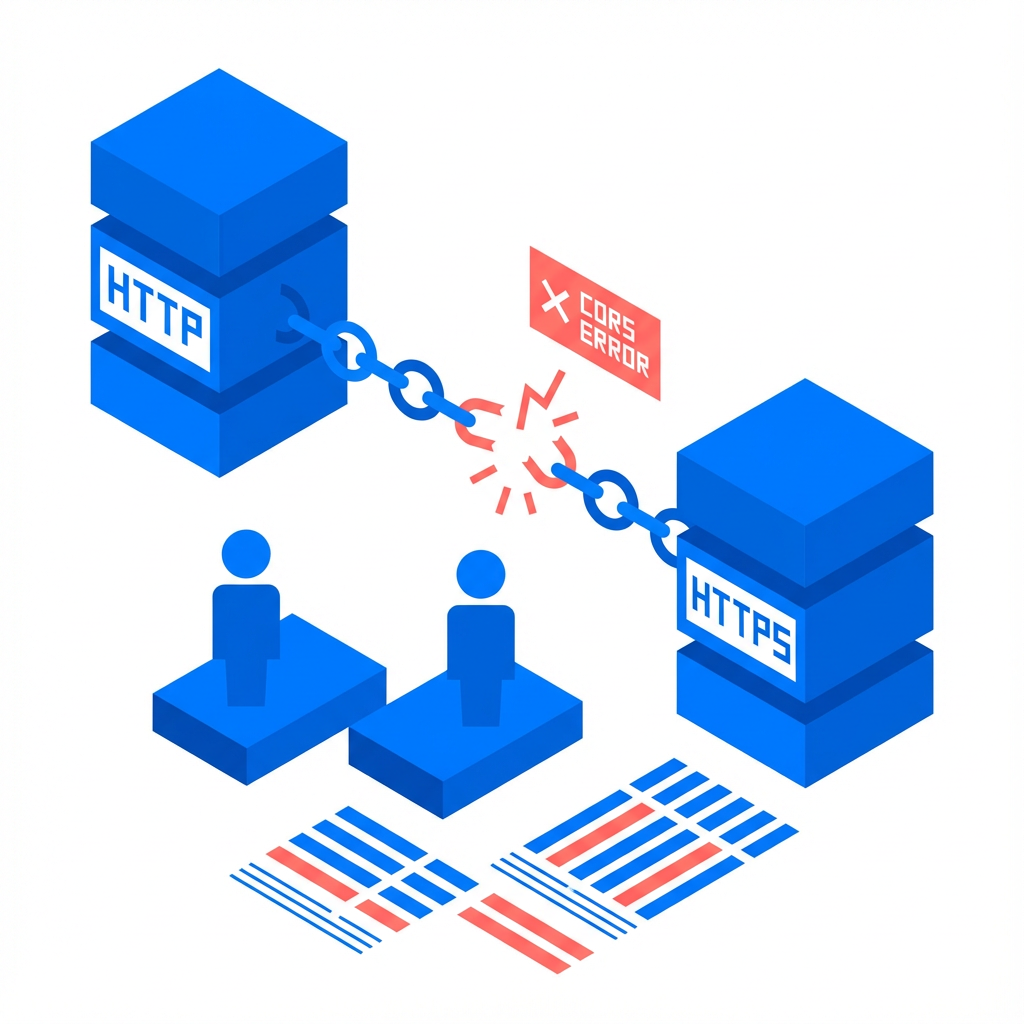
CORS issues emerge from stringent access policies. These policies often block cross-origin resource sharing when misconfigured. For instance, when a printer connected via a web interface attempts to fetch resources from a different origin without proper headers, browsers halt the request. To prevent this, correctly configure server CORS settings to ensure seamless communication.
Mixed content errors typically occur when secure HTTPS connections inadvertently link with HTTP resources. Such inconsistency results in browsers refusing to load parts of the web page, particularly on pages managing printer workflows. Ensuring that all elements call through HTTPS prevents these interruptions.
- Restrictive Policies: Servers should be configured with less restrictive CORS policies to communicate effectively across domains.
- Consistent Protocols: Upgrade all integrations to use HTTPS to eliminate mixed content issues.
- Regular Maintenance: As highlighted by Kinsta, routine updates can trigger these errors, requiring careful review of security settings.
Addressing these concerns entails both security and compatibility adjustments, crucial for uninterrupted printer and browser interactions.

Dealing with Dynamic IP Address Changes
Dynamic IP addresses can lead to frustrating breaks in communication between your printer and browser. As TomsHardware mentions, routers reallocate IP addresses using DHCP protocols, creating a continuous shift in network assignments to maintain system balance. This is akin to your house number changing unexpectedly, creating chaos for deliveries.
Setting static IPs is a practical solution. Static IPs serve as a permanent address, preventing these disruptive reallocations. Once set, your devices, including printers, retain their IP addresses, ensuring consistent connectivity. According to HP, the transition to a static IP can significantly reduce operational slowdowns.
- Dynamic IPs: Frequently change with network protocols, increasing disconnects.
- Static IPs: Provide a stable, fixed address, improving printer communication.
To implement static IPs, access your router settings and disable DHCP for the desired device, setting a permanent IP. This process is essential for minimizing tech headaches in printer connections, ensuring smooth and reliable operations.
Conclusions
Resolving printer-browser connection issues hinges on addressing widespread technical hurdles. Understanding and fixing SSL certificates, managing CORS policies, and stabilizing IP addresses will streamline operations. These measures reduce disruptions and boost productivity.
By following these strategies, businesses can decrease sales bottlenecks and improve efficiency. Transitioning to these proven solutions allows smooth interactions between your systems, fostering uninterrupted workflow. Implementing these solutions means never letting technical hiccups slow you down again.
Looking for more?
At Odoo Skillz, we specialize in direct printing solutions for Odoo. Our solutions tackle connection issues head-on, offering reliable and efficient printer and browser integrations. Contact us today to enhance your workflow and ensure smooth operations with robust connectivity. Claim a demo now to experience smooth printing for your business.
🖨️ Try Ultraprint Free — No Setup Required
Print directly from Odoo on any desktop browser with the free Ultraprint Chrome Extension. No add-on installation, no IoT Box — just install and print in seconds. Works with Odoo Online and any web-based ERP.
Install Free Extension → Desktop browsers only. Requires an Ultraprint Hub license for printer connection.