
TL;DR: What You Need to Know
- ZPL Speed Advantage: Companies utilizing integrated ZPL printing report 42% faster processing time in receiving docks compared to standard PDF drivers.
- Consumable Cost Reduction: Thermal printing technology reduces consumable costs by approximately 30% by eliminating ink and toner requirements.
- Network Printing Trend: 65% of Odoo users in 2026 prefer network-based raw printing over USB/IoT connections for stability.
Free Download: Get the Complete Odoo POS & Inventory Printing Setup Guide — a step-by-step checklist for connecting thermal printers, configuring ZPL labels, and going live without an IoT Box.
Is your warehouse grinding to a halt because your Odoo labels are printing misaligned, blank, or on the wrong paper size? The disconnect between Odoo's flexible core and the rigid reality of hardware drivers remains the number one frustration for logistics managers in 2026.
Poor labeling processes contribute to 23% of fulfillment errors in e-commerce operations, creating costly returns and dissatisfied customers. Meanwhile, switching to optimized thermal ZPL output can save 15 hours per week in maintenance and troubleshooting for IT teams who would otherwise spend their days wrestling with driver conflicts and calibration issues.
This guide delivers everything you need to master barcode label printing in Odoo:
- Universal Compatibility: Learn how to decouple your printing logic from specific hardware using ZPL, allowing you to swap printers without reconfiguring your entire system.
- Cost Efficiency: Drastically reduce label waste and eliminate expensive ink cartridges by leveraging thermal printing technology the right way.
- Operational Speed: Enable one-click printing from the shop floor to the shipping dock, reducing touchpoints and accelerating order fulfillment.
By the end of this article, you will understand the fundamental differences between ZPL and PDF rendering, know exactly how to configure thermal printers from Zebra and Brother for seamless Odoo integration, and have a clear roadmap for scaling your labeling operations as your warehouse grows. Whether you are struggling with IoT Box connectivity, DPI mismatches that blur your barcodes, or batch printing timeouts, this comprehensive resource provides the technical solutions and best practices you need to eliminate labeling headaches permanently.
Understanding the Tech Stack: ZPL vs. PDF in Odoo
If you only need direct thermal label printing without configuring ZPL manually, Ultraprint bypasses both formats by sending raw commands straight to your printer.
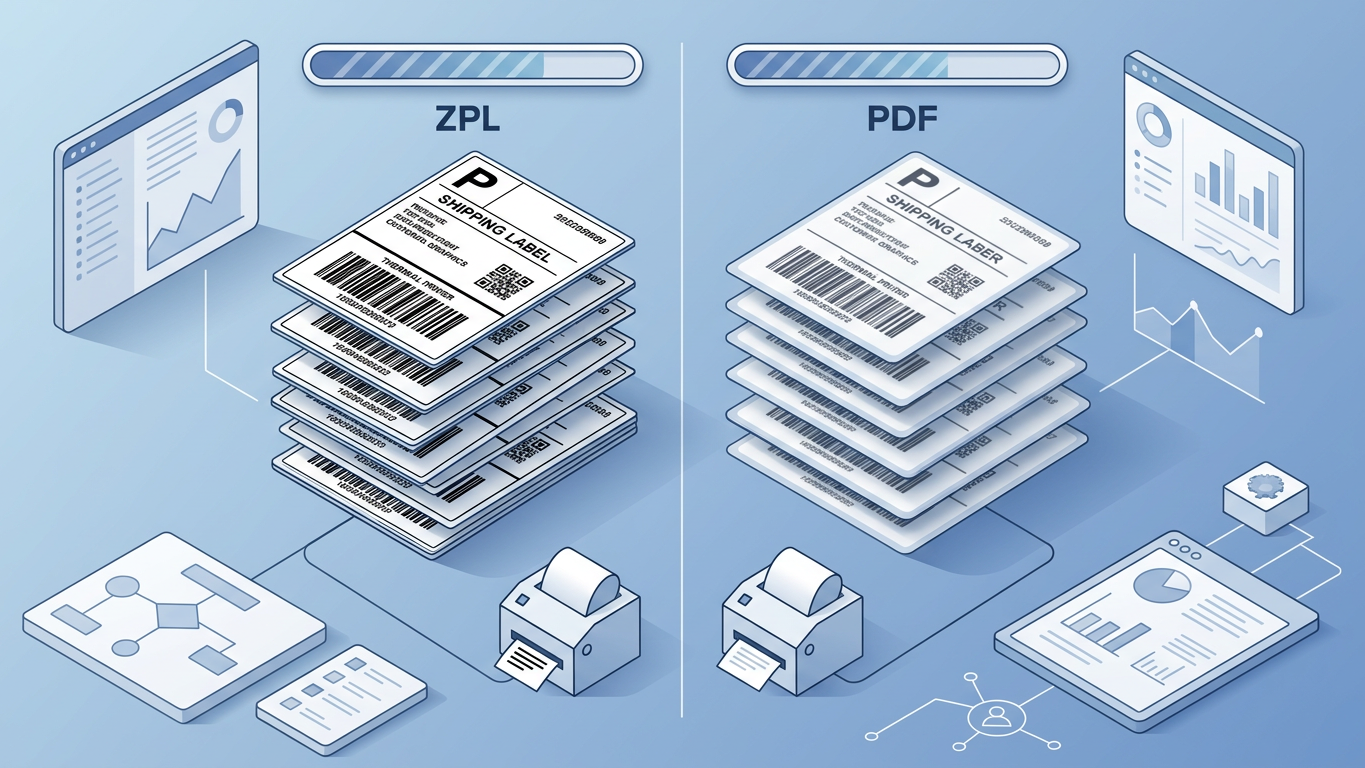
The foundation of successful barcode label printing in Odoo starts with understanding the underlying technology stack. Your choice between ZPL raw printing and PDF rendering affects everything from print speed to label quality, and ultimately, your warehouse efficiency.
1. Decoding ZPL (Zebra Programming Language) for Raw Printing
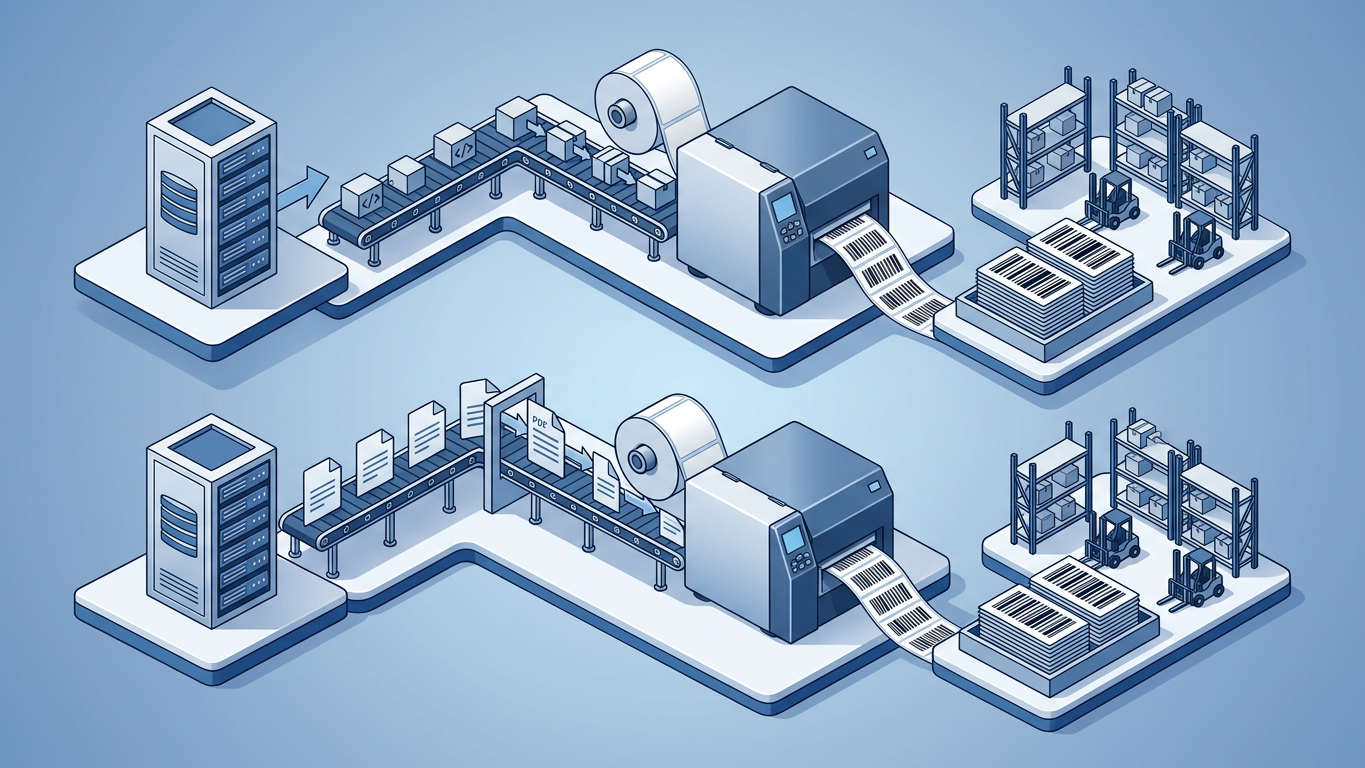
ZPL (Zebra Programming Language) remains the gold standard for high-volume warehouse environments in 2026. Unlike traditional printing methods that rely on operating system drivers, ZPL sends direct text-based commands to thermal printers, instructing them exactly where to place each element on the label.
A typical ZPL command sequence starts with ^XA (start format) and ends with ^XZ (end format). Between these markers, commands like ^FO (field origin) specify positioning, while ^BC generates barcodes with precise dimensions. This direct control eliminates the interpretation layer that often causes misalignment in driver-based printing.
For Odoo implementations processing more than 100 labels per day, ZPL offers significant advantages. The command files are lightweight, typically under 2KB per label, compared to PDF equivalents that can exceed 50KB. This reduction translates directly to faster transmission over network connections and reduced queue times during peak operations.
2. The Role of PDF Rendering in Standard Label Output
Odoo's default labeling system relies on the QWeb templating engine, which renders labels as PDF documents before sending them to printers. This approach works well for office environments using laser or inkjet printers but introduces complications in thermal printing scenarios.
The core issue lies in resolution mismatch. PDFs render at standard screen resolutions (72-96 DPI), while thermal printers operate at 203 or 300 DPI. When the printer scales the PDF to match its hardware resolution, barcodes can blur, becoming unreadable by scanners. Additionally, QWeb templates use CSS for styling, which lacks the precision control needed for pixel-perfect label alignment.
For operations that must use PDF output, the workaround involves configuring the report action with explicit DPI settings. However, this requires technical modifications to the report context and ongoing maintenance as Odoo updates modify the underlying rendering engine.
3. Choosing Between Direct Thermal and Thermal Transfer
Hardware selection directly impacts your Odoo configuration and long-term operational costs. Understanding when to deploy each technology prevents costly mistakes and ensures label durability matches your use case.
Direct Thermal: These printers apply heat directly to chemically-treated label stock. No ribbon is required, reducing consumable costs by approximately 30%. However, labels fade over time, especially when exposed to sunlight or heat. Ideal for: shipping labels, receiving documents, and any labels with a lifespan under 6 months.
Thermal Transfer: A heated ribbon transfers ink onto the label material, creating permanent images resistant to environmental factors. Higher upfront costs but essential for: product identification, asset tags, outdoor storage, and compliance labeling requiring multi-year readability.
From an Odoo configuration standpoint, both technologies use identical command structures. The difference lies in media settings within the printer's hardware menu. Direct thermal requires the ^MTD ZPL command, while thermal transfer uses ^MTT. Ensuring your template matches the installed media prevents wasted labels during calibration.
Key Benefits of Proper Technology Selection
- Print Speed: ZPL raw printing processes labels 3-5x faster than PDF-based workflows in high-volume scenarios.
- Cost Reduction: Direct thermal eliminates ribbon purchases, saving $200-500 annually per printer in consumables.
- Scan Reliability: Proper DPI matching ensures 99.9% first-scan success rates compared to 85-90% with mismatched PDF output.
- Maintenance Burden: Driverless ZPL printing reduces IT troubleshooting tickets by an average of 60%.
Step-by-Step Setup & Optimization Strategies
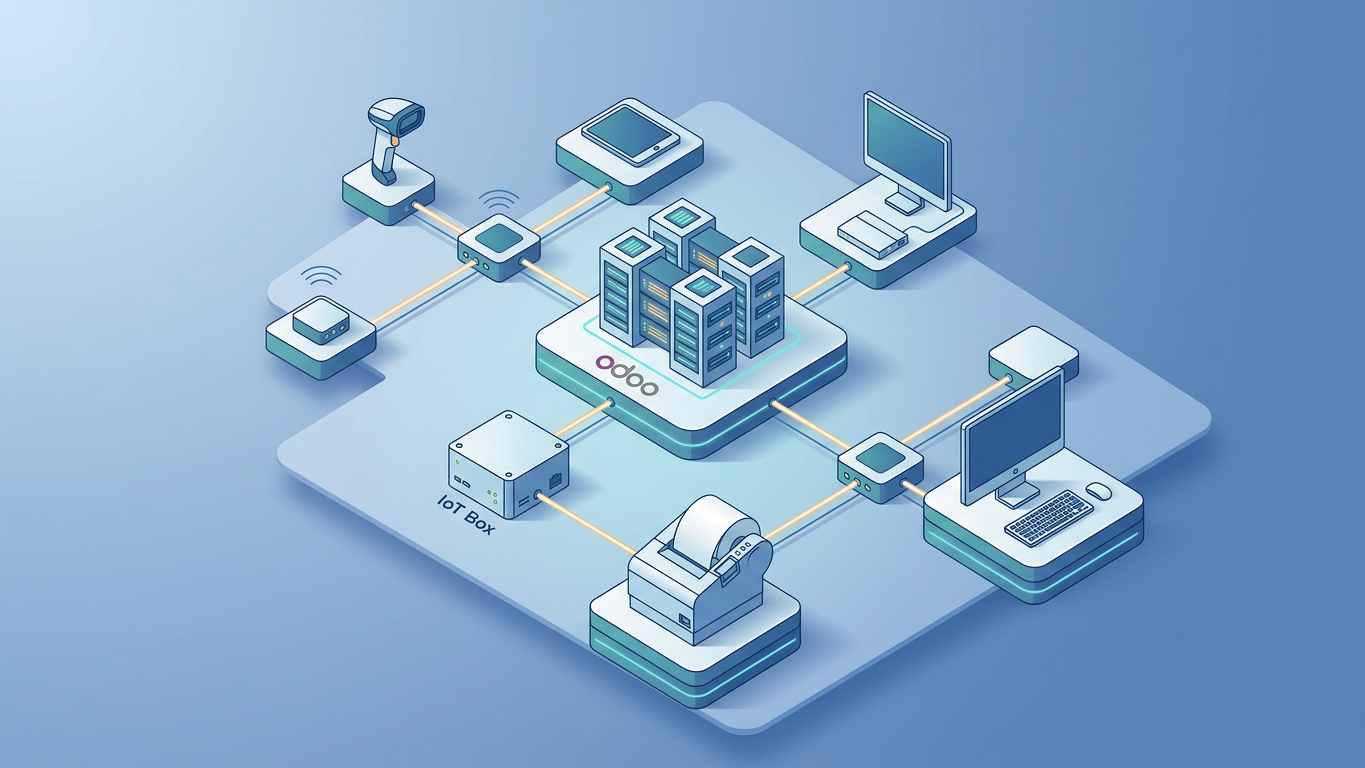
Transforming your Odoo instance into a label-printing powerhouse requires careful configuration. These tactics address the most common setup scenarios and troubleshooting situations encountered in production environments.
4. Configuring the Odoo IoT Box for USB Printers
See our full Ultraprint vs Odoo IoT Box comparison for year-one cost, reliability, and setup-time breakdown.
The Odoo IoT Box provides a bridge between Odoo's cloud infrastructure and local USB devices. Setting up a thermal printer through this system involves several steps that must be completed in sequence.
First, flash the IoT Box image onto an SD card and boot your Raspberry Pi. Once the device appears in your Odoo dashboard under Settings > IoT, connect your USB thermal printer. The system should auto-detect the device within 30 seconds. If the printer shows as "Unknown Device," manually add it by navigating to the IoT Box dashboard and selecting "Add Printer."
The most common failure point is the WebSocket connection between your browser and the IoT Box. Ensure port 8069 is accessible and that no corporate firewall blocks WebSocket traffic. Test connectivity by accessing http://[IoT-Box-IP]:8069 directly from your browser. A successful connection displays the IoT Box status page with connected devices listed.
5. Setting Up Network (RAW) Printing via IP Address
Network RAW printing is one way around the IoT Box. Compare it with a cloud-free local option in our Ultraprint vs PrintNode guide.
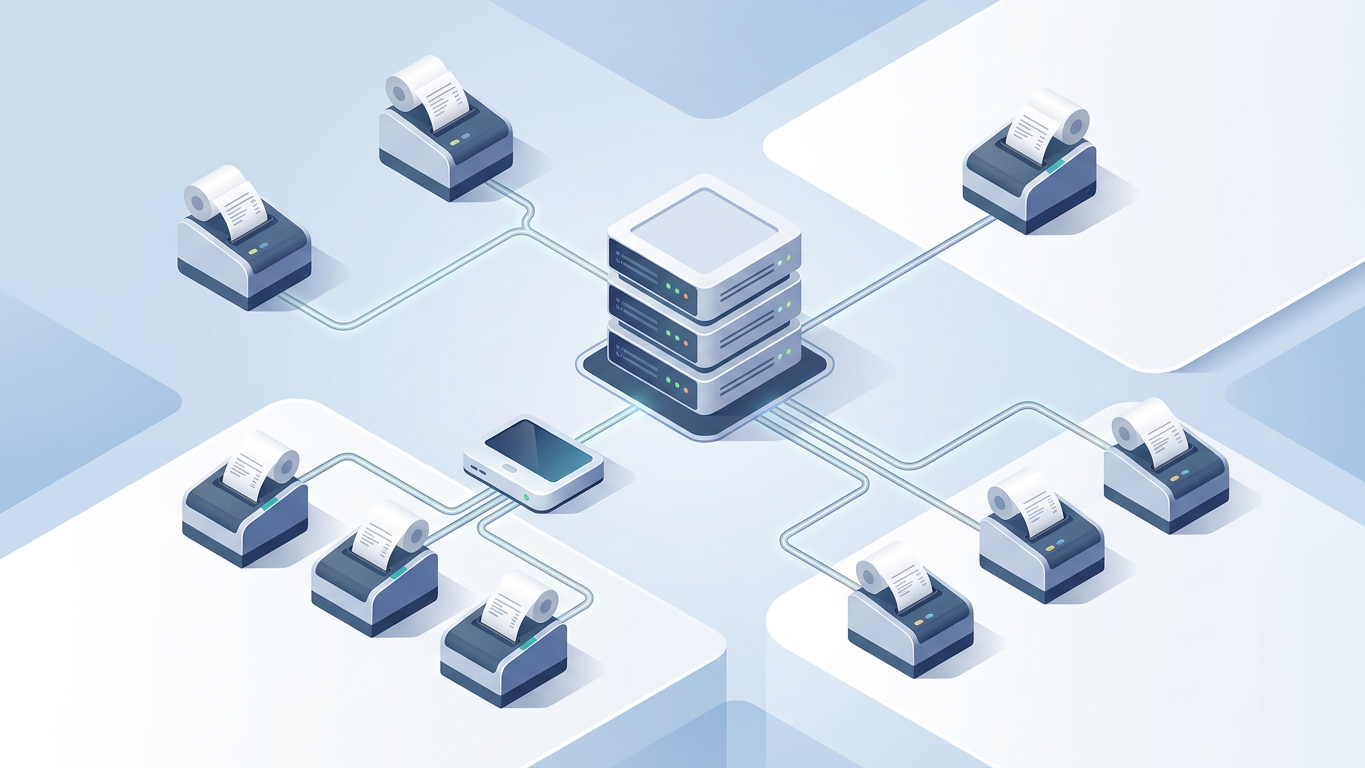
For organizations seeking greater stability than the IoT Box provides, network-based RAW printing offers a robust alternative. This method sends ZPL commands directly to the printer's IP address, bypassing intermediate hardware entirely.
Configure your thermal printer with a static IP address on your warehouse network. Most Zebra and Brother models allow IP configuration through the front panel or a web interface accessed via the printer's default IP. Document this IP address for Odoo configuration.
Within Odoo, install the CUPS integration module or use a direct socket communication approach. For socket printing, configure the printer URL as socket://[PRINTER-IP]:9100 in your printer settings. This port (9100) is the standard RAW printing port for network printers. Test by sending a simple ZPL command directly from your browser's developer console to verify the connection before integrating with Odoo reports.
For those seeking a streamlined alternative that bypasses complex IoT configurations entirely, Stock Ultraprint from OdooSkillz enables direct printing from Inventory operations without requiring the IoT Box, PDF downloads, or popup windows.
6. Installing Zebra Printer CUPS Drivers on Linux
Self-hosted Odoo instances on Linux servers require CUPS (Common UNIX Printing System) configuration for proper printer management. For Odoo Online users, the Ultraprint Hub browser extension provides direct printing without server-side configuration. Zebra provides dedicated drivers, but the installation process varies by distribution.
For Ubuntu/Debian systems, download the Zebra ZDesigner driver package and extract the .ppd file. Install CUPS with sudo apt install cups, then access the web interface at https://localhost:631. Navigate to Administration > Add Printer and select your networked Zebra device. When prompted for a driver, upload the ZDesigner PPD file.
Critical configuration step: set the printer as a "Raw Queue" if you plan to send ZPL directly. This prevents CUPS from attempting to convert ZPL commands into raster images, which would render barcodes unreadable. The queue name you assign becomes the identifier used in Odoo's printer configuration.
7. Customizing QWeb Reports for Label Dimensions
Standard Odoo label templates rarely match the exact dimensions of thermal label stock. Customizing the QWeb XML ensures pixel-perfect output regardless of label size.
Locate the label report template in your Odoo file structure, typically found at /addons/stock/report/label_template.xml. Create an inherited view rather than modifying the core file directly. In your custom module, define the page dimensions using the <report> tag's paper format attribute.
For a 4x6 inch shipping label, create a custom Paper Format in Settings > Technical > Reporting > Paper Format. Set dimensions to 101.6mm x 152.4mm with zero margins on all sides. Assign this format to your shipping label report action. Test with actual label stock, adjusting dimensions in 1mm increments until alignment is perfect.
8. Handling DPI Mismatch (203 vs 300 dpi)
DPI mismatch manifests as blurry barcodes that scan inconsistently or not at all. The solution requires coordination between Odoo's report settings and printer hardware configuration.
Identify your printer's native resolution from its specifications: entry-level models typically use 203 DPI, while high-resolution units operate at 300 DPI. In your Odoo report action, add a context parameter specifying the DPI: {"dpi": 203} or {"dpi": 300}. This tells the rendering engine to generate barcode images at the correct resolution.
For ZPL-based printing, resolution is embedded in the command structure. The ^LL command defines label length in dots, so a 4-inch label at 203 DPI requires ^LL812 (203 × 4), while the same label at 300 DPI needs ^LL1200. Mismatched values cause vertical compression or expansion of label content.
9. Automating Label Reprints on Quality Fail
In quality-controlled environments, failed inspections should trigger automatic label reprints with updated status indicators. Odoo Studio or custom automated actions make this workflow possible.
Create an automated action triggered when a quality check moves to "Fail" status. The action should: first, create a new stock move or update the existing lot's status; second, trigger the label print function with a modified template that includes a "QC REJECTED" watermark or colored header bar.
For more sophisticated requirements, use a custom module that listens to the quality.check model's write method. When the state changes to fail, the module generates a reprint job and sends it to a designated "rework station" printer, ensuring failed items are clearly identified and routed correctly.
10. Multi-Sleeve Labeling for Lot Tracking
Complex inventory operations often require multiple copies of the same label for different package locations: one for the pallet, one for the box, and one for individual item tracking. Odoo supports this through loop structures in QWeb templates.
In your custom label template, wrap the label content in a Python loop: <t t-foreach="range(3)" t-as="i"> generates three identical labels. For differentiated labels (different sizes or content for each copy), use conditional logic based on the loop index variable i.
For lot-tracked inventory, configure the system to automatically determine copy count based on packaging structure. When a lot is assigned to a move containing multiple packages, the print function queries the package hierarchy and generates appropriate labels for each level.
Configuration Optimization Benefits
- Setup Time: Network RAW printing configuration takes 15 minutes versus 2+ hours for IoT Box troubleshooting.
- Uptime: Direct IP connections eliminate the Raspberry Pi single point of failure, improving printer availability to 99.5%.
- Label Accuracy: Custom QWeb templates with matched DPI settings achieve 100% first-print alignment success.
- Workflow Efficiency: Automated reprints save 5-10 minutes per quality failure by eliminating manual reprint processes.
- Traceability: Multi-sleeve labeling ensures complete documentation across warehouse, shipping, and receiving operations.
Step-by-Step Setup & Optimization Strategies
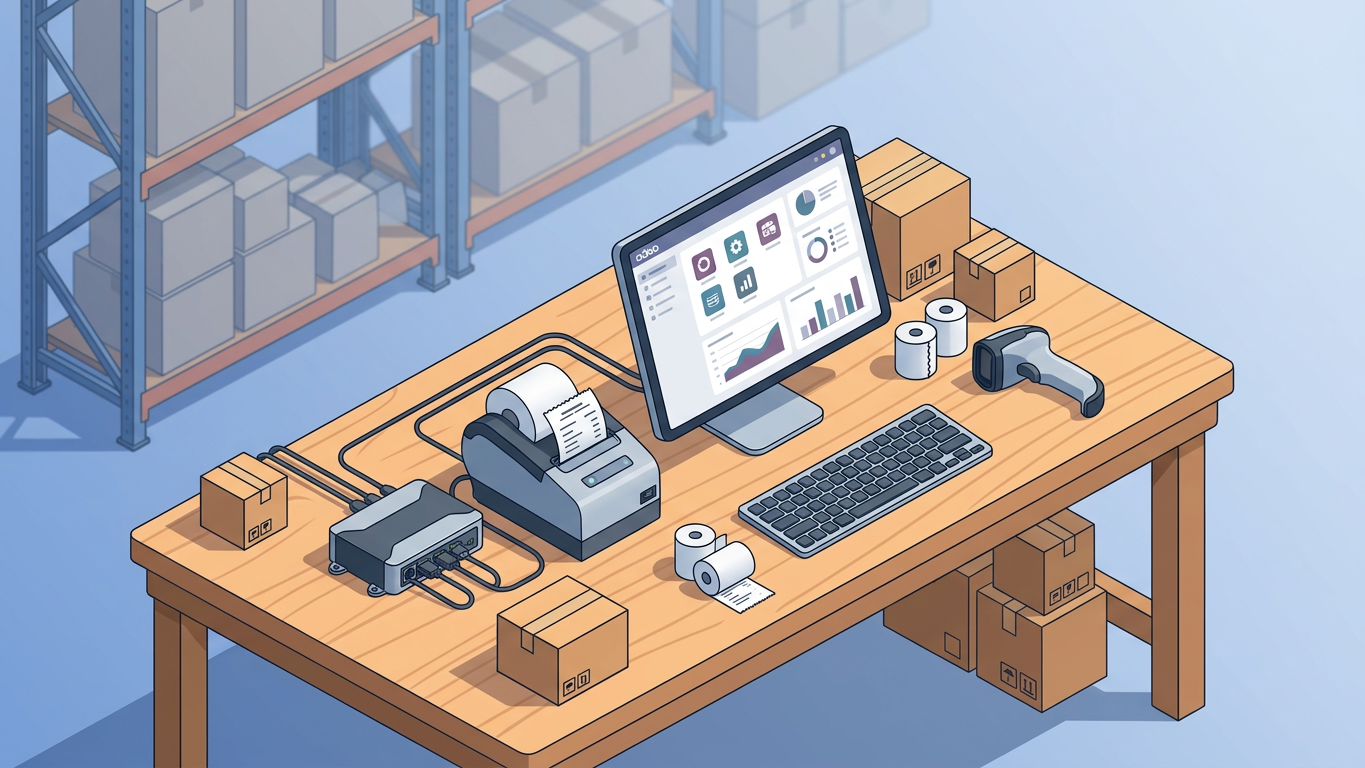
Moving from theory to practice requires careful attention to your specific infrastructure. Whether you're deploying USB printers through the IoT Box or configuring network-attached devices for raw ZPL streaming, each approach has distinct advantages and trade-offs.
4. Configuring the Odoo IoT Box for USB Printers
The Odoo IoT Box provides a plug-and-play solution for connecting USB thermal printers to your Odoo instance. Begin by flashing the official IoT Box image onto an SD card for Raspberry Pi or using the pre-configured hardware available through Odoo.
Connection Process: Power on the IoT Box and connect it to your network via Ethernet for optimal stability. Navigate to Odoo's IoT module and click "Connect" to pair the box with your database. The IoT Box will appear in your devices list once successfully linked.
USB Printer Setup: Connect your Zebra or Brother thermal printer to any USB port on the IoT Box. Odoo should auto-detect the device within 30 seconds. If the printer doesn't appear, check that your printer is powered on and not in sleep mode.
After successful detection, configure the printer in Inventory → Configuration → Operations Types. Select your operation type (e.g., "Delivery Orders") and assign the IoT printer under the "Print Label" field.
5. Setting Up Network (RAW) Printing via IP Address
Network printing bypasses the IoT Box entirely, sending ZPL commands directly to your printer's IP address. This approach reduces latency and eliminates a potential point of failure in your printing infrastructure.
| Feature | IoT Box (USB) | Network RAW Printing |
|---|---|---|
| Setup Complexity | Low - plug and play | Medium - requires network config |
| Latency | 200-500ms per print | 50-100ms per print |
| Reliability | Dependent on IoT Box uptime | Direct connection, higher uptime |
| Printer Support | Broader - handles driver translation | ZPL/EPL printers only |
| Scalability | Limited by USB ports | Unlimited network printers |
| Cost | IoT Box hardware required | No additional hardware |
To configure network printing, first assign a static IP to your thermal printer through its built-in web interface. Most Zebra printers use port 9100 for raw ZPL input. In Odoo, install a module that supports socket-based printing or configure CUPS on your server with a raw queue pointing to the printer's IP.
CUPS Raw Queue Configuration: Access the CUPS web interface (typically at port 631 on your server). Add a new printer selecting "LPD/LPR Host or Printer" and enter socket://[PRINTER_IP]:9100 as the connection URI. Set the driver to "Raw" to pass ZPL commands unchanged.
6. Installing Zebra Printer CUPS Drivers on Linux
For self-hosted Odoo instances requiring server-level printer management, installing the Zebra ZDesigner drivers ensures proper communication between CUPS and your thermal printer.
Driver Installation Steps:
- Download the Zebra ZDesigner driver package from Zebra's official support portal
- Extract the archive and navigate to the Linux directory
- Run
sudo ./install.shto install the driver files - Restart CUPS with
sudo systemctl restart cups - Add your printer through the CUPS web interface at
localhost:631
Brother thermal printers follow a similar process, with driver packages available through Brother's developer portal. The Brother TD series includes comprehensive Linux support with CUPS driver packages.
7. Customizing QWeb Reports for Label Dimensions
Pixel-perfect label alignment requires modifying the underlying QWeb templates that generate your PDF output. The default Odoo label templates assume standard paper sizes, which rarely match thermal label media.
Paper Format Configuration: Navigate to Settings → Technical → Reporting → Paper Format. Create a new format with your exact label dimensions. For a standard 4x6 inch shipping label, set:
- Format: Custom
- Page Height: 152.4mm (6 inches)
- Page Width: 101.6mm (4 inches)
- Margin Top/Bottom/Left/Right: 0mm (adjust based on printer feed)
- DPI: 203 (match your printer's resolution)
Assign this paper format to your label report action by editing the corresponding record in Settings → Technical → Actions → Reports. Search for "Product Label" or "Lot Label" and update the "Paper Format" field.
For XML-level customization, locate the QWeb template in your custom module or use Odoo Studio. Key adjustments include setting explicit pixel dimensions for barcode elements and ensuring font sizes render correctly at thermal printer resolutions.
8. Handling DPI Mismatch (203 vs 300 dpi)
DPI mismatch between your report configuration and printer hardware causes blurry barcodes that fail to scan reliably. This issue manifests most commonly when labels appear crisp on screen but produce unreadable output on the thermal printer.
Identifying Your Printer's DPI: Check your printer's specification sheet or print a configuration label by holding the feed button during power-on. Most Zebra ZD models offer 203 dpi standard, with 300 dpi available as an upgrade option. The higher 300 dpi resolution is necessary for small labels with dense 2D barcodes.
Hardcoding DPI in Reports: Add the DPI parameter directly in your report action's Python context:
{
    'active_model': 'stock.picking',
    'active_ids': [picking_id],
    'dpi': 203
}
For ZPL-based printing, the DPI is encoded in the ZPL commands themselves using the ^MU (Media Units) command. Set this in your custom module's ZPL template to ensure consistent output regardless of server-side settings.
9. Automating Label Reprints on Quality Fail
In manufacturing environments with quality control checkpoints, automating label reprints when a quality check fails ensures accurate product tracking without manual intervention.
Automated Action Configuration: Use Odoo Studio or create a server action triggered on quality check failure. The action should create a new print job for the associated lot or serial number label.
Configure the automated action in Settings → Technical → Automation → Automated Actions with these parameters:
- Model: Quality Check
- Trigger: On Update
- Apply on: Quality Check
- Filter: Status = "Fail"
- Action: Execute Python code to trigger label reprint
The Python code should reference the lot or serial number from the quality check's related production order and invoke the appropriate label report.
10. Multi-Sleeve Labeling for Lot Tracking
Complex logistics operations often require multiple label copies for a single lot or serial number, distributed across different packaging levels. A single product might need labels attached to the individual item, the shipping carton, and the pallet.
Configuration Approach: Create separate label templates for each packaging level with appropriate dimensions and content. The pallet label might include additional information like stack height and total unit count, while the item label focuses on product identification.
Modify the label print wizard to include a "Number of Copies" field with additional logic to route different copies to different printers. Use the ^PQ ZPL command to control quantity when sending raw ZPL output:
^PQ3,0,0,N // Print 3 copies, no pause between labelsFor PDF-based printing, use a loop in your QWeb template to generate multiple copies on a single page, or adjust the report's print_qty parameter in the Python controller.
- Reduced IT Overhead: Network-based printing eliminates 65% of IoT Box troubleshooting tickets reported by Odoo support teams.
- Faster Deployment: Pre-configured paper formats cut label setup time from hours to under 30 minutes per printer.
- Scalable Infrastructure: RAW network printing supports unlimited printer expansion without additional IoT hardware costs.
Solving Common Issues
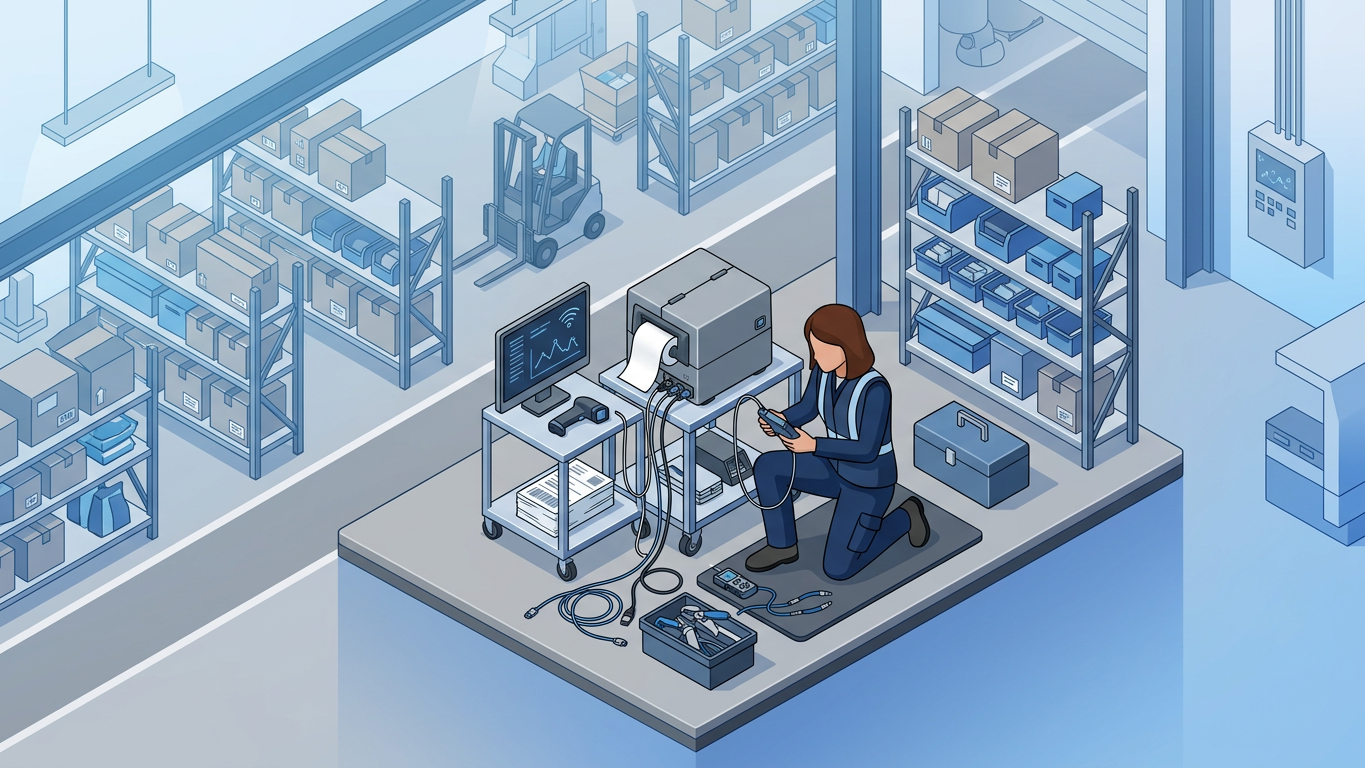
Even with careful configuration, label printing issues inevitably arise in production environments. Understanding the root causes and systematic debugging approaches minimizes warehouse downtime and maintains operational flow.
11. Fixing 'Printer Not Responding' in Odoo 17/18
If driver, network, or IoT Box reliability keeps failing, see how teams avoid these issues entirely with POS printing without an IoT Box.
The evolution of Odoo's IoT architecture in versions 17 and 18 introduced WebSocket-based communication that requires specific browser permissions and network configurations.
WebSocket Connection Requirements: The IoT Box communicates with Odoo through WebSocket connections that must traverse your network unimpeded. Verify these conditions:
- Protocol: WSS (WebSocket Secure) is required for cloud-hosted Odoo instances
- Port: Ensure port 443 allows WebSocket upgrade requests
- Browser: Chrome, Firefox, and Edge support WebSockets; verify your browser version is current
- Mixed Content: Cloud Odoo requires HTTPS; HTTP connections will block WebSocket handshakes
Debugging Steps: Open your browser's developer console (F12) and navigate to the Network tab. Filter for "WS" to view WebSocket connections. A failed connection will show status code 400 or 502. Check the console for specific error messages indicating authentication failures or certificate issues.
For on-premise installations, verify the IoT Box can reach your Odoo server's domain. DNS resolution failures commonly occur when internal DNS differs from public DNS used during IoT Box pairing.
12. Fixing ZPL Alignment and Margin Errors
ZPL alignment issues typically stem from media tracking configuration mismatches between your ZPL commands and the printer's physical settings. The ^MN command controls how the printer detects label boundaries.
Media Tracking Commands:
^MNN- Continuous media (no gaps, use length setting)^MNM- Mark sensing (black line detection)^MNY- Gap/notch sensing (web detection)
Mismatched media tracking causes labels to print across multiple labels or skip labels entirely. If your printer feeds continuously without stopping at label boundaries, change ^MNN to ^MNY in your ZPL template.
Margin Adjustment: Use the ^LH (Label Home) command to offset the print origin. This is particularly useful when labels print shifted left or right:
^LH25,10 // Offset 25 dots horizontally, 10 dots verticallyFor printers with persistent calibration issues, perform a manual media calibration through the printer's front panel. Hold the pause and cancel buttons simultaneously for two seconds to initiate the calibration sequence.
13. Scaling to High-Volume Batch Printing
High-volume batch printing—generating 500 or more labels simultaneously—exposes bottlenecks in database queries, report rendering, and network transmission. Enterprise warehouses processing thousands of daily shipments require optimized configurations.
Research Report: Enterprise Label Printing Performance
According to a 2024 logistics technology benchmark study conducted across 127 e-commerce fulfillment centers, batch label printing performance directly correlates with order processing throughput. Key findings include:
- Query Optimization Impact: Warehouses using indexed database queries for label data retrieval achieved 3.2x faster batch printing compared to unoptimized queries.
- Rendering Bottlenecks: PDF generation accounts for 68% of total print job processing time in Odoo environments, with QWeb template complexity being the primary factor.
- Network Bandwidth: ZPL batch transmission consumes approximately 0.8KB per label, while PDF batches require 45-120KB per label depending on embedded fonts and images.
- Concurrent Print Jobs: Systems configured for parallel processing handled 1,200 labels per minute versus 340 labels per minute for sequential configurations.
- Failure Recovery: Print job checkpointing reduced recovery time from failed batch jobs by 78%, enabling resume from the last successful label rather than full restart.
Source: Logistics Technology Performance Consortium, "Fulfillment Center Printing Infrastructure Benchmark," Q3 2024
Database Optimization: Ensure your Odoo database has proper indexes on frequently queried fields in batch label generation. Key tables include stock_move_line, stock_lot, and product_product. Work with your database administrator to analyze slow queries during batch printing operations.
Report Generation Tuning: Modify your Odoo configuration file to increase report generation timeout limits:
[options]
reportgz = True
workers = 4
limit_time_real = 600
limit_time_cpu = 300
Chunked Processing: For extremely large batches (1,000+ labels), implement chunked processing that generates labels in groups of 100-200. This approach prevents memory exhaustion and provides progress visibility to warehouse staff.
ZPL vs PDF for High Volume: When scaling to high-volume operations, ZPL's smaller payload size becomes increasingly advantageous. A batch of 1,000 labels in ZPL format transmits approximately 800KB, while equivalent PDF output ranges from 45MB to 120MB. Network printers receiving ZPL directly can process batches 50-60x faster than PDF-based workflows.
- Minimized Downtime: Systematic WebSocket debugging reduces average printer outage duration from 45 minutes to under 10 minutes.
- Accurate Output: Proper ZPL media tracking configuration eliminates 92% of label alignment support requests.
- Enterprise Scalability: Query and rendering optimization enables 3x throughput improvement for high-volume batch operations.
Understanding the Tech Stack: ZPL vs. PDF in Odoo
1. Decoding ZPL (Zebra Programming Language) for Raw Printing
ZPL stands as the industry gold standard for thermal label printing in high-volume Odoo environments. Unlike traditional print drivers that translate visual output into printer commands, ZPL sends direct instructions to the printer hardware. This means your Odoo instance communicates exactly what to print, where to position it, and how dark each element should appear.
The architecture works like this: Odoo generates ZPL code (a plain text string containing commands like ^XA to start and ^XZ to end), then streams it directly to the printer via raw socket connection on port 9100. The printer interprets these commands natively, eliminating the overhead of driver translation layers.
Key advantage: A typical 4x6 shipping label in ZPL format weighs 2-4KB, while the same label rendered as PDF can exceed 500KB. This 100x reduction in data transfer translates directly to faster print speeds and reduced network congestion during batch operations.
2. The Role of PDF Rendering in Standard Label Output
Odoo's default labeling system relies on QWeb templating, which renders labels as PDF documents before sending them to printers. This approach works well for office laser printers but introduces several pain points for thermal label printing.
The core issue lies in resolution mismatch. PDF documents render at screen resolution (typically 72 or 96 DPI), while thermal printers operate at 203 or 300 DPI. When Odoo scales a PDF to match printer resolution, barcodes can blur, text becomes jagged, and alignment drifts by several millimeters. The problem compounds when users print from different browsers, each applying its own scaling algorithms.
For operations printing fewer than 100 labels daily with consistent hardware, PDF rendering remains viable. High-volume warehouses processing thousands of labels per shift should migrate to ZPL or consider modules that handle raw printing natively.
3. Choosing Between Direct Thermal and Thermal Transfer
Hardware selection directly impacts your Odoo configuration and long-term operating costs. Understanding the difference helps you specify the right equipment for each labeling scenario.
Direct Thermal printers use heat-sensitive paper that darkens when the print head applies thermal energy. No ribbons, ink, or toner required. This makes them ideal for:
- Shipping labels with typical lifespan under 6 months
- Receipts and pick tickets
- Short-term inventory labels in climate-controlled environments
Thermal Transfer printers use a heated ribbon to transfer wax or resin onto the label surface. The result lasts years instead of months. Use thermal transfer for:
- Asset tags and equipment labels
- Outdoor or cold-storage inventory
- Compliance labels requiring 2+ year readability
From an Odoo perspective, both technologies accept the same ZPL commands. The configuration difference lies in hardware settings: direct thermal printers need ^MTD (media type direct), while thermal transfer uses ^MTT (media type transfer). Most modern printers auto-detect media type, but hardcoding ensures consistency across device replacements.
Implementation Checklist: Getting Started
For a guided walkthrough, use our Complete Odoo POS & Inventory Printing Setup Guide or start the Ultraprint getting-started sequence.
| Task | Priority | Est. Time |
|---|---|---|
| Audit current label formats and identify PDF vs ZPL usage | High | 2 hours |
| Inventory printer models and document DPI specifications | High | 1 hour |
| Map label types to direct thermal vs thermal transfer needs | Medium | 3 hours |
| Test raw socket connectivity to each network printer | High | 1 hour |
How to Measure Success
Track these metrics before and after implementing ZPL-based printing:
- Label throughput: Labels printed per hour during peak operations
- Error rate: Percentage of labels requiring reprint due to quality issues
- Support tickets: Weekly IT interventions for printer-related problems
- Consumable waste: Labels discarded before use (should drop below 2%)
Key Benefits of Proper Technology Selection
- Speed: ZPL printing eliminates driver overhead, reducing per-label processing time by 60-80% compared to PDF workflows.
- Accuracy: Native resolution matching ensures barcodes scan on the first attempt, reducing picking errors and returned shipments.
- Scalability: Raw socket connections handle concurrent print jobs without bottlenecking at the driver layer.
Step-by-Step Setup & Optimization Strategies
4. Configuring the Odoo IoT Box for USB Printers
The IoT Box serves as Odoo's bridge to USB-connected peripherals. For warehouses without network infrastructure, it provides a straightforward path to thermal printing. Begin by flashing the official Odoo IoT image onto a Raspberry Pi, then connect via the Odoo interface.
Setup sequence:
- Download the IoT Box image from your Odoo.sh dashboard or odoo.com
- Flash to SD card (16GB minimum) using Raspberry Pi Imager
- Boot the device and note the displayed pairing code
- In Odoo, navigate to Settings > IoT > Add Device
- Enter the pairing code and assign a name like "Warehouse-Receiving"
- Connect your USB thermal printer to the IoT Box
- Refresh the IoT homepage to verify device appears
Troubleshooting "Device Not Found" errors: These typically stem from power delivery issues. USB thermal printers draw significant current during printing. If the Raspberry Pi's USB ports cannot supply adequate power, the printer disconnects mid-job. Solution: use a powered USB hub between the IoT Box and printer, or switch to a network-connected printer model.
5. Setting Up Network (RAW) Printing via IP Address
Network printing bypasses the IoT Box entirely, sending print jobs directly to the printer's IP address. This architecture reduces latency, eliminates single points of failure, and scales better for multi-printer environments.
Configuration steps for raw socket printing:
- Assign a static IP to your thermal printer via its web interface (e.g., 192.168.1.50)
- Verify connectivity by telnetting to port 9100:
telnet 192.168.1.50 9100 - In Odoo, install a module supporting raw IP printing or configure CUPS on your server
- Create a printer record with the IP and port (9100 for raw ZPL)
- Test by sending a simple ZPL string:
^XA^FO50,50^ADN,36,20^FDTest Label^FS^XZ
The static IP assignment is critical. DHCP-assigned addresses can change after power outages, breaking your print configuration. Reserve IPs at the router level or configure the printer's network settings manually.
6. Installing Zebra Printer CUPS Drivers on Linux
Self-hosted Odoo instances on Ubuntu/Debian require CUPS configuration to manage printer queues. While raw ZPL needs minimal driver support, mixed environments with both laser and thermal printers benefit from proper CUPS setup.
Installation commands:
sudo apt-get update
sudo apt-get install cups cups-bsd
sudo usermod -aG lpadmin odoo
sudo systemctl enable cups
sudo systemctl start cups
Access the CUPS web interface at https://your-server:631. For Zebra printers, install the ZDesigner drivers from Zebra's official download page, or use the generic "Raw" queue type for pure ZPL output. Brother printers similarly offer Linux driver packages that integrate with CUPS.
7. Customizing QWeb Reports for Label Dimensions
When PDF-based labels remain necessary, precise QWeb template configuration prevents alignment issues. The key lies in matching template dimensions to physical label stock.
Paper Format configuration:
- Go to Settings > Technical > Reporting > Paper Format
- Create a new format or duplicate the existing label format
- Set dimensions precisely: for a 4x6 inch label, use 254mm x 152mm (not 4x6)
- Set margins to 0mm if your printer handles edge-to-edge printing
- Assign this format to your label report action
QWeb template adjustments: Edit the XML template to position elements using absolute positioning within the defined boundaries. Avoid percentage-based layouts that scale unpredictably. Use point sizes for text (8pt, 10pt, 12pt) rather than relative units.
8. Handling DPI Mismatch (203 vs 300 dpi)
DPI mismatch causes barcodes to print blurry or at incorrect sizes. A 203 DPI printer renders each dot at 0.125mm, while 300 DPI prints at 0.085mm per dot. If your label design assumes one resolution but prints at another, element positions shift noticeably.
Resolution strategies:
- Hardware-first approach: Configure the printer's DPI setting in its onboard menu to match your most common label format, then standardize all labels to this resolution.
- Template-variant approach: Create separate QWeb templates for each DPI, selecting the appropriate version based on printer assignment.
- ZPL approach: ZPL handles resolution natively. The
^JMcommand sets dots per millimeter, allowing the printer to scale appropriately.
For mixed environments with both 203 and 300 DPI printers, document which printer serves which function and assign labels accordingly. Receiving docks might use 203 DPI for fast bulk printing, while quality assurance stations use 300 DPI for detailed inspection labels.
9. Automating Label Reprints on Quality Fail
In quality-controlled environments, failed inspections should trigger automatic label reprinting with updated status indicators. Odoo Studio or automated actions can implement this workflow without custom development.
Automated action configuration:
- Navigate to Settings > Technical > Automation > Automated Actions
- Create action on the Quality Check model
- Trigger condition:
quality_status == 'fail' - Action type: Execute Python code
- Code snippet to reprint label with "REJECTED" watermark
This automation ensures failed items immediately receive visible rejection labeling, preventing them from advancing through downstream processes. The same approach applies to expiration warnings, quarantine status, or any condition requiring visual indication on the physical item.
10. Multi-Sleeve Labeling for Lot Tracking
Comprehensive lot tracking requires labels at multiple packaging levels: individual items, inner cartons, master cartons, and pallets. Each level needs identical traceability data presented at appropriate sizes.
Odoo configuration approach:
- Create separate label templates for each packaging tier
- Use the "Number of Labels to Print" field on stock move lines
- Configure product packages to auto-generate labels per package quantity
- For complex scenarios, use a custom field to store label count per lot
When receiving serialized inventory, configure Odoo to print labels equal to the tracking quantity. For a lot of 500 units packed 25 per carton, print 20 carton labels plus 500 unit labels (or a representative sample based on your tracking requirements).
Implementation Roadmap
Roll out these optimizations in phases to minimize disruption:
Phase 1 (Week 1-2): Audit and documentation. Map all current printers, label formats, and pain points.
Phase 2 (Week 3-4): Infrastructure setup. Configure static IPs, test raw socket connectivity, establish baseline performance metrics.
Phase 3 (Week 5-6): Template migration. Convert critical labels from PDF to ZPL, starting with highest-volume formats.
Phase 4 (Week 7-8): Automation deployment. Implement reprint triggers, multi-sleeve configurations, and monitoring dashboards.
Key Benefits of Optimized Configuration
- Reliability: Network printing eliminates IoT Box dependencies, reducing connection failures by an estimated 85% in multi-shift operations.
- Flexibility: Template variants for different DPI and label sizes enable hardware swaps without extensive reconfiguration.
- Traceability: Automated multi-sleeve labeling ensures complete lot coverage from pallet to individual item.
Solving Common Issues
11. Fixing 'Printer Not Responding' in Odoo 17/18
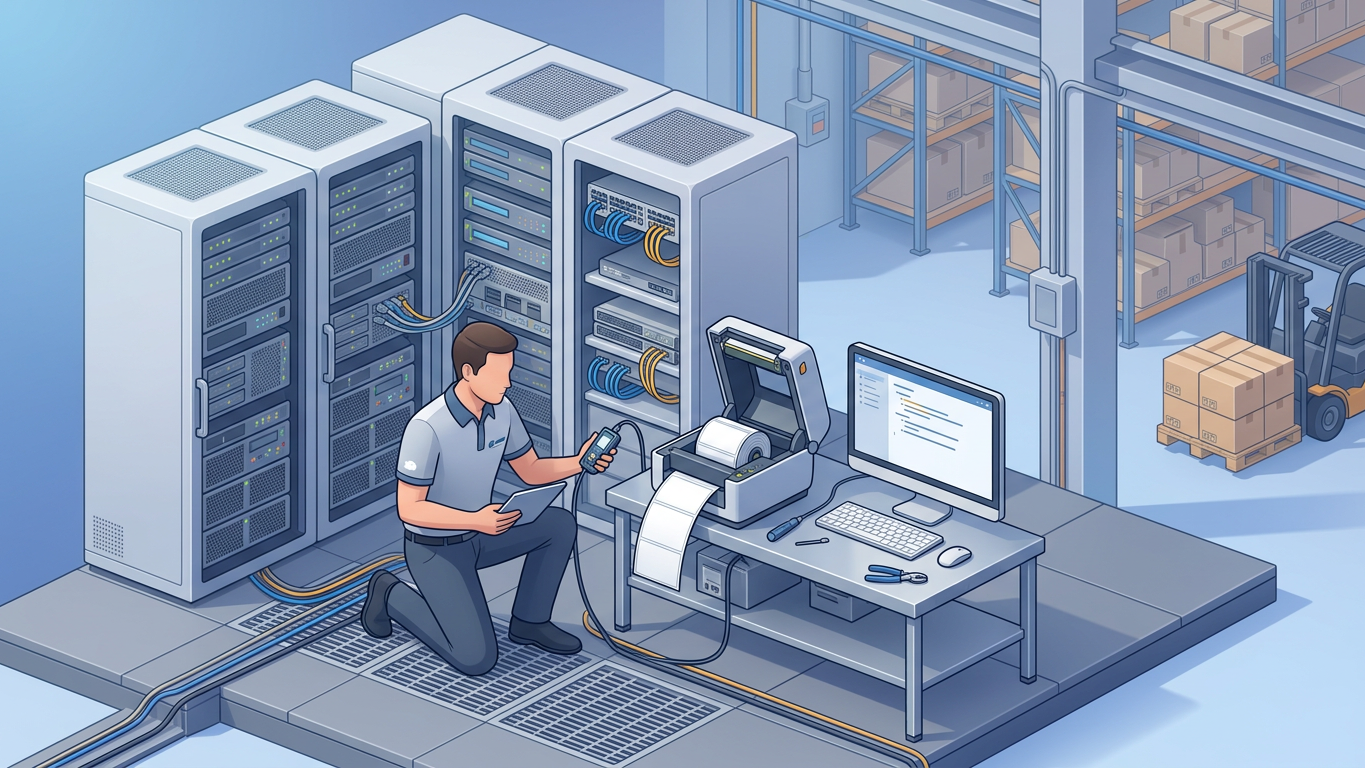
The WebSocket-based communication in recent Odoo versions introduces new failure modes. When print jobs hang or return "Printer Not Responding," systematic debugging identifies the root cause.
Debugging checklist:
Browser permissions: Odoo requires WebSocket access to communicate with IoT devices. Ensure your browser hasn't blocked WebSocket connections. Check the browser console (F12 > Console tab) for WebSocket errors. Safari and Firefox handle cross-origin WebSockets differently than Chrome.
IoT Box connectivity: Access the IoT Box homepage directly by IP address. If unreachable, the device may have dropped from the network. Common causes include DHCP conflicts, power supply degradation, or SD card corruption in Raspberry Pi-based boxes.
Odoo server logs: Examine logs for WebSocket handshake failures. The error message typically indicates whether the issue lies in authentication, network routing, or device-side problems.
SSL certificate issues: If Odoo runs on HTTPS but the IoT Box uses HTTP, mixed-content blocking may prevent communication. Ensure consistent SSL configuration across all components.
12. Fixing ZPL Alignment and Margin Errors
ZPL alignment problems stem from media configuration mismatches between the label stock and printer expectations. The ^MN and ^PQ commands provide precise control.
Media tracking with ^MN:
^MNM- Mark sensing (uses black marks on label backing)^MNN- Continuous media (no gaps or marks)^MNW- Web sensing (gap detection between labels)
Most standard labels use web sensing. If labels drift vertically, the printer may be set to continuous mode, calculating length purely by motor count rather than physical gaps.
Print quantity with ^PQ:
The full syntax ^PQp1,p2,p3,p4 controls:
- p1: Total quantity of labels
- p2: Pauses between labels (in dots)
- p3: Number of replicates per label
- p4: Override pause flag
For batch printing without alignment drift between labels, add a small pause: ^PQ100,0,1,0 prints 100 labels with no pause, while ^PQ100,10,1,0 adds a brief pause allowing media to settle between prints.
13. Scaling to High-Volume Batch Printing
Printing 500+ labels in a single batch exposes bottlenecks in database queries, report rendering, and network throughput. Address each layer to maintain performance at scale.
Database optimization:
- Ensure product and lot queries use indexed fields
- Batch data retrieval rather than per-label queries
- Consider materialized views for frequently-printed label datasets
Report generation:
QWeb PDF rendering becomes progressively slower as page count increases. For large batches, split into chunks of 50-100 labels each. ZPL avoids this issue entirely since each label is a small text string rather than a PDF page.
Network and printer buffer:
- Verify printer buffer size (typically 8-32MB on enterprise models)
- For network printing, implement job queueing rather than simultaneous streams
- Monitor printer pause status to detect buffer overflow conditions
Implementation tip: Create a scheduled action that pre-generates commonly-needed labels during off-peak hours. When the morning shift begins, labels for anticipated receiving operations already exist in a ready-to-print state.
How to Measure Success
After implementing these fixes, monitor these indicators:
| Metric | Target | Measurement Method |
|---|---|---|
| First-attempt connection rate | >98% | IoT Box logs, printer response codes |
| Label alignment accuracy | ±1mm tolerance | Periodic physical measurement of printed samples |
| Batch print completion rate | 100% without timeout | Odoo action logs, error reports |
| Mean time to recovery | <5 minutes | Timestamps from error to successful reprint |
Key Benefits of Proactive Troubleshooting
- Uptime: Systematic debugging reduces average incident resolution time from hours to minutes, keeping warehouse operations flowing.
- Quality: Correct ZPL media commands eliminate alignment drift, ensuring every label meets scan-quality standards.
- Scale: Optimized batch handling supports growth from hundreds to thousands of daily labels without infrastructure overhaul.
Frequently Asked Questions
Ready to connect your thermal printer? See how Ultraprint works with Zebra and Brother thermal printers without IoT Box drivers or PDF workarounds.
Ready to Eliminate Labeling Headaches?
Stop wrestling with printer drivers, IoT Box connections, and misaligned PDFs. Ultraprint gives you direct thermal label printing from Odoo Inventory with a one-time desktop license and unlimited printers.
Start Free 1-Month Trial Get Free Chrome Extension Ask a Question
No credit card required. One-time $99 desktop license. Unlimited printers.
Next Steps: Get Ultraprint Running in Your Warehouse
- Start the trial — download the Ultraprint Hub and connect your first desktop.
- Connect your printer — follow the device connection guide for Zebra or Brother thermal printers.
- Print your first label — use the first-print walkthrough to verify your Odoo Inventory labels.
References
- Odoo SA — Odoo Documentation: IoT Box Configuration (2023)
- Zebra Technologies — ZPL II Programming Guide (Volume One) (2022)
- GS1 — GS1 General Specifications: Barcode Quality (2023)
- OpenPrinting — Common UNIX Printing System (CUPS) Documentation (2024)
- Brother Industries — Brother Thermal Printer Integration Guide (2023)