
TL;DR: What You Need to Know
- Routes define where products can flow through your warehouses and operations
- Rules define how products move: pull from stock, push to next location, or manufacture on demand
- Together they automate your entire supply chain from procurement to delivery
Most Odoo users set up warehouses and stop there. They manually create purchase orders, transfer products between locations, and wonder why stockouts keep happening. The real power of Odoo Inventory lies in routes and rules. Once configured correctly, your system automatically triggers replenishment, routes products through the right warehouses, and generates manufacturing orders when stock runs low.
This guide explains how routes and rules work in Odoo, with practical configurations for common business scenarios. By the end, you will understand how to automate your entire inventory flow.
Understanding Routes and Rules
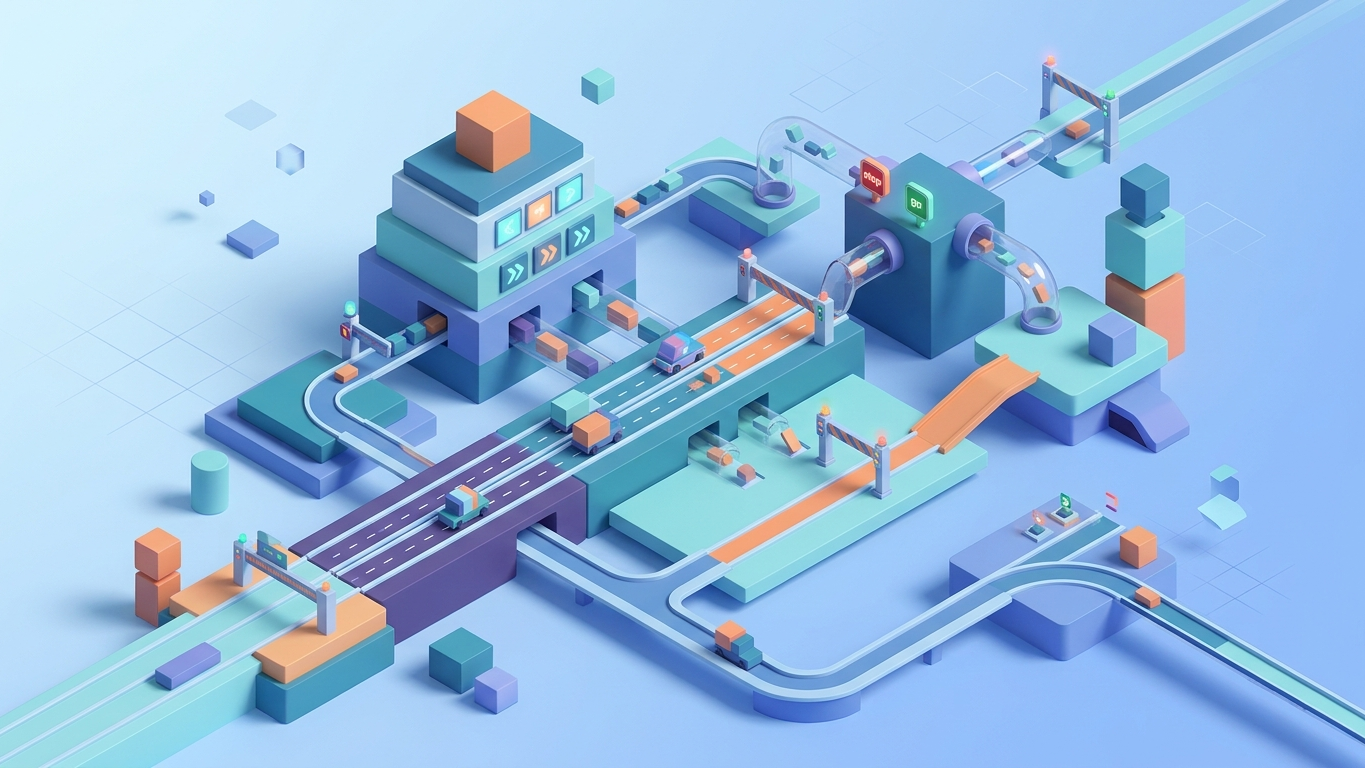
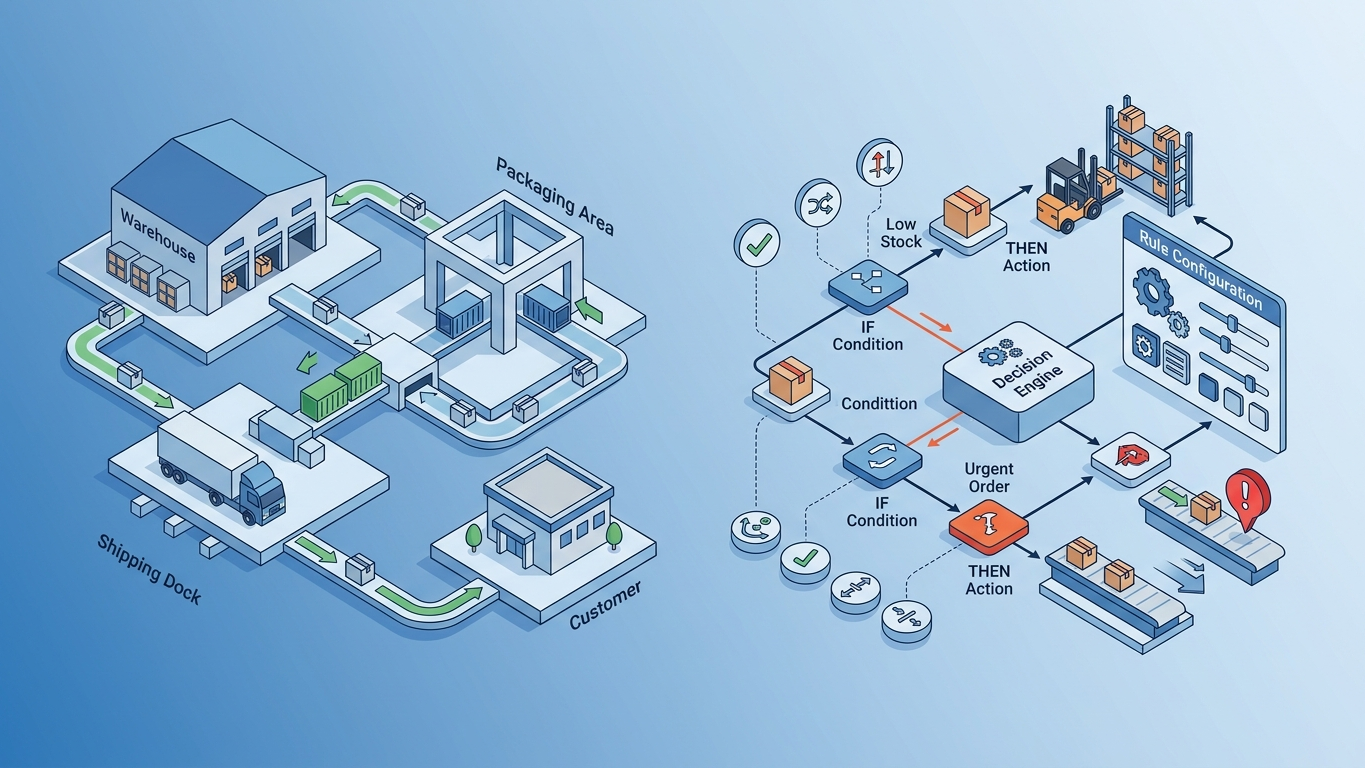
Routes and rules work together as Odoo's inventory routing engine. Think of routes as highways and rules as the traffic laws that govern how products travel along those highways.
What Is a Route
A route in Odoo is a collection of rules that defines how a product can flow through your supply chain. Routes are available at multiple levels:
- Warehouse routes: Apply to all products in a specific warehouse
- Product category routes: Apply to all products in a category
- Product-level routes: Apply to individual products, overriding broader settings
Odoo ships with several standard routes pre-configured:
- Buy: Triggers a purchase order when the product is needed
- Manufacture: Triggers a manufacturing order when the product is needed
- Replenish on Order (MTO): Triggers procurement directly from a sales order, bypassing stock
- Resupply from another warehouse: Creates internal transfers between warehouses
- Dropship: Ships directly from vendor to customer, skipping your warehouse entirely
What Is a Rule
A rule is the actual instruction that tells Odoo what action to take when a product needs to move. Every rule specifies:
- Source location: Where the product comes from
- Destination location: Where the product needs to go
- Action: What operation to perform (pull, push, buy, manufacture, or pick from stock)
- Supply method: How to handle the source (take from stock, trigger another rule, or create a procurement)
How Routes and Rules Work Together
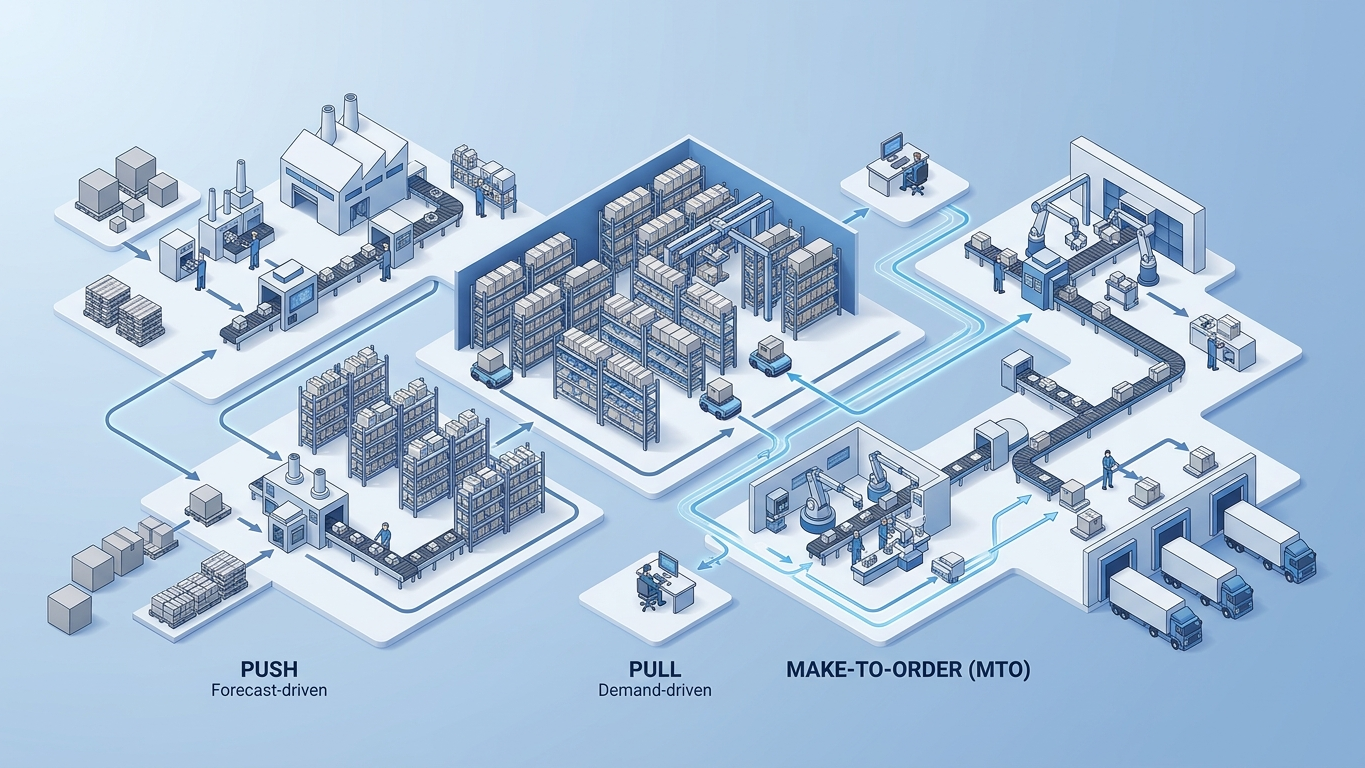
When Odoo needs to move a product, it follows this process:
- It identifies which routes are available for the product
- For each route, it evaluates the rules in sequence
- It finds the rule whose source and destination locations match the need
- It executes the action defined by that rule
If a rule triggers another procurement (for example, a pull rule that needs to buy the product), Odoo recursively applies the routing engine until the need is satisfied.
Configuring Pull Rules
Pull rules are the most common type. They work backwards from demand. When a sales order confirms a product delivery, the pull rule looks at where the product should come from and creates the appropriate transfer or procurement.
Basic Pull Configuration
A typical pull rule for a standard warehouse looks like this:
- Action: Pull from Stock
- Source Location: WH/Stock
- Destination Location: WH/Output
- Supply Method: Take from Stock
When a delivery order needs products, this rule creates an internal transfer from WH/Stock to WH/Output. If the stock location does not have enough products, the rule chains to the next applicable rule, such as a buy or manufacture rule.
Multi-Step Pull Chains
For warehouses with receipt, quality check, and putaway steps, you can chain multiple pull rules:
- Delivery Pull: Customer needs product, pull from WH/Stock
- Stock Replenishment Pull: WH/Stock is low, pull from WH/Quality
- Quality Check Pull: WH/Quality needs product, pull from WH/Input
- Receipt Pull: WH/Input needs product, trigger purchase order
Each step automatically triggers the previous one, creating a complete chain from customer demand to supplier order.
Configuring Push Rules
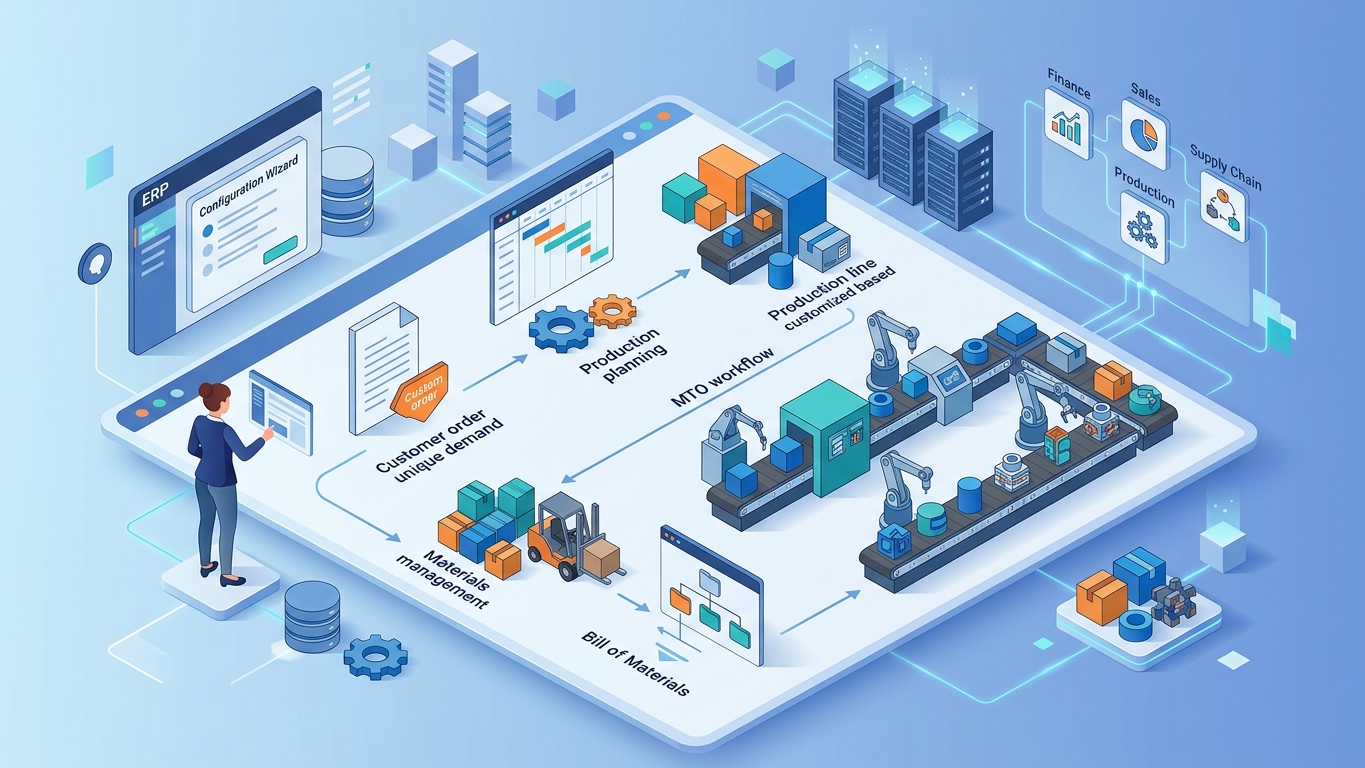
Push rules work in the opposite direction. When products arrive at a location, the push rule automatically moves them forward to the next step, without waiting for demand.
Basic Push Configuration
A typical push rule for receiving goods looks like this:
- Action: Push To
- Source Location: WH/Input
- Destination Location: WH/Stock
- Supply Method: Trigger Another Rule
When a receipt is validated and products arrive at WH/Input, this rule automatically creates an internal transfer to move them to WH/Stock.
When to Use Push Versus Pull
The choice between push and pull depends on your business logic:
- Use pull rules when movement should be driven by customer or production demand. This is the most common approach and avoids building up excess inventory.
- Use push rules when products must flow through specific locations regardless of demand. This is useful for quality inspection processes, cross-docking, and mandatory staging areas.
Push and Pull Combined
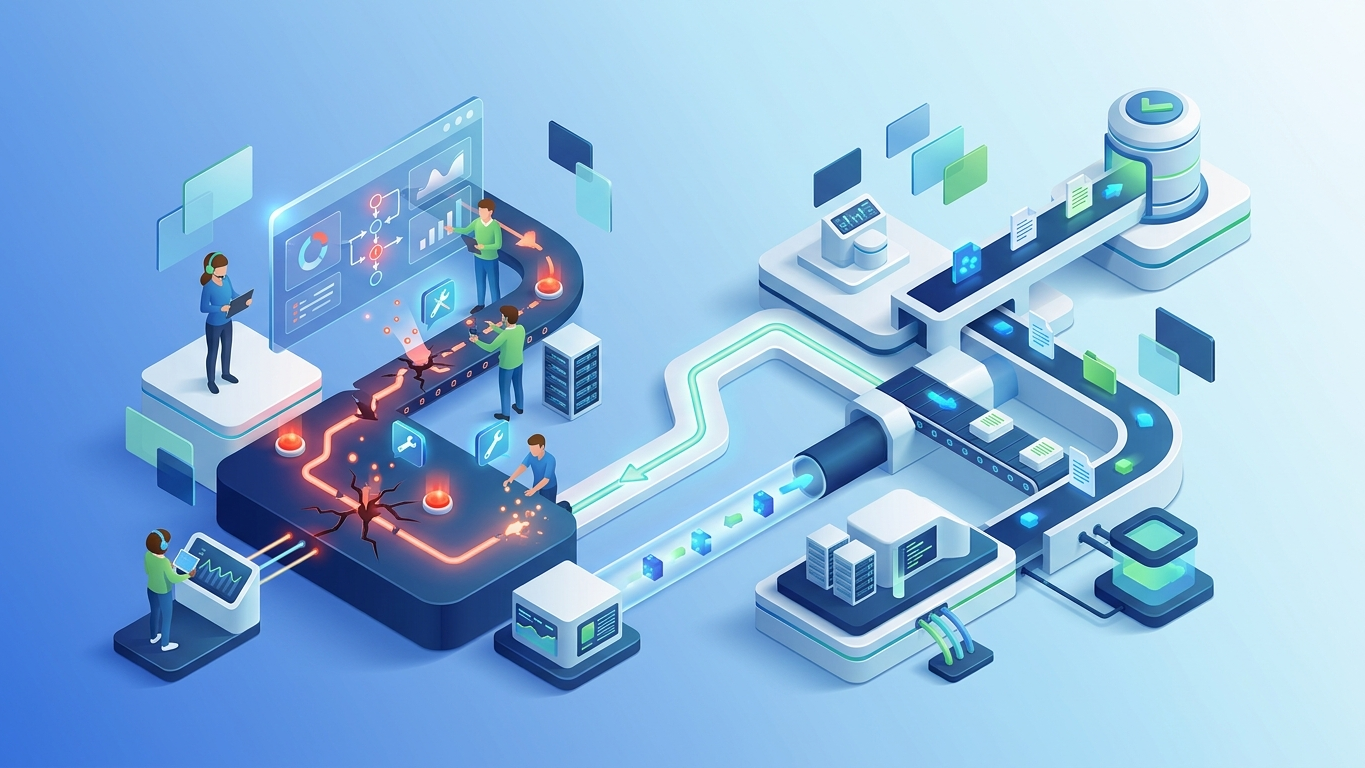
In practice, most warehouses use a combination. Receipts use push rules to move goods from the dock to inspection, then to storage. Deliveries use pull rules to pick from storage and prepare shipments. This hybrid approach gives you both automation and demand-driven replenishment.
Make-to-Order (MTO) Configuration
Make-to-Order is a powerful route that bypasses stock entirely. When a sales order confirms, MTO triggers immediate procurement for the exact quantity needed, whether through purchasing or manufacturing.
Setting Up MTO
- Enable the MTO route in your warehouse settings
- Assign the MTO route to the product or product category
- Ensure the product also has a Buy or Manufacture route configured as fallback
When MTO is active on a product, every confirmed sales order creates a corresponding procurement. For purchased items, this generates a purchase order. For manufactured items, it creates a manufacturing order. The products flow directly from the source to the customer without touching your stock.
MTO Versus Reordering Rules
Reordering rules and MTO serve different purposes:
- Reordering rules maintain stock levels by triggering procurement when quantity falls below a minimum threshold. Best for standard products with predictable demand.
- MTO procures exactly what is ordered, when it is ordered. Best for custom products, expensive items, or products with long shelf lives.
Multi-Warehouse Routing
When you operate multiple warehouses, routes become essential for directing products through the right locations. Common multi-warehouse scenarios include:
Cross-Warehouse Resupply
Configure a route that pulls from Warehouse A when Warehouse B runs out of stock. This is useful when one warehouse serves as a central distribution center supplying smaller satellite locations.
Dropshipping
Dropship routes send products directly from your vendor to your customer. No inventory touches your warehouse. The rule chain is simple: sales order creates a purchase order, and the vendor ships directly to the customer address.
Central Procurement with Local Distribution
A common pattern for multi-location businesses: all purchasing happens through a central warehouse, then products are distributed to regional warehouses based on local demand. This combines bulk purchasing power with local availability.
Troubleshooting Common Routing Issues
Procurement Not Triggered
If a sales order confirms but no procurement is created, check these common causes:
- No applicable route: The product must have at least one route assigned that covers the destination location
- Route not available at the right level: Check warehouse, product category, and product route settings
- Rule chain is incomplete: Every rule must have a valid source and destination that connect to the next step
Wrong Action Triggered
When multiple rules could apply, Odoo evaluates them in sequence. The first matching rule wins. If the wrong action triggers, reorder your rules or add more specific conditions to narrow the match.
Infinite Procurement Loops
A misconfigured rule chain can create circular procurement where rule A triggers rule B which triggers rule A again. Odoo detects this and raises an error, but the underlying fix is to ensure every rule chain has a clear terminal action (buy, manufacture, or take from stock with sufficient quantity).
Summary
Odoo inventory routes and rules form the backbone of automated supply chain management. Routes define where products can flow, while rules define how they get there. Start with simple pull rules for basic replenishment, then layer in push rules, MTO, and multi-warehouse routing as your operations grow. The key is to model your actual business processes rather than over-engineering the configuration.
Automate Your Inventory Flows
Odoo Routes and Rules can automate stock movements between warehouses, locations, and production areas. Set up push, pull, and make-to-order workflows that run on autopilot.
Frequently Asked Questions
What is the difference between a route and a rule in Odoo?
A route is a collection of rules that defines how a product can flow through your supply chain. A rule is a specific instruction that tells Odoo what action to take (pull, push, buy, manufacture) when moving products between locations. Routes group rules together to create a complete flow path.
How do I enable Make-to-Order in Odoo?
Go to Inventory Settings, enable Multi-Step Routes, then activate the MTO route. Assign the MTO route to individual products or product categories. Ensure the product also has a Buy or Manufacture route as a fallback for the actual procurement.
Can I use both push and pull rules for the same product?
Yes. In fact, most warehouses use both. Push rules handle inbound flows (receiving, quality inspection, putaway) while pull rules handle outbound flows (picking, packing, shipping). They complement each other to create a complete automated flow.
Why is my procurement not being created?
The most common cause is a missing route assignment. Check that the product has an applicable route (at the product, category, or warehouse level) with rules that cover the required source and destination locations. Also verify that the route is active and available for the current warehouse configuration.
How do I set up dropshipping in Odoo?
Enable the Dropship route in Inventory Settings. Assign the dropship route to your products. When a sales order confirms, Odoo creates a purchase order with the customer as the delivery address. The vendor ships directly to the customer, and no inventory movements occur in your warehouse.
References
- Odoo Documentation: Inventory Routes and Rules. https://www.odoo.com/documentation/17.0/applications/inventory_and_mrp/inventory/warehouses/routes.html
- Odoo Documentation: Push and Pull Flows. https://www.odoo.com/documentation/17.0/applications/inventory_and_mrp/inventory/warehouses/incoming.html
- Odoo Documentation: Make to Order. https://www.odoo.com/documentation/17.0/applications/inventory_and_mrp/inventory/products/mto.html
- Odoo Documentation: Dropshipping. https://www.odoo.com/documentation/17.0/applications/inventory_and_mrp/inventory/warehouses/dropship.html
- CSCMP: Supply Chain Management Guide and Best Practices. https://cscmp.org/CSCMP/Educate/Supply_Chain_Definition_Terms.aspx
Automate Import Workflows
Managing inventory routes for imported goods? Our Customs Duties Add-on integrates with Odoo Inventory to auto-calculate duties on every receipt, eliminating manual spreadsheet work.
Explore Customs Duties Add-on$699 one-time. 30-day guarantee. 5-minute setup.